Task board
Give a task to your AI,then review it.
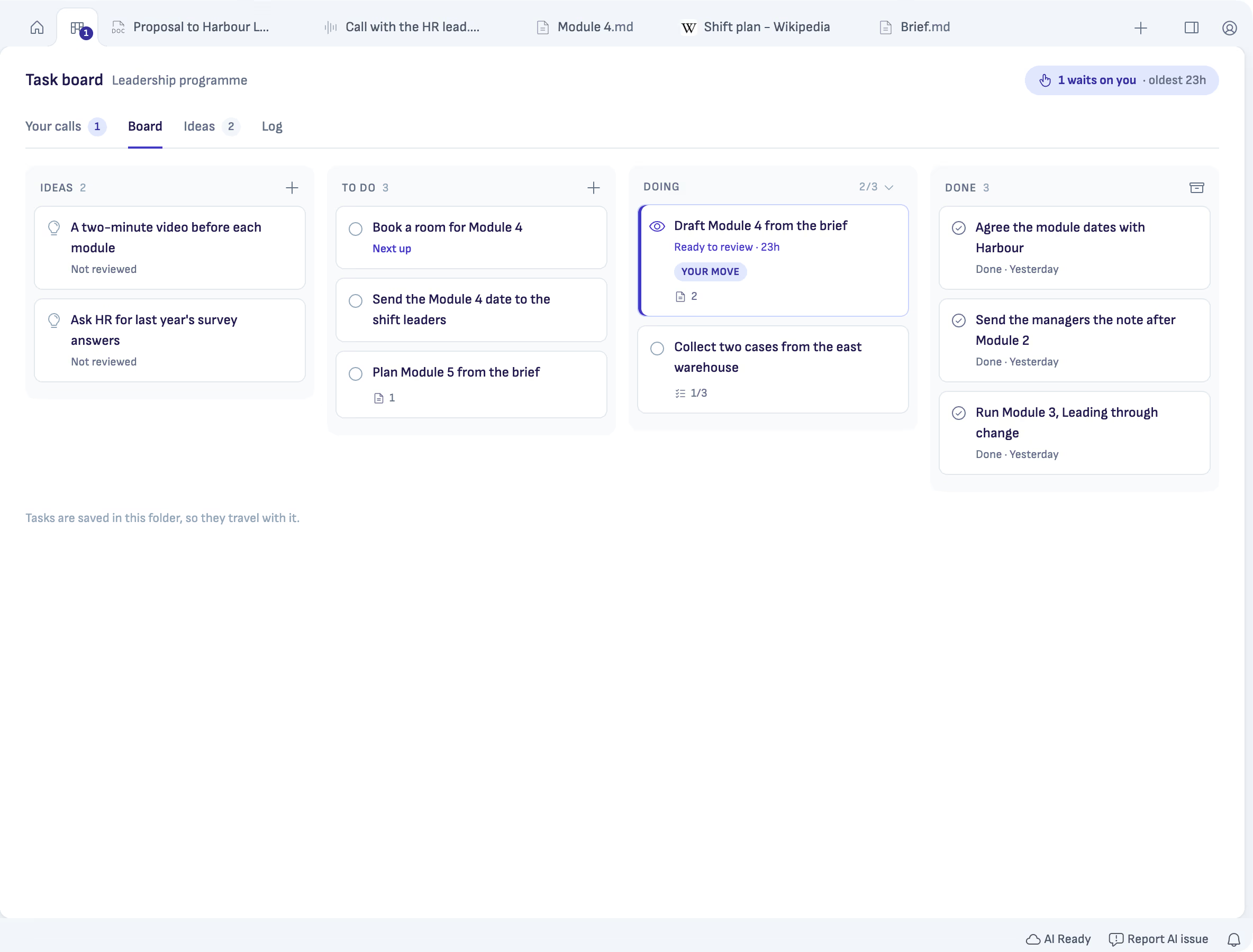
Every project has a task board. Write down what you want done, give a task to ChatGPT or Claude, keep working, and look at the result before you call it done.
Works with any ChatGPT account, Free included, or a paid Claude plan.
Write it down, then hand it over.
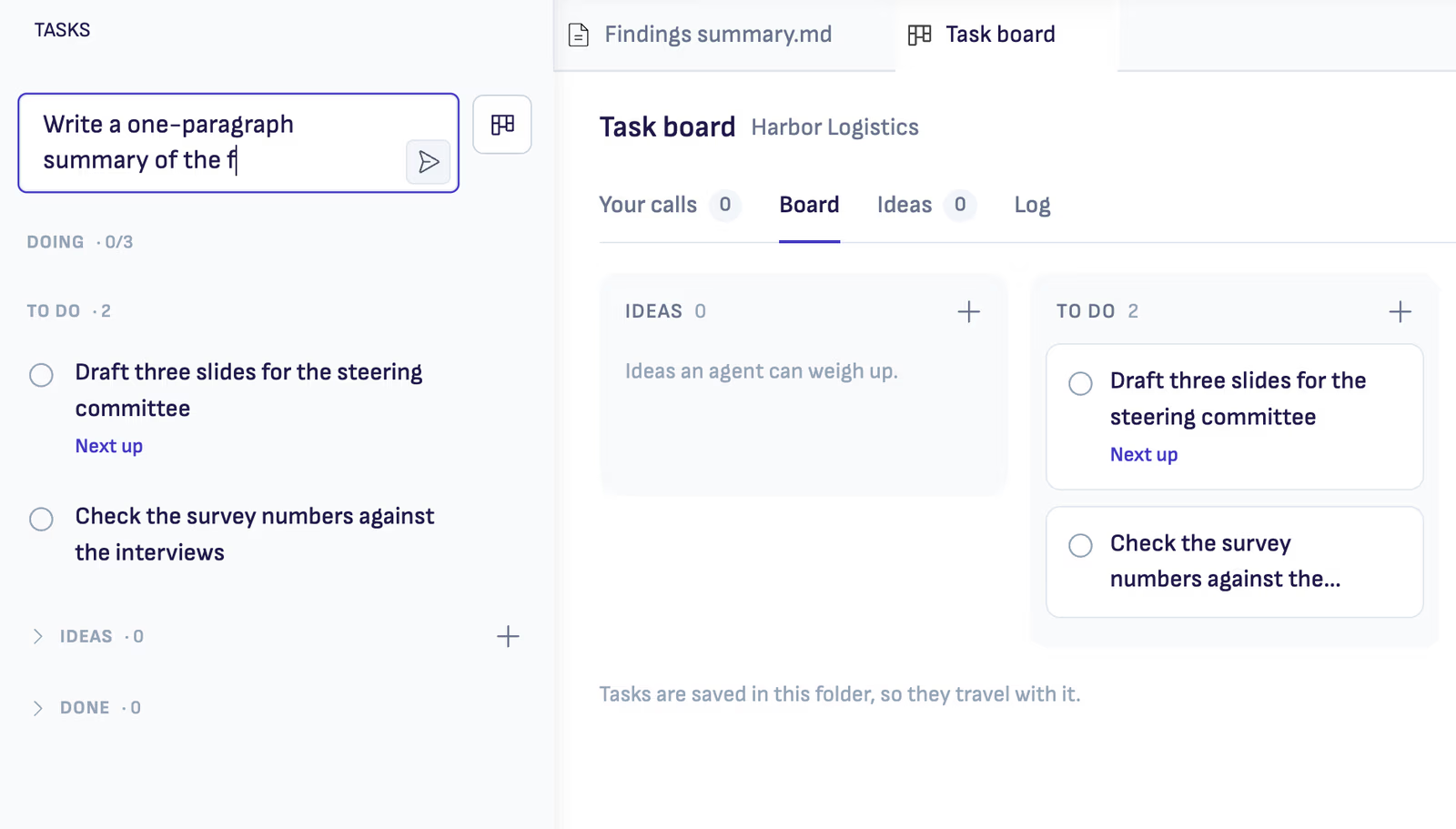
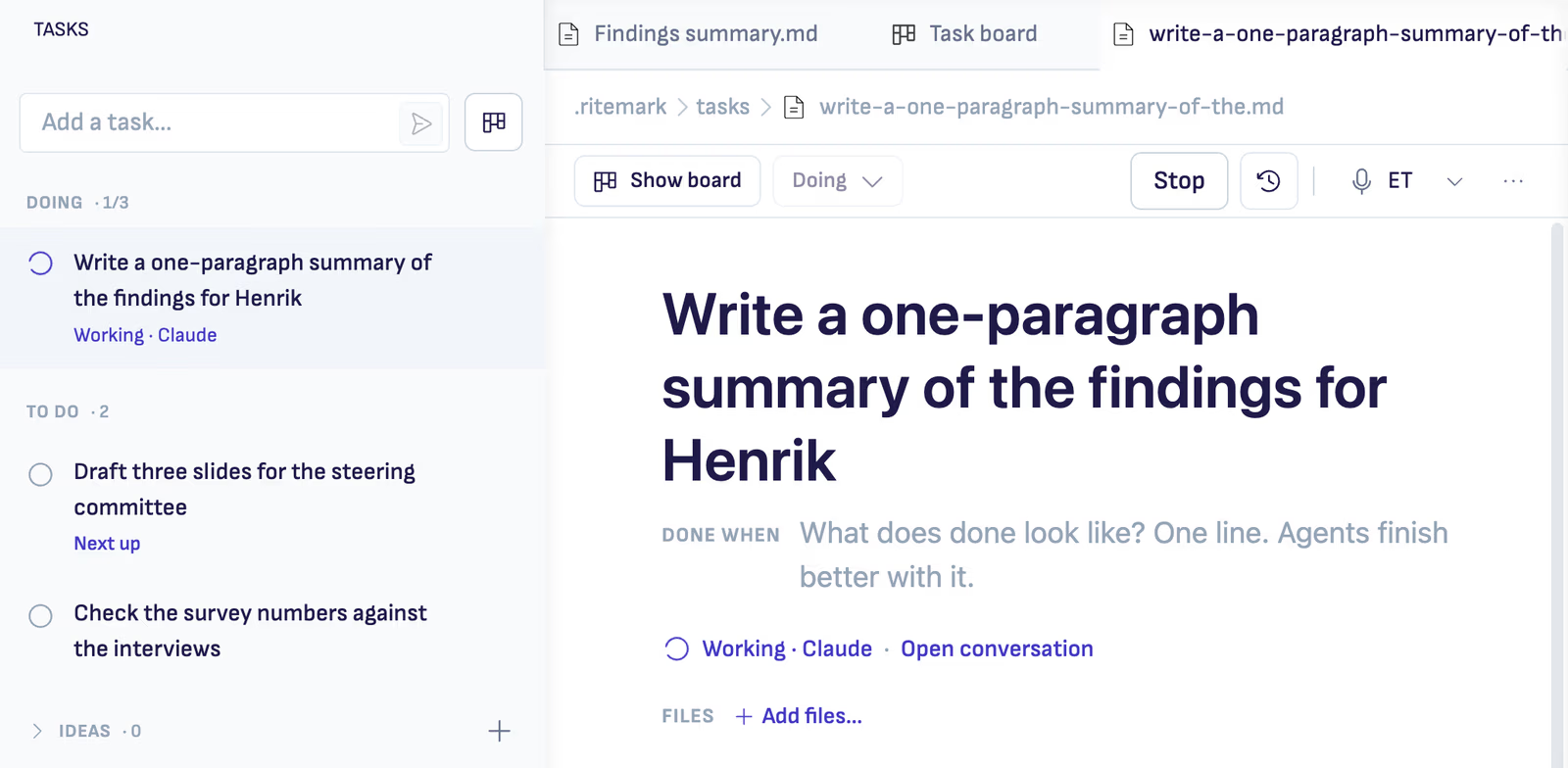
Add a task in a few words. Give it to Claude or ChatGPT with one button, and the work runs in its own chat while you keep writing.
You decide when it is done.
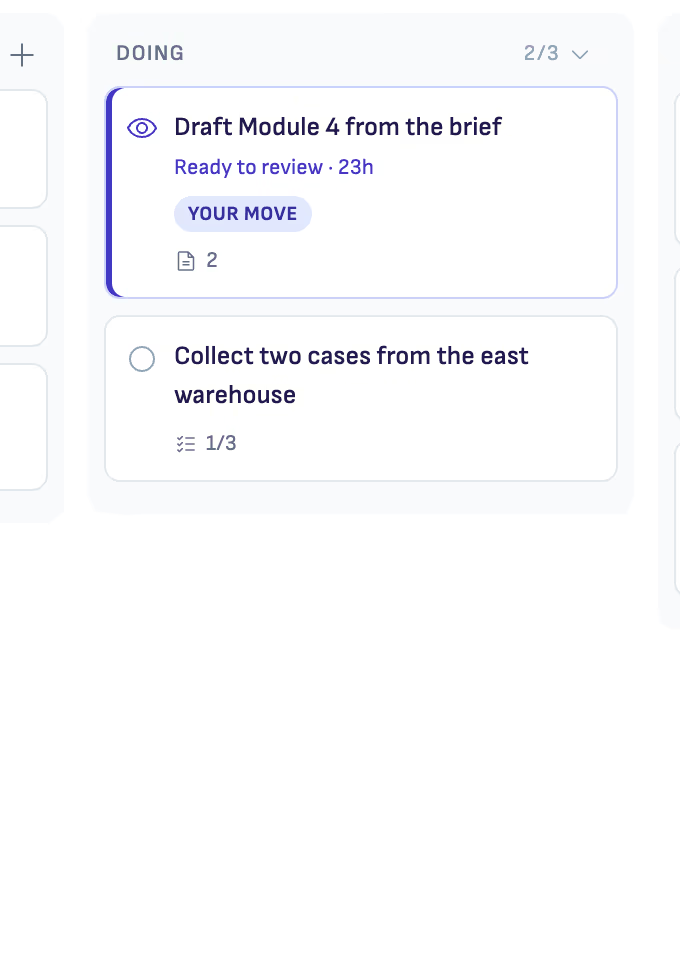
The task comes back as Ready to review, with a short account of what changed. Mark it done, or ask for changes.
Good to know
Saved in the project
Tasks are saved in the project’s folder, so they travel with it.
What waits for you is counted
The Tasks tab and Home show how many tasks wait for you, the longest waiting first.
Your AI account
Claude needs a paid Claude plan. ChatGPT works with any ChatGPT account. OpenCode uses your own API key.
Questions
- Does the AI mark a task done?
- No. It brings the task back as Ready to review. You mark it done, or ask for changes and it works on it again.
- Can I keep working while the AI does a task?
- Yes. The task runs in its own chat, and your document keeps the focus.
- Is it only for AI tasks?
- No. It is a plain task list for the project too: ideas, to do, doing and done.
Give your AI its first task.
Free and open source.