
The task board is a list of what you want done in a project folder, and you can give any task on it to Claude Code, Codex or OpenCode and come back when the result is ready for you to check. Every project folder has its own board, and it shows what waits on you, so you don't have to remember which agent was doing what.
New in v1.14.0. The task board is on by default in every project folder.
Open the Board
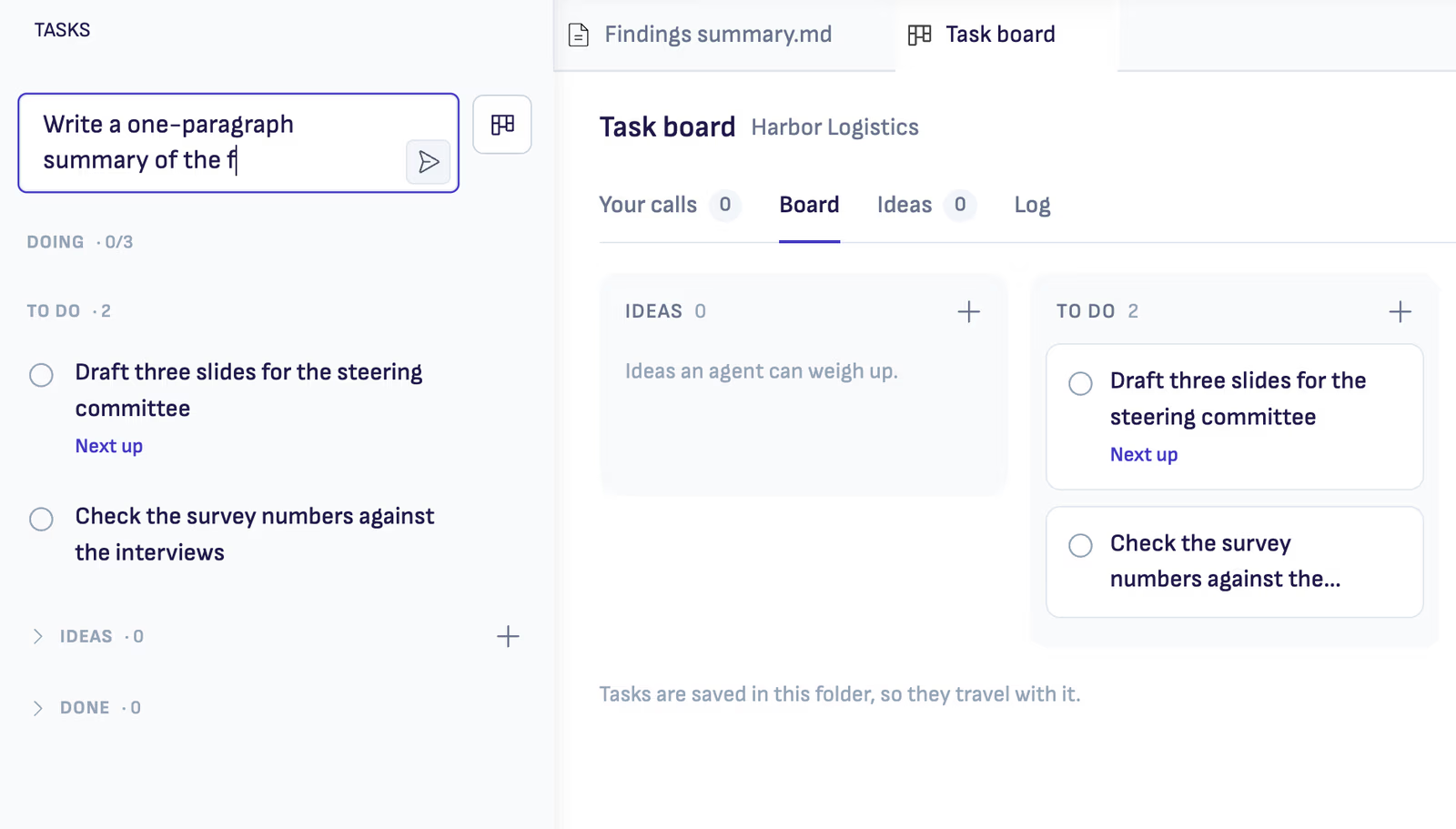
Click Tasks in the activity bar on the left, right below the File browser. The whole board opens with its columns, and the side bar lists your tasks in sections:
| Section | What it holds |
|---|---|
| Your calls | Tasks that wait on you, the longest-waiting first. Shown only when something waits |
| Doing | Tasks being worked on, by you or an agent |
| To do | Tasks waiting to start. The top one is marked Next up |
| Ideas | One-line ideas that are not tasks yet |
| Done | Tasks finished in the last four weeks |
| Archived | Tasks you put away. Collapsed, at the bottom |
The number on the Tasks icon counts the tasks that wait on you.
Task board on the Home tab opens the board too. The board has four tabs: Your calls, Board with the columns, Ideas, and Log, which shows what was done, day by day.
The board belongs to a project folder. With no folder open, the side bar offers to open one.
Add a Task
Type the title in Add a task… at the top of the side bar and press Enter. On the board, click + on a column header. You can also run Tasks: Add a Task… from the Command Palette: the task goes to the top of To do and you stay in your document.
Each Task Is a Page
Click a task to open it. The task is an ordinary Ritemark document, so you write in it the way you write anything else. Put what you want in the body, add a Done when line, such as "one page, names the three audiences", and list the files the task is about under Files. Agents finish better when they know what done looks like.
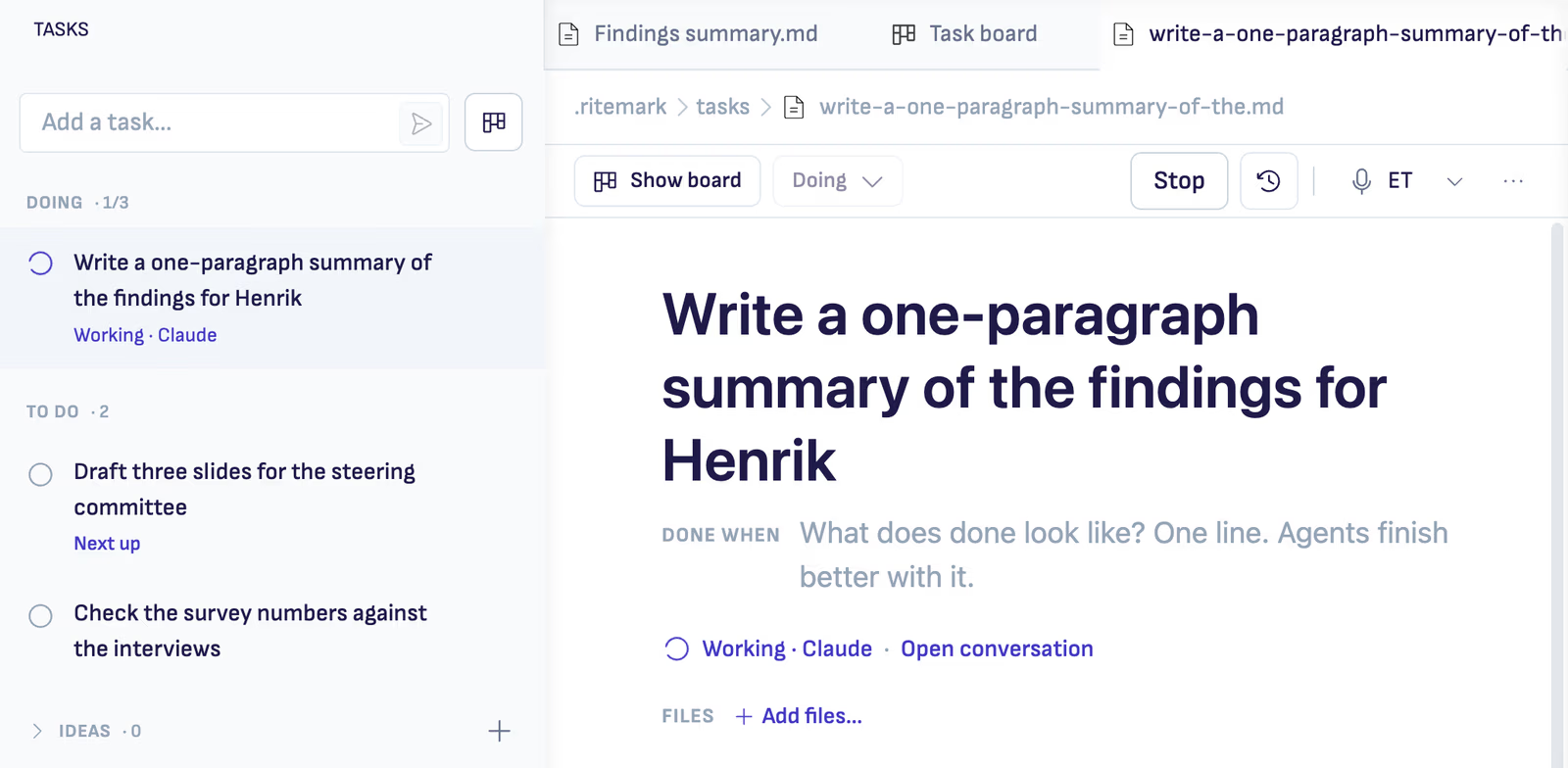
The strip at the top of the page shows the stage, the state, the main action for that state, History, and More (…). Show board takes you back to the board.
Give a Task to an Agent
- Open the task, or find it on the board.
- Press Give to Claude. To use another agent, open the arrow next to the button and pick Claude Code, Codex or OpenCode. The button names the agent it will use.
- Keep writing. The task moves to Doing, and the agent works on it in a new conversation in the AI sidebar. Your document keeps the focus.
While the agent works, the task says where it is: Sending…, Queued, or Working · Claude. If the agent needs an approval or asks a question in its conversation, the task shows Needs you and appears under Your calls. Open conversation takes you to it.
If an agent isn't signed in, its button says so, and the arrow offers the other agents.
Review the Result
When the agent finishes, the task stays in Doing as Ready to review. It shows the agent's short account of what it did, up to three things it asks you to check, and how long it took. With Claude, it also lists the files the agent changed.
Then it is your call. Press Mark done when you are happy with the result. Press Ask for changes… to tell the agent what to change, and your words go to the same conversation, so the agent picks up where it left off.
Agents never mark a task done and never delete one. Those stay with you.
Your Calls
Your calls collects everything that waits on you: results to review, agents waiting for your answer or approval, decisions an agent left you, and anything that failed. The one that has waited longest comes first.
An agent can leave you a decision instead of guessing. It is a question with two to four options. Pick an option, or choose Something else… and write your own answer. Your answer goes back to the agent as a new turn.
When a Task Waits Instead of Starting
Doing holds three tasks at a time. To change the limit, use the number on the Doing column. If you give a task to an agent while Doing is full, choose Queue it, and the task waits in To do and starts by itself when Doing has room. Or choose Start anyway.
Ritemark also won't start a second agent on a file another agent is changing. When two tasks name the same file, choose Wait for it, and the task starts by itself when the other one finishes. Or choose Start now.
When the AI sidebar is busy, a task waits until a conversation slot frees up.
Ideas
Ideas are one-line notes that are not tasks yet. Write one in the Ideas tab, in Write an idea…, or with + on the Ideas header.
Press Review with Claude, or pick another agent from the arrow, and the agent says whether the idea is worth doing:
| Verdict | Meaning |
|---|---|
| Good to go | Clear and worth doing |
| Needs detail | Needs more detail before anyone can do it |
| Already on the board | Another open task already covers it |
| Not a task | A note or a wish, not work someone can do |
With the verdict come one sentence on why, a size, and a suggested task title and description. A review is a short check. It starts no conversation and never changes the idea by itself.
Make it a task moves the idea to the top of To do with the suggested title. The suggested description goes above your own notes, and your notes are kept. The original line stays in the task's history. If an idea isn't worth keeping, Drop hides it under Dropped, and Bring back returns it.
Your Tasks Are Files in Your Folder
Each task is a Markdown file in your project folder, in .ritemark/tasks/. The board travels with the folder: commit it to git, sync it, or copy the folder to another computer, and the tasks come along.
Which conversation a task runs in is kept on this computer only. On another computer the same tasks show up, but without their running agents.
You can edit a task file in any editor, and the board picks up the change. A file the board can't read is listed under the board with its problem, and Ritemark never overwrites it.
Agents Can Use the Board Too
Agents get tools for the board in every conversation. They can list and read tasks, add tasks to Ideas or To do, move tasks between Ideas, To do and Doing, report a result, and leave you a decision. Ask an agent, for example, to "turn these meeting notes into tasks", and they appear on the board.
Agents can't mark a task done, archive it or delete it. Those actions stay yours.
Archive and Delete
Done shows tasks finished in the last four weeks. Older finished tasks stay in their files and in the Log.
To take a task off the board without deleting it, choose Archive in the task's … menu. Archived tasks are listed under Archived at the bottom of the side bar. Open one and press Restore to put it back where it was. Archive all done on the Done column archives every finished task at once.
Delete… moves the task's file to the system trash. Press Enter or click Delete to confirm.
Where the Tasks Icon Sits
On the first start of v1.14.0, Tasks goes right below the File browser, and the Agent Library moves below Transcribe and Browser, at the end of Ritemark's tools. After that, any icon you drag stays where you put it.
Turn the Board Off
The board is on by default. To turn it off, set ritemark.features.task-board to false in Settings (JSON). Your task files stay in the folder.
Quick Reference
| What you want to do | How to do it |
|---|---|
| Open the task list | Click Tasks in the activity bar |
| Open the whole board | Tasks in the activity bar, or Task board on Home |
| Add a task | Type in Add a task… and press Enter |
| Say what done looks like | Open the task and add a Done when line |
| Hand a task to an agent | Give to Claude, or pick Codex or OpenCode from the arrow |
| Accept a result | Mark done |
| Send a result back | Ask for changes… |
| Turn an idea into a task | Make it a task |
| Put a task away | … menu, then Archive |
Related
- AI Sidebar: the conversations your tasks run in
- Comments: hand a comment on a passage to an agent
- Agent Library: the agents, skills and instructions in your folder