Ritemark 2.0 looks new, but everything you used is still there: your documents, your chats, your tasks, your agents and your settings. This page shows where to find what you used in Ritemark 1.
The First Start After the Update
You see the welcome once. It shows the AIs you already signed in to and up to three recent projects. Open when you left brings your window back as it was. Once you pick a project, the welcome doesn't show again, and you can open it later from Help ▸ Welcome.
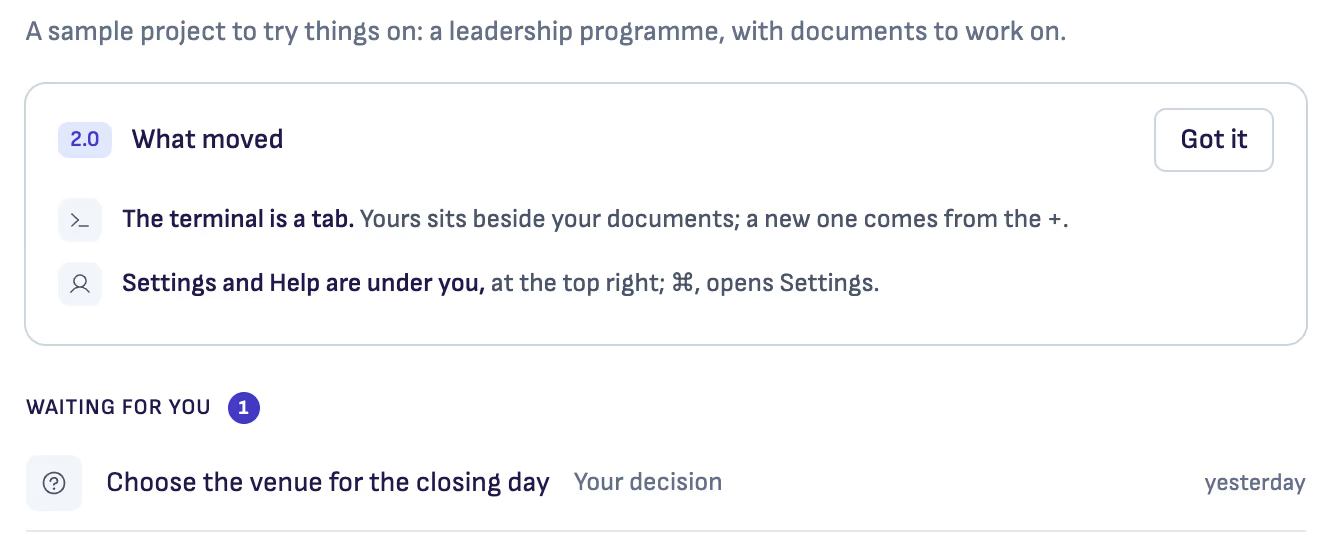
Your first Home also shows a short card about what moved. Choose Got it when you've read it.
Where Things Are Now
Your Documents
The file list is called Documents now. It sits in the row of places at the top of the left column, with Home, Tasks, Browser, Agents and Transcribe. Your documents open as tabs, as before. Writing works exactly as it did: the slash menu, tables, images, comments, dictation, Mermaid and draw.io are all the same.
The AI
The AI has its own column on the right, on a sheet of its own. Your chats, the AI you use (Claude, ChatGPT or OpenCode), the model, and Manual, Auto and Plan only are all where you expect them. Thinking effort, how hard the AI thinks, is under the model's name. Ritemark now says ChatGPT where it used to say Codex.
Home
Home is now your project's own page. Start something makes a new text or table, Last changed lists the documents you changed last, and Waiting for you lists the tasks and chats that need you.
With Home chosen, the left column lists all your projects. Click one to switch to it in the same window, or Alt-click it (⌥-click on a Mac) to open it in a new window. To add a folder, use Add a project….
New Documents and Tables
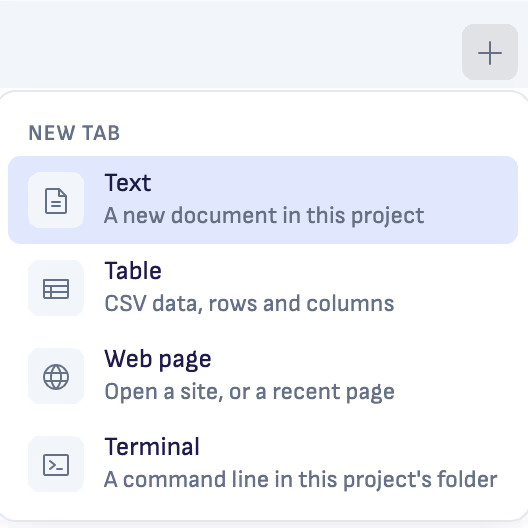
Use Start something on Home, the + at the end of the tabs, or File ▸ New Document and File ▸ New Table. New documents now land in your project's folder, not in Documents/Ritemark.
Export Is Now Share
Share is on the document's bar. It sends a copy as a PDF or a Word document, publishes to Google Docs, or copies the document as Markdown. Your document stays on your computer.
PDF and Word Files
They open as before. Save as Markdown is now Make an editable copy, on the file's bar.
The Terminal
The terminal is a tab now, and it no longer opens by itself. Open one from the + at the end of the tabs, or with Ctrl+ (⌃ on a Mac).
Settings
Click You, at the top right, for Settings and Help. ⌘, on a Mac (Ctrl+, on Windows) opens Ritemark Settings too. VS Code's own settings are behind Advanced settings, at the foot of Ritemark Settings.
Copilot Chat
If you use it, it's in More (⋯, at the end of the places row) and opens as a tab.
Agents
The Agent Library is called Agents now, in the places row. Your agents, skills, commands, scheduled agents and flows are all there.
Tasks
Every project has Home and the Task board as its first two tabs. The Task board's tab shows how many tasks wait for you.
Recent Web Pages, Recordings and Transcripts
The browser's list of recent pages is in Browser, in the places row. Recordings and transcripts are in Transcribe, under Recordings.
On Windows
The window has no title row. The menu is behind the button at the start of the left column, and Alt opens it from the keyboard.
A Few Things Are Only in All Commands
Open All commands with Ctrl+Shift+P (⌘⇧P on a Mac) for these:
- Refresh the file list.
- Maximize the AI's column.
- Send Feedback, to tell us what works and what gets in your way. It sends what you type when you press Send, even with usage data off.
The open-editors list is now simply your tabs, and a tab's tooltip shows where the file is in your project.
Your Choices Are Kept
Your usage data answer from Ritemark 1 carries over: if you chose Opt Out, usage data stays off, and you can change it any time in Settings ▸ Usage data. Your theme stays as you chose it. Your chats from before 2.0 are all there, marked as read.
Something You Can't Find?
Tell us with Send Feedback in All commands, or open an issue on GitHub. We read everything. New to Ritemark? Start with Getting Started.