Pick an agent for the AI sidebar and sign in. Claude Code, Codex and OpenCode all ship inside Ritemark, so there is nothing to install.
Ritemark's AI sidebar runs three agents: Claude Code, Codex and OpenCode. They read and edit the files in your folder, right next to your document. All three are bundled with Ritemark. You only sign in to the one you want, or give it your own API key.
The app is free. The AI is not: each agent runs on a plan or key that you pay for.
What You Need
| Agent | What you need | How you connect |
|---|---|---|
| Claude Code | A paid Claude plan (Pro, Max, Team or Enterprise), or an Anthropic API key | Sign in with Claude.ai in your browser, or paste the API key |
| Codex | Your ChatGPT account (any plan; Free has tighter limits) | Sign in with ChatGPT in your browser |
| OpenCode | Your own API key from OpenAI, Google AI, Anthropic or OpenRouter | Paste the key in Settings |
The free Claude plan does not work in the sidebar. OpenAI includes Codex in every ChatGPT plan, the free one with tighter limits. You also need an internet connection while you chat with an agent.
You can set up one agent or all three, and you can switch agents in the middle of a conversation. The model menu under the message box shows the agent and model you're on, and when one conversation uses more than one agent, each answer names the agent and model that wrote it.
Step 1: Open the AI Sidebar
- Open Ritemark and open a folder with your documents
- Open the AI sidebar (right panel)
- Pick a Claude, Codex or OpenCode model in the model menu under the message box. It shows the agent and model you're on.
The very first time, before any agent is connected, the sidebar opens on a welcome screen with Sign in with Claude.ai and Sign in with ChatGPT instead of the message box. Later, if you pick an agent that isn't connected yet, the sidebar asks you to sign in to it.
Step 2: Sign In
Claude Code
- Pick Claude in the sidebar, or open Settings and find Claude Account
- Click Sign in with Claude.ai. Your browser opens the Anthropic sign-in page
- Approve the sign-in and return to Ritemark
The sidebar and Settings both show that Claude is connected. To use an Anthropic API key instead, click Use API key instead and paste your key.
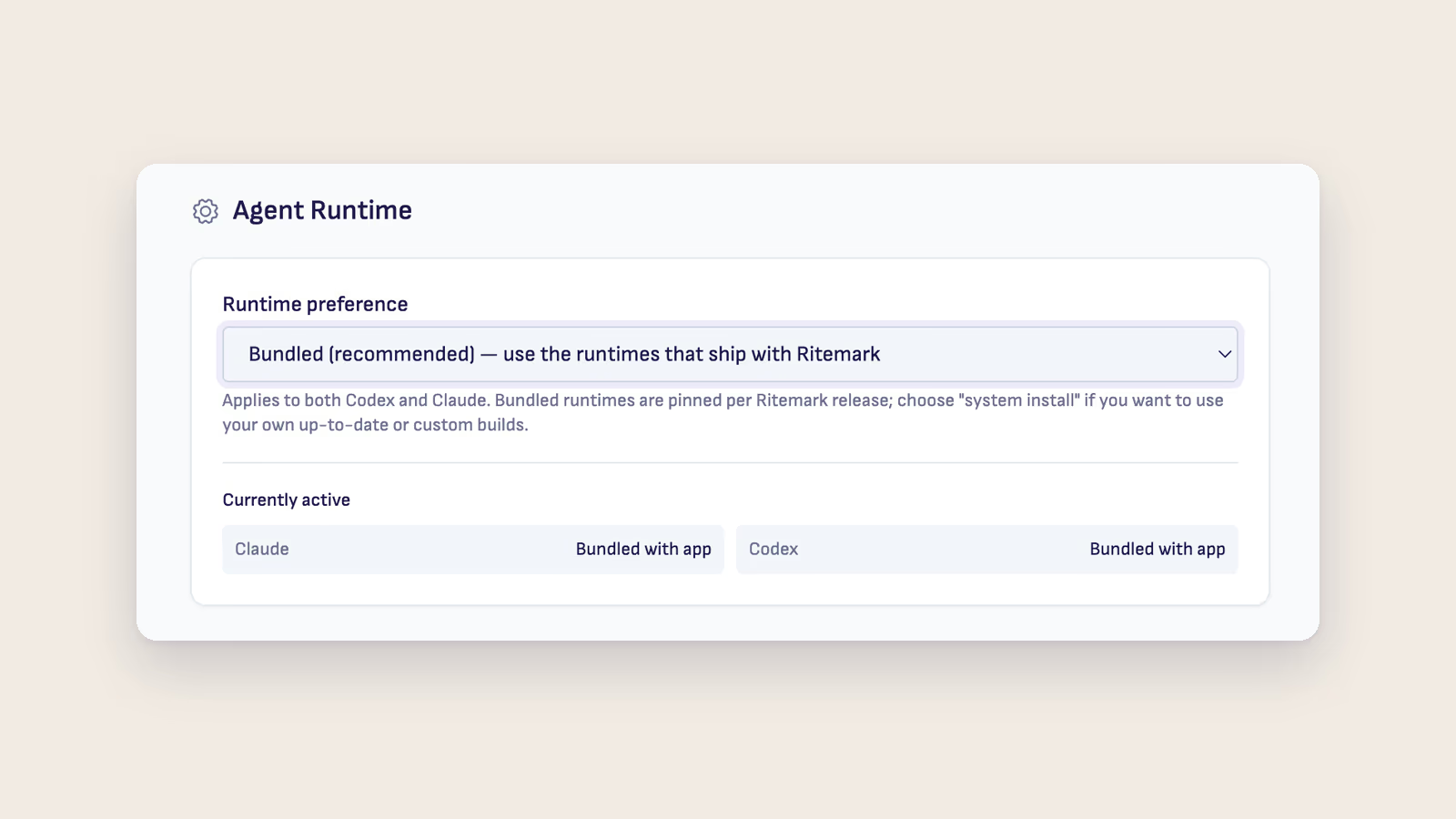
The Claude Code that ships with Ritemark needs neither Git nor Node.js, on Windows too. Ritemark checks for Git for Windows only if you choose your own Claude install under Settings → Agent Runtime → Runtime preference → Use system install.
Details: How to Set Up Claude Code.
Codex
- Pick Codex in the sidebar, or open Settings and find ChatGPT Account
- Click Sign in with ChatGPT. Your browser opens the OpenAI sign-in page
- Approve the sign-in and return to Ritemark
Settings and the sidebar stay in sync. Signing out in one place signs you out in both.
Details: How to Set Up Codex.
OpenCode
OpenCode has no sign-in of its own. It uses API keys you already have.
- Open Settings (Cmd+, on Mac) and find the API key fields
- Paste a key for OpenAI, Google AI, Anthropic or OpenRouter and press Enter
- In the model menu under the message box, pick a model from the OpenCode group
Only providers with a saved key show up in the OpenCode group. The list refreshes as soon as you save a key.
Details: Set Up OpenCode.
Step 3: Try It
- Open a document in your folder
- Type a request in the sidebar, like "summarize this document in five sentences"
- The agent reads the file and answers in the chat
Choose How Much the Agent May Do
The mode control in the composer decides whether the agent asks first:
- Auto (the default): the agent edits files and runs tools without asking. You review the result.
- Manual: the agent asks before each file change or command.
- Plan only (Claude Code and Codex): the agent writes a plan first, and nothing changes until you approve it.
See AI Sidebar for everything the sidebar can do.
Troubleshooting
| Problem | Solution |
|---|---|
| Sign-in does not finish | Check that your browser opened the sign-in page, finish it there, then wait a few seconds. If it times out, start the sign-in again. |
| Claude Code will not connect with a free Claude account | The free Claude plan does not include Claude Code. Use a paid plan or an Anthropic API key. |
| Codex sign-in fails | Check that your browser opened the sign-in page, and that you signed in with the ChatGPT account you meant to use. |
| The OpenCode group says "Add API keys to use OpenCode" | Save at least one provider key in Settings. |
| "Offline" banner or AI Offline in the status bar | Check your internet connection, then click Check again. |
| Windows: "Git for Windows not detected" | Shown only with Use system install, because a Claude you installed yourself may need Git Bash. Install Git for Windows, or set Runtime preference back to Bundled. |
More fixes: Common Issues.
API Keys for Flows
Flows are separate from the sidebar. Their LLM and Image nodes use your own OpenAI or Google AI key. Add the key in Settings. The same key can also be used by OpenCode.
Privacy Notes
- Your documents stay as plain files on your computer. Ritemark has no cloud for your documents.
- Whatever the agent reads goes to the provider behind the agent you picked: Anthropic for Claude Code, OpenAI for Codex, and the provider whose key you use in OpenCode. That includes your prompt, the open file, selected text, attachments and any other files the agent opens.
- Sign-in tokens and API keys stay on your computer, in your system's secure credential store.
- Requests go straight from your computer to the provider, not through a Ritemark server.
- Anonymous usage analytics are on by default and can be switched off in Settings. They never include file contents.
See AI Information in Ritemark for the full picture.
Without AI
Ritemark works fine without AI:
- All editing features work
- Export works
- CSV/Excel viewing works
- Only the AI sidebar needs a plan or key
You can always set up an agent later.
Related
- AI Sidebar - How to use the AI agents
- How to Set Up Claude Code - Claude Code in detail
- How to Set Up Codex - Codex in detail
- Set Up OpenCode - Bring your own API keys
- Getting Started - Basic setup
- Common Issues - Troubleshooting