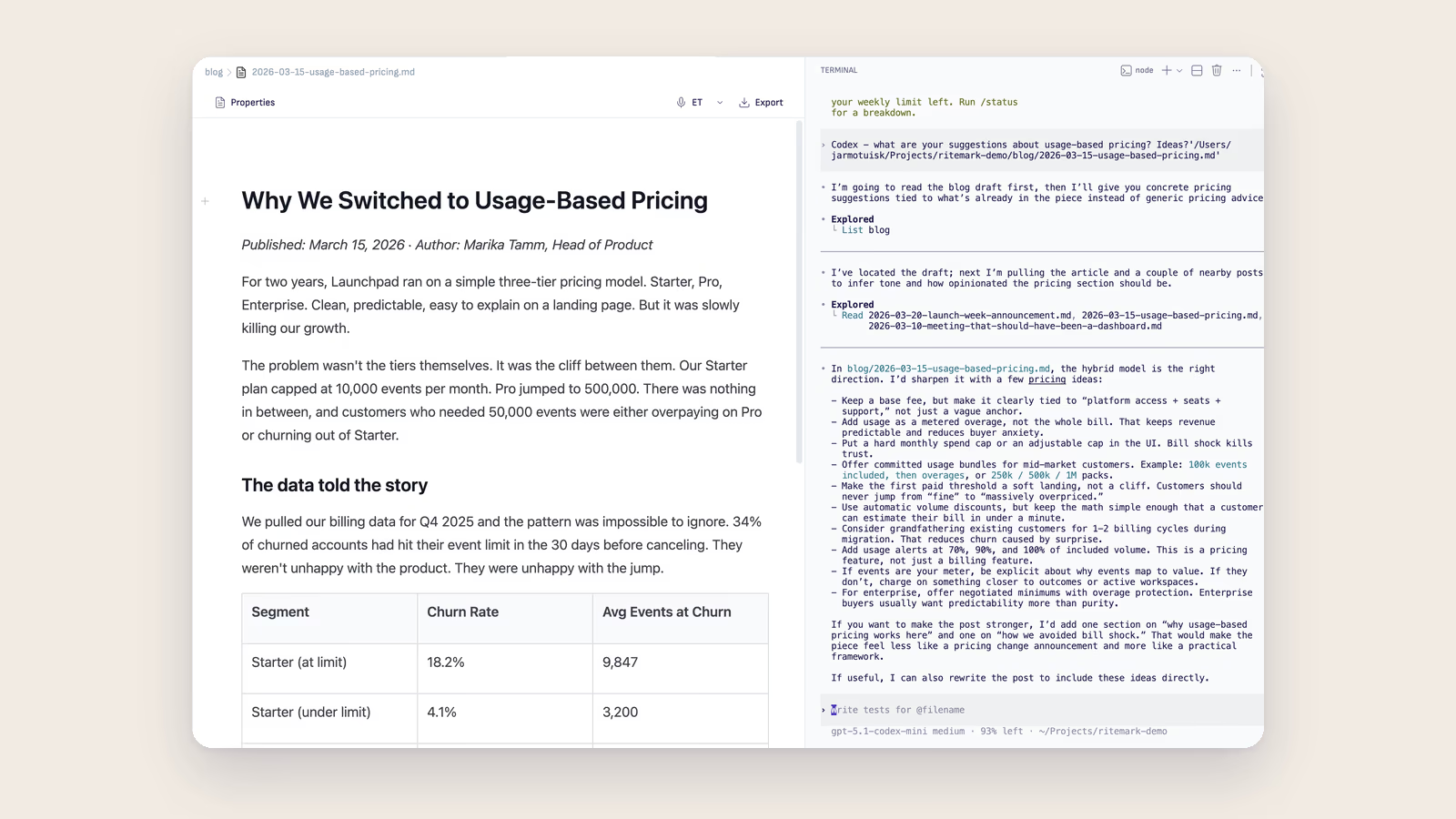
Ritemark's built-in terminal lets you run AI agents like Claude Code, Codex CLI, or Gemini CLI directly inside your writing app. The AI reads your markdown files, proposes edits, and writes changes after you approve. No copy-pasting between apps.
What Can Terminal AI Do in Ritemark?
Terminal AI gives you full command-line access to AI agents while you write. You start an interactive session with an agent like Claude Code, describe what you want in plain language, and the agent edits your files directly on disk. Ritemark's auto-reload shows the updated content in your editor.
- Edit documents by telling the AI what to change in natural language
- Work across multiple files at once (batch translation, restructuring)
- Use any terminal-based AI — Claude Code, Codex CLI, Gemini CLI, or local models
- See changes appear live as the AI saves files
The AI sidebar runs Claude Code, Codex and OpenCode, which ship with Ritemark and read and edit files in your folder. The terminal is for command-line tools you install yourself.
Why Use Terminal AI Instead of a Plugin?
Terminal AI gives agents full access to your file system, while editor plugins run in a sandbox with limited capabilities. This matters because AI writing tasks often involve reading one file, editing another, and creating new ones.
| AI Sidebar | Terminal AI (Claude Code, etc.) |
|---|---|
| Chat panel next to your document | Interactive terminal session |
| Claude Code, Codex and OpenCode ship with Ritemark | Any CLI tool you install yourself |
| Works on entire files and folders | Works on entire files and folders |
| Sign in with a paid Claude plan or your ChatGPT account, or add your own API keys | Requires CLI installation and the tool's own sign-in |
| Manual, Auto or Plan only modes | The tool's own permission settings |
Use the AI sidebar for most writing work, from quick rephrasing to restructuring a whole folder. Use terminal AI when you need a command-line tool Ritemark does not include, or when you prefer working in a terminal.
Which AI Tools Work in Ritemark's Terminal?
Any command-line AI tool that runs on macOS works in Ritemark's terminal. The three most popular are Claude Code, Codex CLI, and Gemini CLI.
Claude Code (Recommended)
Anthropic's official CLI for Claude. The best choice for writing tasks because it reads and edits your files directly, understands document context, and handles complex multi-step operations like restructuring or translating entire documents.
Install with npm install -g @anthropic-ai/claude-code and run claude to start an interactive session.
OpenAI Codex CLI
OpenAI's command-line interface for GPT models. Works well for code-heavy documents, technical writing, and API documentation.
Google Gemini CLI
Google's Gemini models via command line. Good for research-heavy documents, multi-language content, and tasks that benefit from web search integration.
How Does Terminal AI Work in Ritemark?
Terminal AI works in four steps. You open the terminal, start an AI agent, describe your task, and approve the changes.
- Open the terminal in Ritemark (View -> Terminal or Ctrl+`)
- Start an AI agent by typing
claude,gemini, or another CLI command - Describe your task in natural language (e.g., "translate this file to Estonian")
- Review and approve the proposed changes
The AI agent reads your file, proposes changes, and writes them after you approve. Ritemark's auto-reload picks up the saved file and updates your editor view.
What Does a Typical Terminal AI Workflow Look Like?
A typical workflow involves committing your current version, running an AI agent for edits, reviewing the changes, and iterating.
# Commit your current version first
git commit -am "before AI edits"

# Start Claude Code
claude "review my-document.md and make the writing more professional"

# After approving changes, review the diff
git diff

# Happy? Commit. Not happy? Revert.
git commit -am "AI: improved writing"
Claude Code works interactively. You approve each file edit, and the document updates in your editor as changes are saved.
How Do I Get the Best Results from Terminal AI?
Specific instructions produce better results than vague ones. Always reference the filename and describe exactly what you want changed.
- Be specific — "Make the intro shorter" beats "improve this"
- Reference the file — Include the filename in your prompt
- Review changes — Terminal AI can make big changes, so review before moving on
- Use version control — Git lets you undo AI changes with
git checkout
Combining Both AIs
- Use terminal AI for big structural changes
- Use the AI sidebar for fine-tuning specific paragraphs
- Use manual editing for final polish
How Does Terminal AI Compare to the AI Sidebar?
The AI sidebar runs the same kind of agents as the terminal, so use it for most tasks, from rewriting a paragraph to restructuring a whole folder. Use the terminal when you need a command-line tool Ritemark does not include.
Is Terminal AI Secure?
Yes. Terminal AI tools use your own account or API keys, and your documents stay as files on your machine. The only external connection is between the AI tool and its provider's API (e.g., Claude connects to Anthropic). Ritemark has no cloud for your documents. Anonymous usage analytics are on by default and can be switched off in Settings.
- Terminal AI tools use your own account or API keys
- Your documents stay local (not uploaded beyond the AI API)
- API calls are encrypted
- No data stored on external servers beyond normal AI processing
Frequently Asked Questions
Can I use Claude Code in Ritemark?
Yes. Claude Code ships inside Ritemark: pick it in the AI sidebar and sign in with a paid Claude plan or an Anthropic API key. You can also install the CLI yourself with npm install -g @anthropic-ai/claude-code and run claude in the built-in terminal. Either way, Claude Code reads and edits your markdown files directly.
What AI tools work in Ritemark's terminal?
Any command-line AI tool works, including Claude Code, Codex CLI, Gemini CLI, the llm library, and local models via Ollama. If it runs in a macOS terminal, it runs in Ritemark.
How is terminal AI different from the built-in AI assistant?
The AI sidebar runs Claude Code, Codex and OpenCode with a visual interface, and they read and edit files across your folder. The terminal runs command-line tools you install yourself. Both can handle complex multi-step tasks like document restructuring and batch translation.
Do I need an API key to use terminal AI?
Yes, most AI agents need a paid plan or an API key. Claude Code needs a paid Claude plan or an Anthropic API key, Gemini CLI uses a Google API key, and Codex CLI signs in with your ChatGPT account or an OpenAI API key. Some local models via Ollama work without any API key.
Can AI agents in the terminal break my files?
AI agents can modify files, so there is always some risk. Use git to commit your work before running AI edits. You can review changes with git diff and revert with git checkout if needed. Claude Code also asks for your approval before writing changes.
How long does a terminal AI edit take?
Most single-document edits take 10-60 seconds depending on document length and task complexity. Large batch operations across many files take longer. Watch the terminal output for progress.
Does terminal AI work offline?
Cloud-based agents like Claude Code, Gemini CLI, and Codex CLI require an internet connection. For offline use, you can run local models through Ollama or the llm library with local model plugins.
Can I use multiple AI tools in the same terminal?
Yes. Install as many CLI tools as you want and switch between them. Use Claude Code for complex editing, Gemini CLI for research, and llm for quick one-liner text processing.
Related
- Setup Claude Code - Installation guide
- AI Assistant - Built-in chat sidebar
- Getting Started - First-run setup