
Edit CSV and Excel (.xlsx) files without leaving Ritemark. Click a cell, type, save.
Ritemark handles spreadsheet files directly - edit CSV files inline or edit .xlsx workbooks with multi-sheet support. As of v1.8.0, .xlsx files are editable, not just a read-only preview. (.xls files stay a read-only preview.)
What You Can Do
CSV Files
- View as spreadsheet - See data in rows and columns
- Edit cells inline - Click to edit, changes save automatically
- Sort columns - Click any header to sort ascending, descending, or original order
- Add rows - Append new rows with the toolbar button
- Handle large files - Virtual scrolling for up to 10,000 rows
- Refresh from disk - Reload file after external edits
Excel Files
- Edit .xlsx cells - Click a cell, type, and it autosaves (Cmd/Ctrl+S also works) (v1.8.0)
- fx formula bar - See the selected cell's contents Excel-style at the top
- Add rows and columns - Grow the sheet as you go, anchored at A1
- Switch sheets - Reliable multi-sheet tabs at the bottom of the viewport
- Open in external app - One-click open in Excel or Numbers
- Refresh from disk - See changes made in Excel instantly
CSV Editing
Opening a CSV
Double-click any .csv file in the explorer. It opens in spreadsheet view instead of raw text.
The Interface
| Part | Description |
|---|---|
| Header row | Column names (first row) |
| Row numbers | Excel-style numbers on the left |
| Cells | Data cells you can edit |
| Toolbar | File name, sort indicators, and add-row button |
Editing Cells
- Click any cell
- Type your new value
- Press Enter to confirm (or Escape to cancel)
- Changes save automatically
Navigation
| Key | Action |
|---|---|
| Tab | Move to next cell |
| Enter | Confirm and move down |
| Escape | Cancel editing |
| Arrow keys | Move between cells |
Column Sorting
Click any column header to sort your data. The first click sorts ascending (A-Z or smallest to largest), the second click sorts descending, and the third click restores the original order. Small arrow indicators in the header show you which direction the sort is active.
Sorting is purely visual -- it changes what you see on screen but does not modify the underlying CSV file. Your data stays in its original order on disk. This means you can freely sort to explore patterns without worrying about accidentally reorganizing your source data.
You can edit cells while the table is sorted. Ritemark keeps track of the original row indices, so your changes are saved to the correct row in the file even when the display order is different.
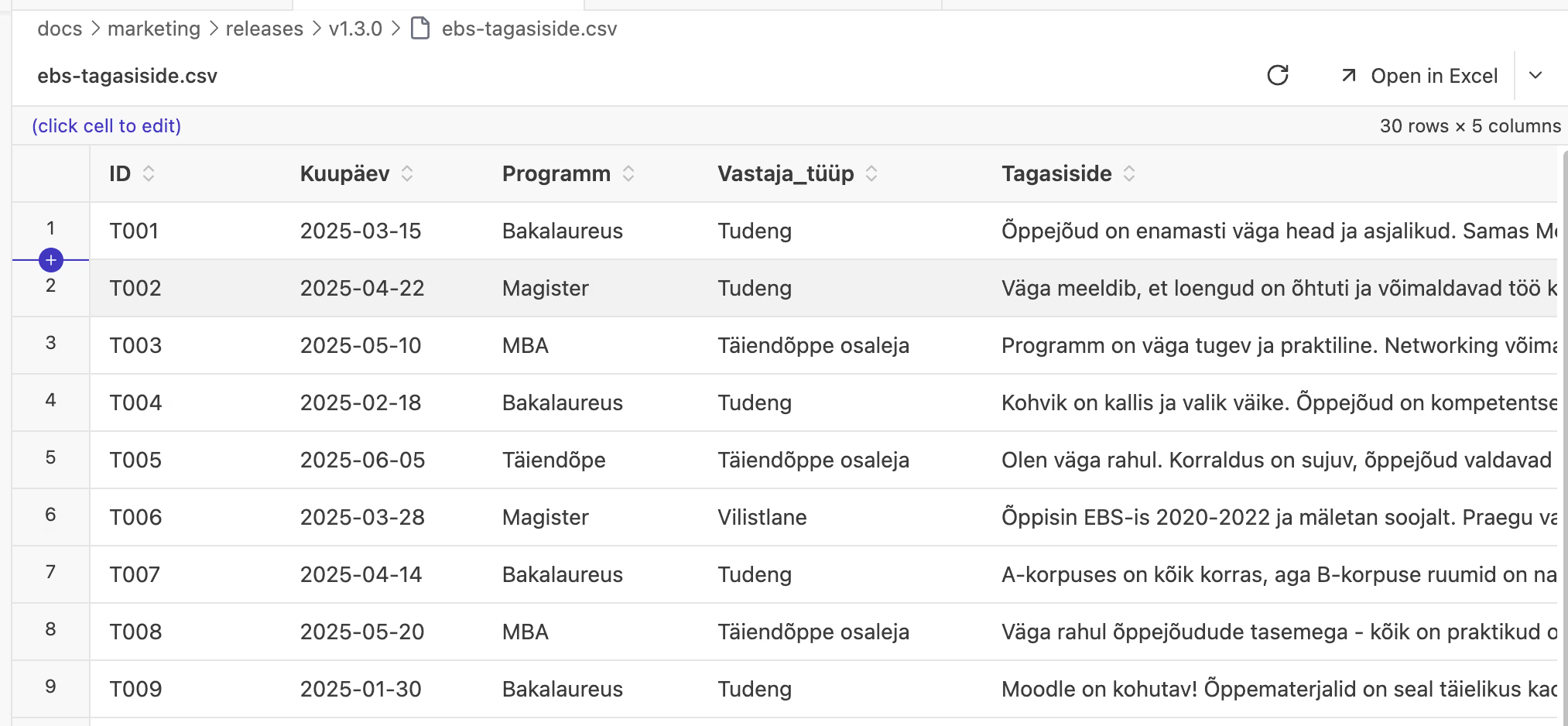 Click any column header to sort -- a third click restores the original order
Adding Rows
The toolbar includes a [+ Row] button that appends a new empty row to the bottom of your table. Unlike sorting, adding a row does modify the file -- the new row is saved to the CSV automatically.
New rows appear at the bottom of the table regardless of the current sort order. Each new row contains empty cells for every column, ready for you to fill in.
Tip: CSV is a great format for data that AI agents like Claude Code need to access. Unlike Excel files, which require parsing libraries, CSV can be read and modified directly. If you keep project data in spreadsheets, consider using CSV -- it's a bridge between your data and AI tools.
Large Files
Ritemark handles large CSV files efficiently:
- Virtual scrolling - Only visible rows are rendered
- Row limit - Up to 10,000 rows displayed
- Size warning - Files over 5MB show a warning before loading
If your file exceeds limits:
- Consider splitting into smaller files
- Use a dedicated spreadsheet app for very large data
Excel Editor
As of v1.8.0, the custom Excel editor (renamed from "Excel Preview" to "Excel Editor") edits .xlsx files directly. You no longer have to round-trip through Excel or Numbers for a quick value change.
Opening Excel Files
Double-click any .xlsx file. It opens in the Excel Editor, ready to edit. .xls files still open as a read-only preview.
Editing Cells
- Click a cell to select it
- Type a new value
- Your change saves automatically
Edits to .xlsx autosave the same way the rest of Ritemark does, so there's nothing to remember. If you prefer to save by hand, Cmd+S / Ctrl+S works too. Ritemark also keeps a hot-exit backup, so you don't lose work if you close the app mid-edit.
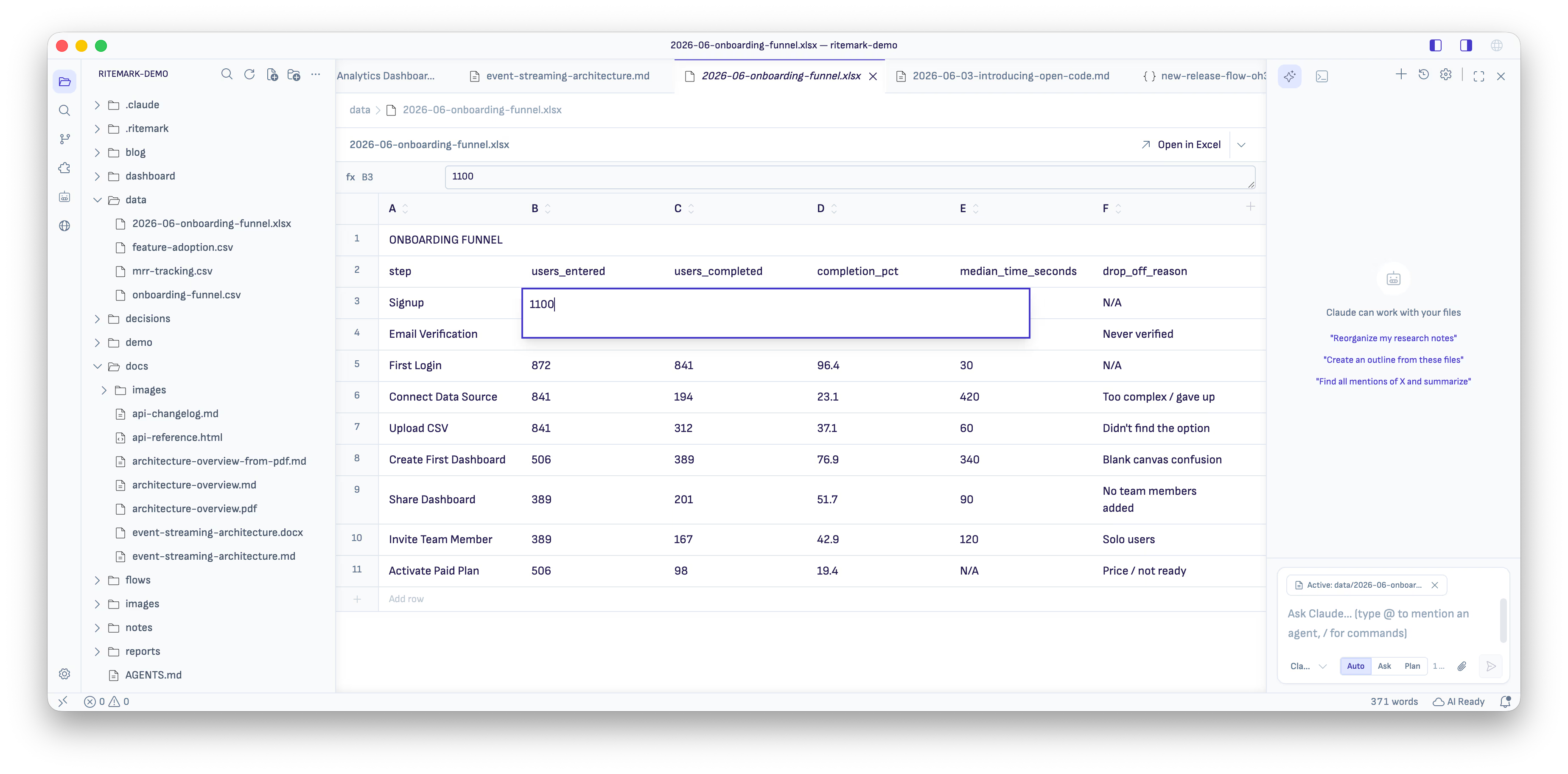 Click a cell, type a value -- it autosaves, and the fx bar at the top shows the cell's contents
fx Formula Bar
Select a cell and its contents appear in the fx formula bar at the top of the editor, Excel-style. If the cell holds a formula, the bar shows the formula itself, for example =B2*C2.
Formula cells are read-only in the fx bar. Ritemark has no formula engine, so the grid shows the last value Excel calculated and the bar lets you see the formula behind it. (If you edit a formula cell directly in the grid, the formula is replaced with the plain value you type.)
Adding Rows and Columns
An empty sheet shows an "Add a row to start editing" button. You can add rows and columns as you go. The grid is anchored at A1, so the row numbers line up with real cell addresses.
Multi-Sheet Workbooks
Excel workbooks with multiple sheets show tabs at the bottom of the viewport, Excel-style, with the active tab merging seamlessly into the grid:
- Click a tab to switch sheets
- The active sheet is highlighted
- Sheet data loads instantly (cached locally)
This is also a reliability fix -- in earlier versions the multi-sheet selector could fail to appear. The tabs now show consistently.
Editing Scope and Limitations
Editing scope is cell values:
- Formulas, styles, and merged cells are preserved on save, but not edited in-app
- Clearing cells doesn't shrink the used range
- If the file changes on disk while you have recent edits in flight, your edits stay in memory and a refresh asks for confirmation first
.xlsfiles remain a read-only preview -- open them in Excel or Numbers to edit
For complex spreadsheet work (writing formulas, formatting, charts), use the toolbar to open the file in Excel or Numbers.
Spreadsheet Toolbar
When viewing CSV or Excel files, a toolbar appears at the top:
| Element | Description |
|---|---|
| Filename | Shows the current file name |
| + Row | Append a new empty row (CSV only) |
| Refresh | Reload file from disk |
| Open in... | Button to open in external app |
Refresh Button
Click the refresh button to reload the file from disk. This is useful when you've edited the file in another app (like Excel) and want to see the latest changes.
Blue badge indicator (Excel files): When Ritemark detects that an Excel file has changed externally, a small blue dot appears on the refresh button. This tells you the file is out of sync with what's on disk. CSV files update on their own (v1.10.0).
Open in Excel/Numbers
The toolbar includes a split button:
- Primary click - Opens in Excel (if installed) or Numbers
- Dropdown - Choose between Excel and Numbers
This opens the actual file in the external app, not a copy.
Refresh & External Edits
Ritemark watches your spreadsheet files for external changes.
Typical Workflow
- Open a CSV or Excel file in Ritemark
- Click "Open in Excel" to edit in Excel
- Make your changes in Excel and save
- A CSV file updates in Ritemark on its own. For an Excel file, a blue badge appears on Ritemark's refresh button
- For an Excel file, click refresh to see the updated data
Conflict Detection
If you have unsaved changes in Ritemark AND the file changed externally:
- CSV files keep both versions and offer Compare changes, Keep my version or Use disk version
- Excel files show a conflict dialog: Discard local changes loads the version from disk, Cancel keeps your local changes
This prevents accidental data loss when both you and an external app have made changes.
Supported Formats
| Extension | Mode | Features |
|---|---|---|
.csv |
Edit | Full editing, sorting, add rows, auto-save |
.xlsx |
Edit | Cell editing, fx formula bar, add rows/columns, multi-sheet, autosave (Cmd/Ctrl+S optional) |
.xls |
Preview | Read-only, multi-sheet |
CSV Format Notes
- Encoding: UTF-8
- Delimiter: Comma (standard CSV)
- Headers: First row treated as column headers
Excel Format Notes
- Editing: Cell values are editable in
.xlsx; changes autosave (Cmd/Ctrl+S also works) - Formulas: Not evaluated (the grid shows the last value Excel calculated; the fx bar shows the formula). Formulas are preserved on save but not edited in-app
- Styles and merged cells: Preserved on save, not edited in-app
- Charts: Not displayed
.xls: Read-only preview only
Tips
- Quick edits - For simple CSV or
.xlsxcell changes, edit directly in Ritemark - .xlsx autosaves - Excel cell edits save automatically, the same as CSV; Cmd/Ctrl+S also works for a manual save
- Sort to explore - Use column sorting to find patterns without modifying the file
- Complex work - For writing formulas, formatting, or charts, open in Excel
- Large datasets - If you hit the 10K row limit, use a dedicated tool
- Data integrity - CSV saves exactly what you see (no hidden formatting)
- External edits - Watch for the blue badge on refresh when editing in Excel
Use Cases
| Task | Recommended |
|---|---|
| Quick CSV data entry | Ritemark |
Quick .xlsx cell edits |
Ritemark |
| Sorting and exploring CSV data | Ritemark |
| Viewing Excel reports | Ritemark |
| Writing formulas, formatting, charts | Excel/Numbers via toolbar |
| Large data analysis | Dedicated spreadsheet app |
Related
- Core Editor - Markdown editing
- Document Preview - Open PDFs and Word documents in Ritemark
- Export - Export markdown documents