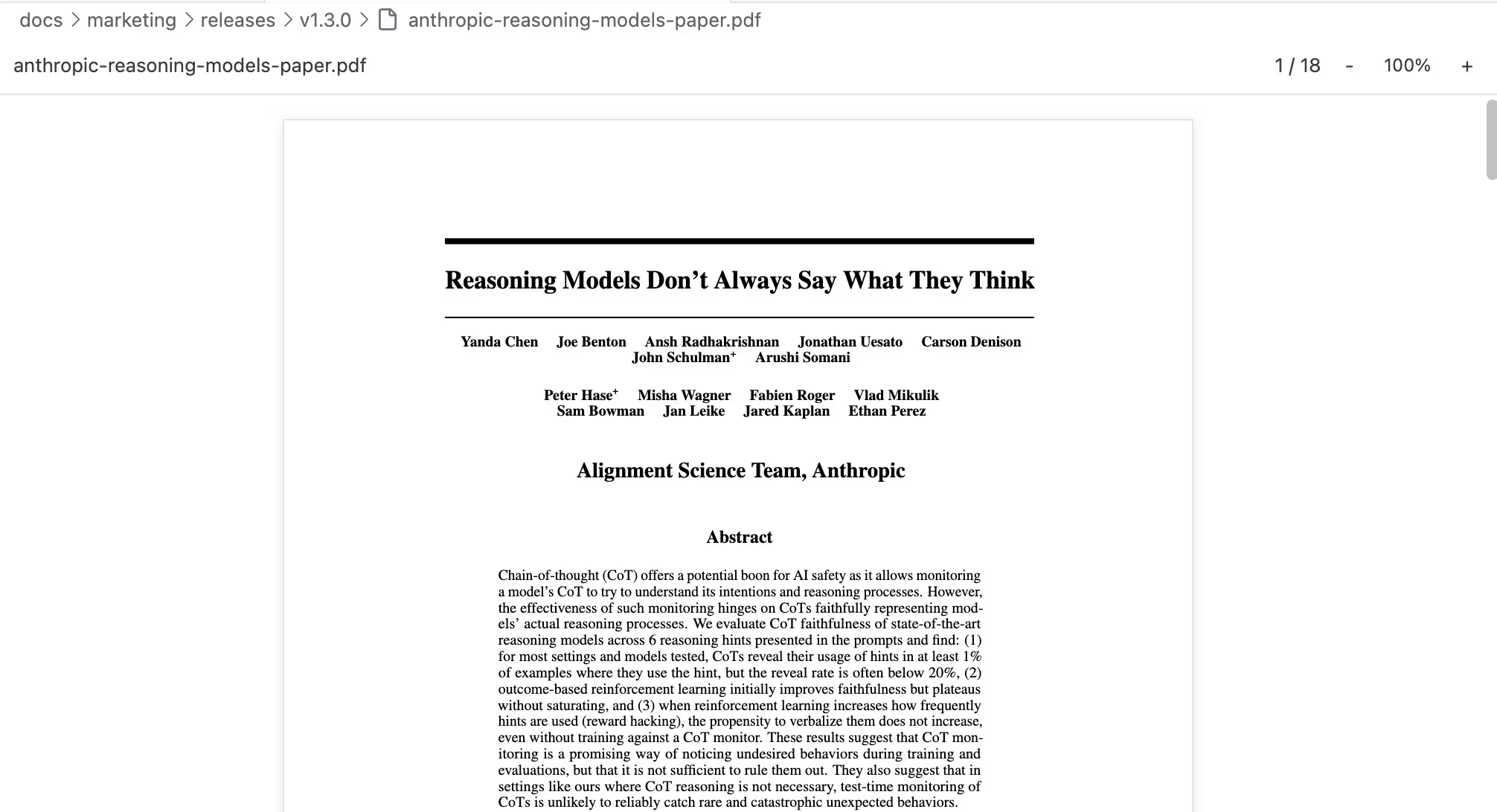
You're writing in Ritemark and need to check a figure from a PDF report. Or reference a colleague's Word document, or the slides from yesterday's meeting, while drafting your summary. You don't have to leave.
Ritemark v1.3.0 opens PDF and Word documents right inside the app, and as of v1.12.0 PowerPoint presentations too. Click a file in your file tree and it renders on your computer, with nothing uploaded. Your writing stays on one side, the reference document on the other.
Opening Documents
Opening a PDF, a Word document or a presentation works exactly like opening any other file in Ritemark. Click on it in the file tree and it opens in a new tab. That's it.
Ritemark recognizes .pdf, .docx and .pptx files and renders them in a read-only preview instead of showing raw data. You can have multiple documents open in separate tabs, or drag a tab to the side to view a document alongside your markdown editor.
Tip: Split the editor by dragging a document tab to the right edge of the editor area. This gives you a side-by-side view: reference document on one side, your writing on the other.
One Toolbar for Every Preview (v1.12.0)
As of v1.12.0, Word, PowerPoint and PDF previews share one quiet toolbar. It shows where you are, such as Page 3 of 12 or Slide 3 of 24, with − and + to zoom. The zoom menu beside them has Fit width, which makes the page as wide as the window, Fit page (Fit slide for a presentation), which shows a whole one, and sizes from 50% to 200%. Fit width and Fit page follow the window as you resize it, until you zoom by hand. In a narrow window the labels become icons, and hovering one tells you what it does.
Press Cmd+F (Ctrl+F on Windows) to search. In Word and PowerPoint previews, the magnifier on the toolbar opens the same find bar. It is the one the Markdown editor uses: every match is highlighted, the count shows where you are, such as 3 of 12, and Enter and Shift+Enter move between matches. Case doesn't matter, and Escape closes the bar and clears the highlights. See Find in Document.
If the document is changed and saved in another app, the preview reads it again and keeps you on the same page or slide. If the file is deleted or moved, the preview says so and keeps showing the last version it read.
PDF Preview
Ritemark renders PDFs with a clean, focused viewer designed for reading, not editing.
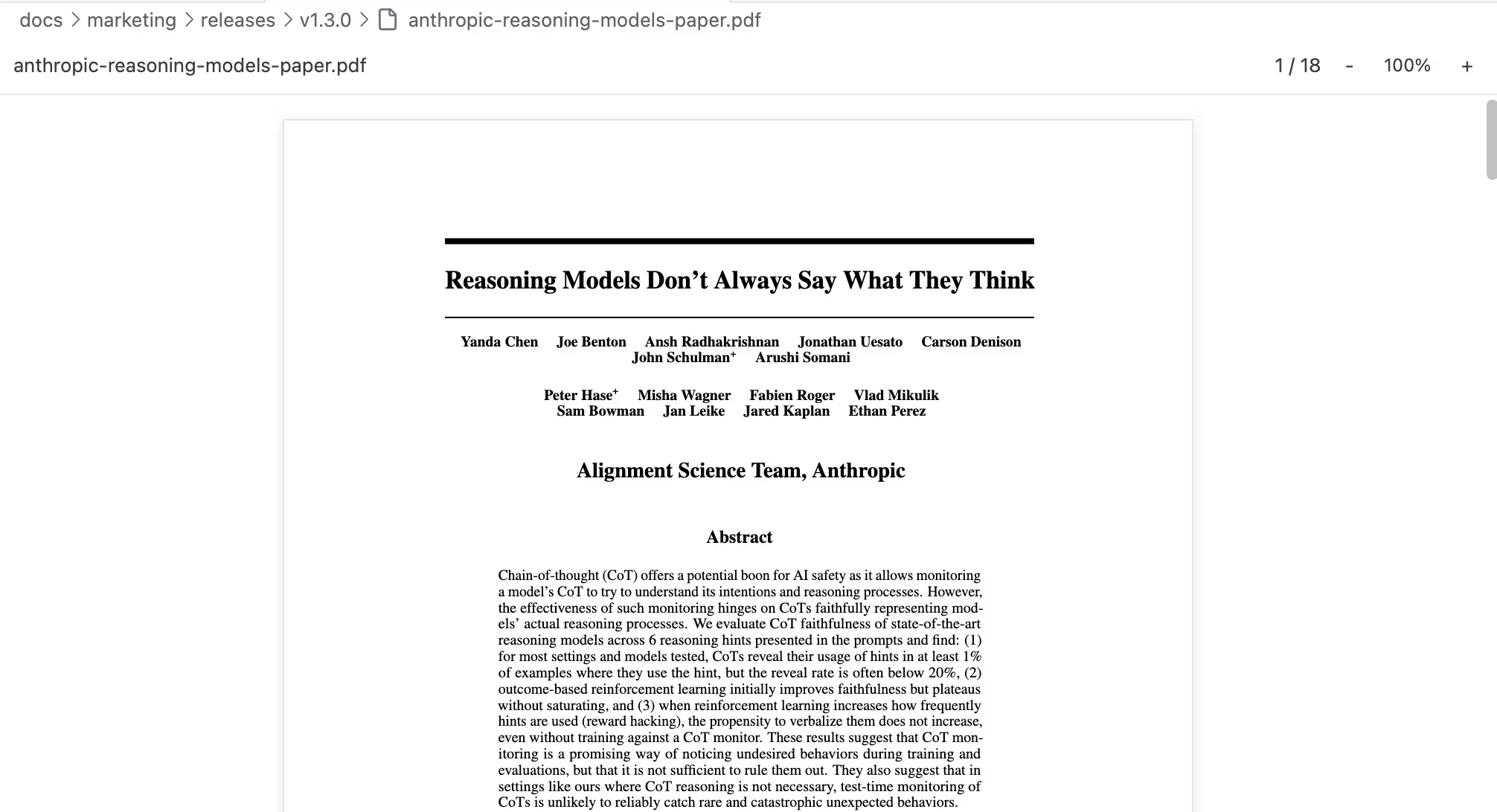 PDF preview with continuous scroll and zoom -- all pages in one flowing view
Scrolling and Navigation
All pages appear in one continuous scroll, like reading a long web page. You scroll through the entire document naturally, without clicking "next page" buttons. For large documents, Ritemark uses lazy loading -- pages render as you scroll to them, so even a 200-page report opens instantly.
Text Selection and Copying
This isn't just a picture of your PDF. You can select text with your mouse and copy it with Cmd+C, exactly as you would in a browser's PDF view. Select a paragraph, copy it, switch to your markdown tab, and paste it into your draft.
Zoom Controls
The toolbar offers zoom levels from 50% to 200%, plus Fit Width and Fit Page modes. Fit Width is usually the most comfortable for reading -- it stretches the document to fill the available space without horizontal scrolling.
Search a PDF (v1.12.0)
As of v1.12.0, the find bar works in PDFs too. It counts matches on every page, including pages you haven't reached yet, and takes you to each one in turn. You can keep reading with the find bar open, because the view only moves when you step to a match. A scanned PDF with no text in it says This PDF has no searchable text instead of reporting no matches.
Save as Markdown
Save as Markdown on the PDF toolbar saves the document as a Markdown file, with its images in ./images/, so you can keep working on the text in Ritemark.
What's Supported
PDF preview handles standard PDF documents well: text, images, tables, multi-column layouts, and embedded fonts all render correctly. Forms display in read-only mode -- you can see them but not fill them out.
Known Limitations
Password-protected PDFs are not supported and show an error message. Very old PDFs (pre-1.4 format) may render with minor visual issues, and very large files can feel sluggish.
Word Document Preview
As of v1.12.0, a Word document shows as separate pages, as it does in Word, rather than as one long web page. Colors, tables, images and text alignment come close to Word for ordinary documents.
Word's Own Pages (v1.12.0)
A document last saved in Word shows its pages where Word put them, with the right number on each page. Covers and page decorations placed behind the text appear, fonts embedded in the document are used, and blank pages after page breaks are gone. Office fonts your Mac doesn't have, such as Calibri, Cambria and Aptos, are drawn in a close system font instead of Times. Lines may then break in slightly different places, and a page can run a little longer than in Word.
A document made by another program, such as a Google Docs export, has no saved page breaks. The preview lays out its pages itself, the way Word would, so they come close to Word's, although a page can end a line or two earlier or later.
Visual Fidelity
The viewer keeps the look of your Word document. Text colors and highlights, tables with their cell widths and borders, centered and right-aligned text, and inline images all carry over. When a colleague sends you a formatted report, you read it close to the way they laid it out.
Working with Word Documents
The most common workflow is reference reading: open a DOCX in one panel, write markdown in another. You're looking at the original document while drafting your own version, summary, or response.
Word documents are read-only in Ritemark. Open in Word is the main button on the toolbar. It opens the file in Microsoft Word, or in Pages or your default app when Word isn't installed, and the arrow beside it offers Save as Markdown. Edit the file in Word and the preview follows, on the same page.
What's Supported
The .docx format (Word 2007 and later) is supported. Text formatting, colors, tables, inline images, and page layout all render well.
Note: Old
.docfiles (Word 97-2003 format) are not supported. Convert the file to.docxin Word first.
Known Limitations
The preview draws the document itself, so it comes close to Word for ordinary documents but isn't Word. Long tables aren't split across pages the way Word splits them. Charts, SmartArt and embedded objects aren't drawn, and equations are drawn only roughly. A note above the document says when it contains any of them. Track changes markup is not displayed. For the exact layout, use Open in Word.
PowerPoint Preview (v1.12.0)
As of v1.12.0, you can read a presentation someone sent you without leaving Ritemark. Open a .pptx and its slides stack one under another, like the pages of a document, with each slide's speaker notes under it in quiet text. A slide without notes has nothing under it.
Text, bullets, tables, pictures, shapes, layouts, backgrounds and PowerPoint's own design themes come close to PowerPoint. Charts are drawn too, but approximately: labels may be formatted differently (0.46 instead of 46%), a legend can crowd the axis labels, and the scale of an axis can differ. Text in shapes that aren't rectangles, such as a triangle or a chevron, can be cut off at the shape's edges. Office fonts that aren't installed are drawn in a similar system font, so lines may break in slightly different places.
The find bar searches every slide and its speaker notes, and the count includes slides you haven't scrolled to yet. Only the slides near where you're reading are drawn at a time, so a long deck full of charts stays quick.
Open in PowerPoint opens the file in Microsoft PowerPoint, or in Keynote or your default app when PowerPoint isn't installed, so you can see the exact slides and present them. Edit the file in PowerPoint and the preview follows, on the same slide.
Animations, transitions, audio and video aren't played. A note above the presentation says when it has audio, video or embedded objects. A link on a slide opens in your browser after Ritemark asks whether to open the site, as any link in Ritemark does.
To turn the PowerPoint preview off, use the setting ritemark.features.powerpoint-preview. A presentation then says the preview is off and offers Open in PowerPoint.
When a File Can't Be Previewed
For a Word document or a presentation, the preview tells you why it can't show the file and offers to open it in Word, PowerPoint or another app instead.
| What the preview says | Why |
|---|---|
| too large to preview | The file is larger than 50 MB |
| password-protected | The preview can't open protected files. Open it in Word or PowerPoint and enter the password there |
| in an older Office format | The file is in the old .doc or .ppt format under a new name. Save it again as .docx or .pptx |
| isn't a Word document or isn't a presentation | The file has a .docx or .pptx name but different contents |
| looks damaged | Parts of the file are missing, or it doesn't hold what it says it holds. Word or PowerPoint may be able to repair it |
| too complex to preview safely | The file unpacks to far more than its size, which is how some malicious files are built |
Side-by-Side Workflow
The real power of document preview is working with two documents at once. Open a PDF, a DOCX or a presentation, then drag its tab to the right side of the editor. Now you have your reference on the right and your markdown document on the left.
This is especially useful for tasks like writing a summary of a research paper, drafting meeting notes based on an agenda document, or extracting key points from a report or a deck. You read on one side, write on the other, and never leave Ritemark.
Quick Reference
| What you want to do | How to do it |
|---|---|
| Open a PDF, DOCX or PPTX | Click the file in the file tree |
| View side by side | Drag the document tab to the right edge |
| Zoom in/out | Use zoom controls in the toolbar |
| Fit to width | Click Fit Width in zoom controls |
| Find text (v1.12.0) | Cmd+F (Ctrl+F on Windows), or the magnifier in Word and PowerPoint previews |
| Read speaker notes (v1.12.0) | Scroll the presentation. Each slide's notes sit under it |
| Copy text from PDF | Select text, then Cmd+C |
| Turn a PDF or DOCX into Markdown | Save as Markdown on the toolbar, or behind the arrow beside Open in Word |
| See the exact layout | Open in Word or Open in PowerPoint |
Related
- Find in Document -- The find bar the previews share with the editor
- Spreadsheets -- CSV and Excel (.xlsx) editing
- Export -- Export your markdown documents to PDF and Word
- Core Editor -- Markdown editing basics