Ritemark 2.0 is out. Here's what changed.
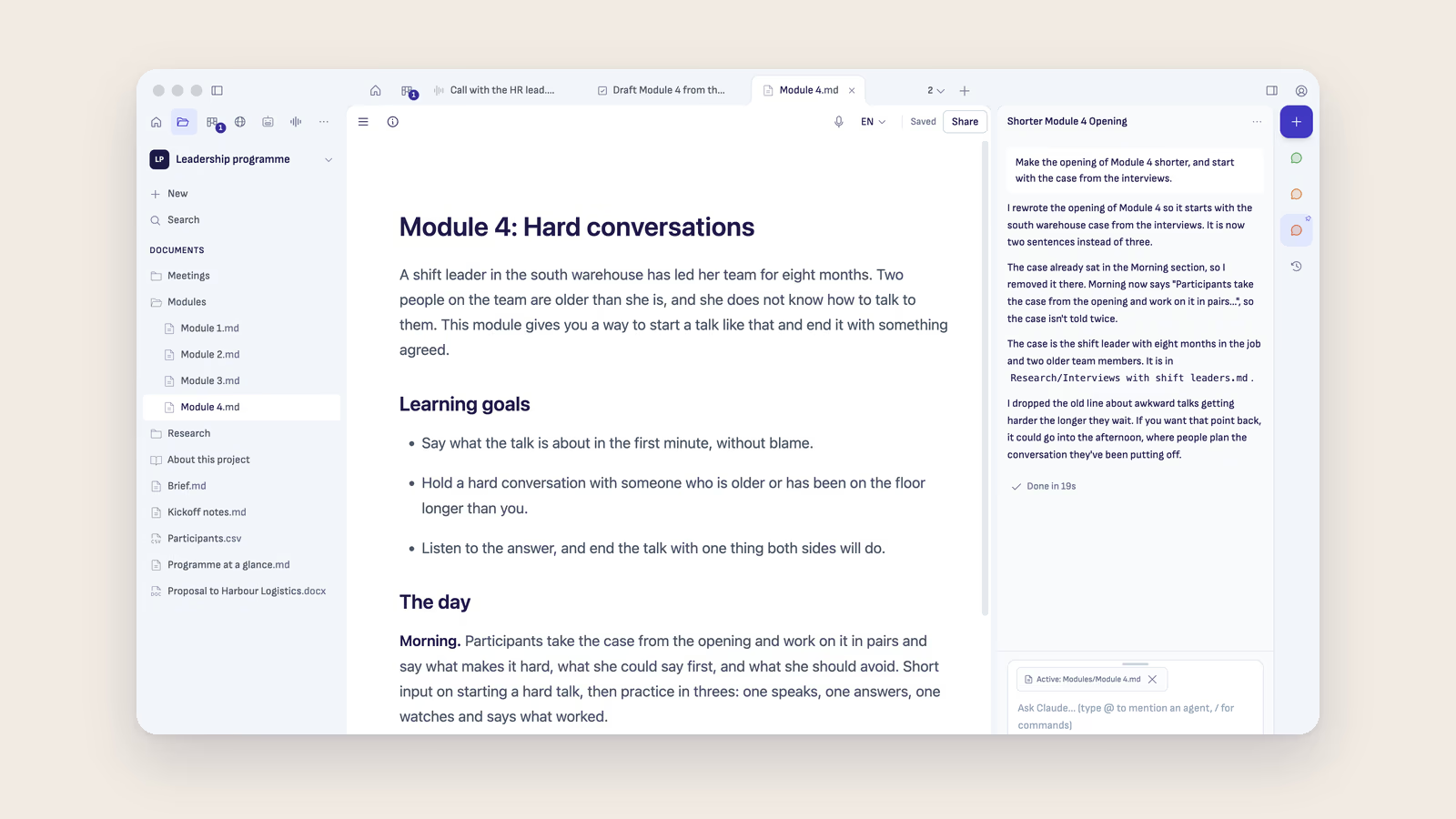
Ritemark turns a folder on your computer into a workspace where ChatGPT or Claude work with you. Version 2.0 is a new Ritemark around that idea. The first start asks which AI you use and opens your project with the AI ready beside it. Every project has its own Home, which says what waits for you and what changed. The window is redrawn, so your documents and the AI each have a place of their own.
If you are updating from Ritemark 1, nothing you used is gone. What changed in Ritemark 2.0 shows where everything is now.
The first start asks which AI you use
The first time you start Ritemark, one sheet sits in the middle of the window and takes two steps. First it asks which AI you use. For ChatGPT and Claude you sign in with the account you already have, and OpenCode runs open models with an API key of your own. You can use more than one, or choose Skip for now and add an AI later.
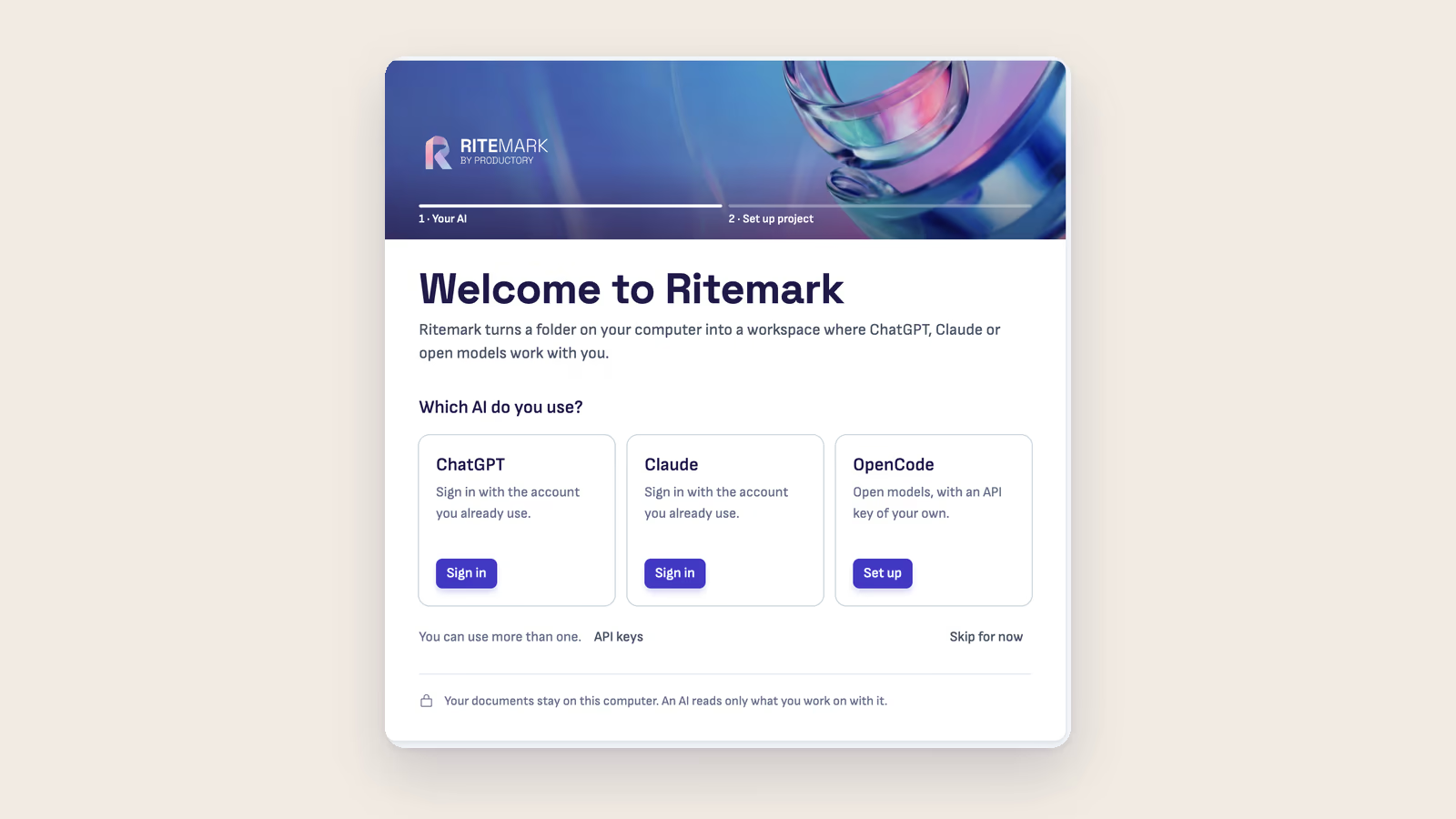
Then it asks where your work is. Open a folder… takes a folder you already have, Start a new project makes one in Documents/Ritemark, and Try the sample project opens a small leadership programme with a brief, modules, kickoff notes and a few tasks, so you can try Ritemark before you bring your own work. The window opens on the project's Home, with the AI's sheet ready for your first question.
The welcome also has the usage data switch, "Share anonymous usage data to improve Ritemark". It is on by default. Nothing is sent until you leave the welcome for a project with the switch on. Turn it off there and nothing is sent at all.
Every project has its own Home
Home is your project's own page. Waiting for you lists the tasks and chats that need you, such as a result to review or a question from the AI. Last changed lists the documents you changed last, with their folder and when. Start something makes a new text, table or web page in the project. You can give the project a line about what it is and a cover picture, and both travel with its folder.

With Home chosen, the left column lists all your projects. Click one to switch to it in the same window. Each project keeps its own tabs, so when you come back they are as you left them. ⌥-click (Alt-click on Windows) opens a project in a new window instead. If the AI is still working when you switch, Ritemark asks first, and opening the other project in a new window lets the AI finish.
A calmer window
The title row is gone. Your places sit in one row at the top of the left column: Home, Documents, Tasks, Browser, Agents and Transcribe. Your documents lie on a raised desk in the middle, and the AI has a sheet of its own on the right. You, at the top right, holds Settings and Help, and ⌘, (Ctrl+, on Windows) opens Ritemark Settings.
Ritemark Light and Ritemark Dark are redrawn, and Ritemark now draws its own menus and dialogs on the Mac and on Windows. When the window gets narrow, the AI's column narrows first and the side columns hide, so your document keeps its room. Widening the window brings them back.
The + at the end of the tabs makes a new text, table, web page or terminal. A terminal is now a tab like any other, and Ctrl+ (⌃ on the Mac) opens a new one. The terminal panel is gone.
ChatGPT by its name, and Share instead of Export
Everywhere Ritemark names the AI, it now says ChatGPT, not Codex: in Settings, on the AI's sheet, in the model picker, on the task board and in flows. In comments you still assign ChatGPT with @codex.
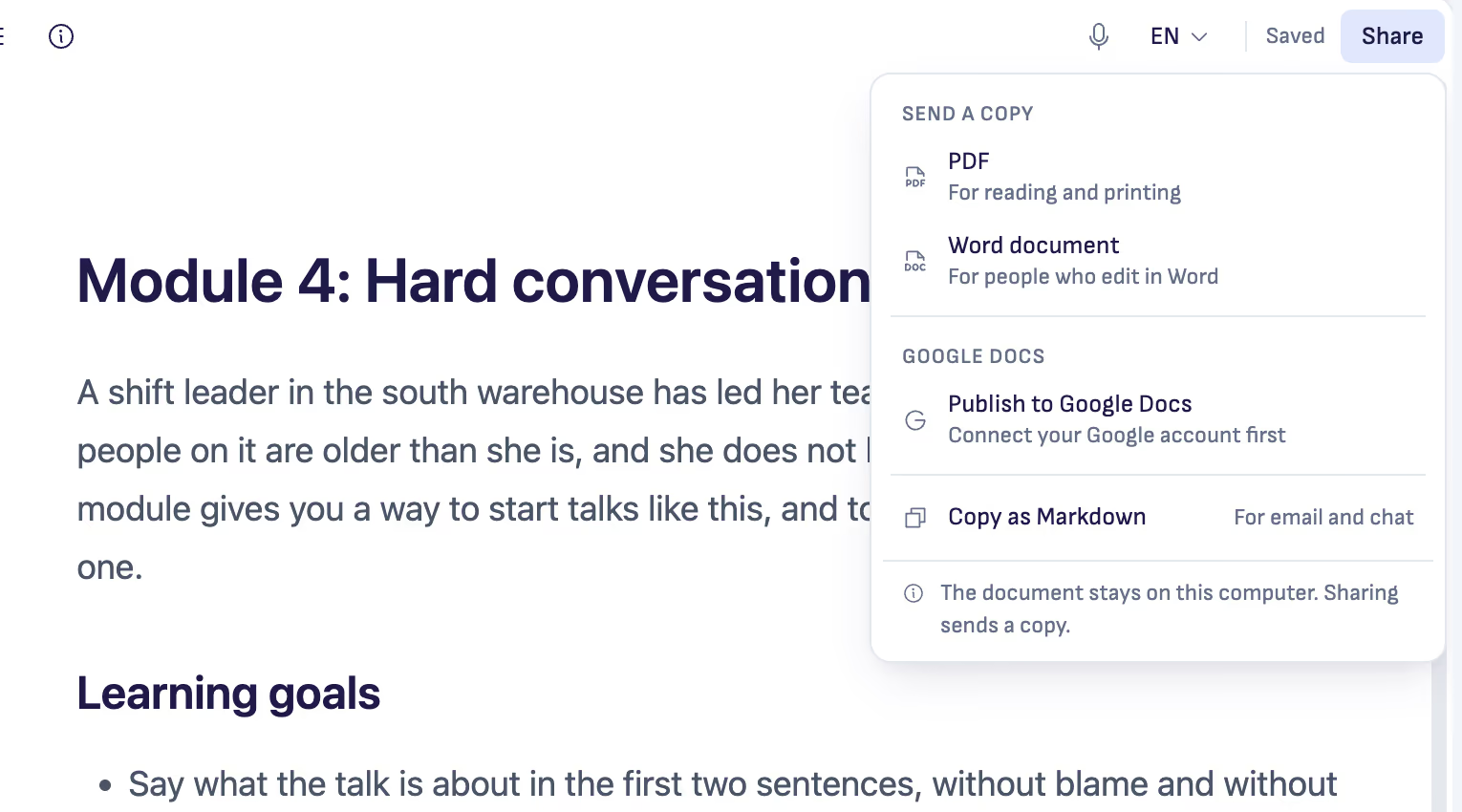
Share, on the document's bar, is what Export was. It sends a copy as a PDF or a Word document, publishes to Google Docs, or copies the document as Markdown. The document stays on your computer, and sharing sends a copy. On PDF and Word files, Save as Markdown is now Make an editable copy.
When Ritemark asks whether to share the web page you have open with the AI, it now asks on the AI's sheet, above the message box, instead of in a dialog. Your tabs keep working while it waits, and nothing about the page reaches the AI until you share it.
Agents and flows
The Agent Library is now Agents, in the places row. Each agent, skill, command and flow is one line, and New makes commands too. An agent's settings sit in a panel beside its instructions, and its schedule is one field. The flow editor is redrawn, with the flow's name, description and schedule in one bar at the top.
Updating from Ritemark 1
Ritemark 1.14 tells you when 2.0 is out. On the Mac, choose Download Installer, open the DMG and drag Ritemark to Applications to replace 1.14. Your settings, projects and chats carry over. On Windows, the Microsoft Store brings 2.0 once Microsoft has approved it, usually within a few days, and updates Ritemark for you. If you installed from GitHub's Setup.exe, Ritemark shows the same notice with the installer.
The first start after the update shows the welcome once, with your AIs and your recent projects. Open when you left brings your window back as it was. Your first Home shows a short card about what moved, for example that the terminal is a tab and that Settings and Help are under You. Your projects list is filled from the folders you opened, the projects you have chats in and the projects with a task board.
Your theme stays as you chose it. If you chose Opt Out for usage data in Ritemark 1, it stays off. New documents now land in your project's folder, not in Documents/Ritemark. What changed in Ritemark 2.0 has the full list, and if you are new, Getting Started takes you from download to your first request.
Fixes
- Saving works again after you choose Use disk version in a conflict.
- A table's + and delete handles stay on their rows when you scroll.
- New agents, commands and skills appear under @ and / without a reload.
- A Markdown file opened on the very first launch now opens once, in the Ritemark editor.
- A project folder you delete outside Ritemark stays deleted, and the project shows as Not found until you find it or remove it from the list.
Ritemark 2.0 is built on VS Code 1.142, with Electron 43 and Chromium 150. It's free and open source.
Download
| Platform | File |
|---|---|
| macOS Apple Silicon | Ritemark-arm64.dmg |
| macOS Intel | Ritemark-x64.dmg |
| Windows x64 | Microsoft Store |
Full notes are on the GitHub release page.