A meeting recording is useful until you need something from it. Then comes the familiar loop: upload the audio, wait, copy the transcript into another app, repair the formatting, and hunt through the recording when a quote looks wrong.
Ritemark v1.9.0 brings that whole path into the writing workflow. The new Transcribe app turns meetings, interviews and workshops into editable Markdown, while keeping every transcript line connected to the moment it came from.
You decide where the audio goes
Before Ritemark processes a recording, you choose the transcription engine. The trade-off is shown there, not hidden in Settings.
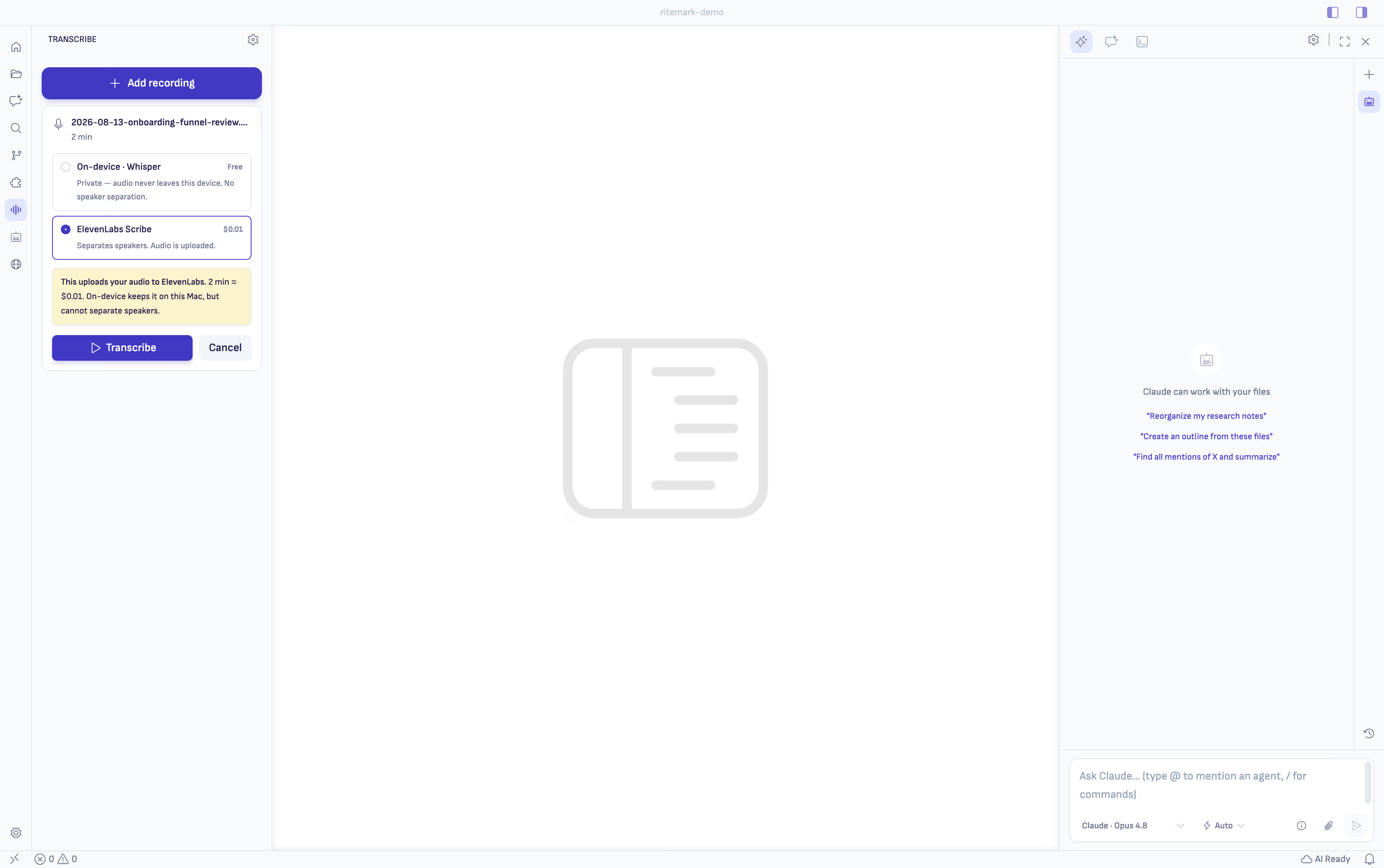
The engine choice is made separately for every recording before transcription starts.
On-device Whisper is free and keeps the audio on your machine. It is available on Apple silicon and cannot separate speakers. ElevenLabs Scribe uploads the recording, separates speakers and shows the estimated cost before you begin. It is also the available option on Intel Macs and Windows today.
Nothing starts until you make that choice. Privacy and speaker separation are genuinely different options right now, so the decision should belong to you at the moment it matters.
How to connect ElevenLabs to Ritemark
You only need to do this once. An API key is simply a private access code that lets Ritemark use your ElevenLabs account. You do not need a terminal or any programming.
- Open the ElevenLabs API Keys page. Create an ElevenLabs account or sign in if asked.
- Click Create API Key and give it a clear name such as
Ritemark. - Keep the key restricted and enable Speech to Text access. You can also set a credit limit if you want a firm cap on usage.
- Create the key and copy it immediately. ElevenLabs shows the full key only once.
- In Ritemark, open Settings → API Keys and paste it into the ElevenLabs field. You can also click Add key on the ElevenLabs Scribe card in Transcribe.
- Save the key, return to Transcribe and select ElevenLabs Scribe. Ritemark shows the estimated transcription cost before you start.
Treat the API key like a password. Do not paste it into a document, chat or email. If you lose it, create a new key in ElevenLabs and replace the old one in Ritemark. ElevenLabs has a plain-language API key guide if its dashboard changes.
A transcript you can verify
Raw transcription is only the first step. Names, specialist terms and switches between languages are exactly where a plausible sentence can still be wrong.
The Transcript Workbench keeps the recording beside the text. Click any transcript line and playback starts at its exact timestamp. Use the waveform, change playback speed from 1× to 2×, or move through the recording with the keyboard. Words reported with low confidence are highlighted so you know where to listen more closely.
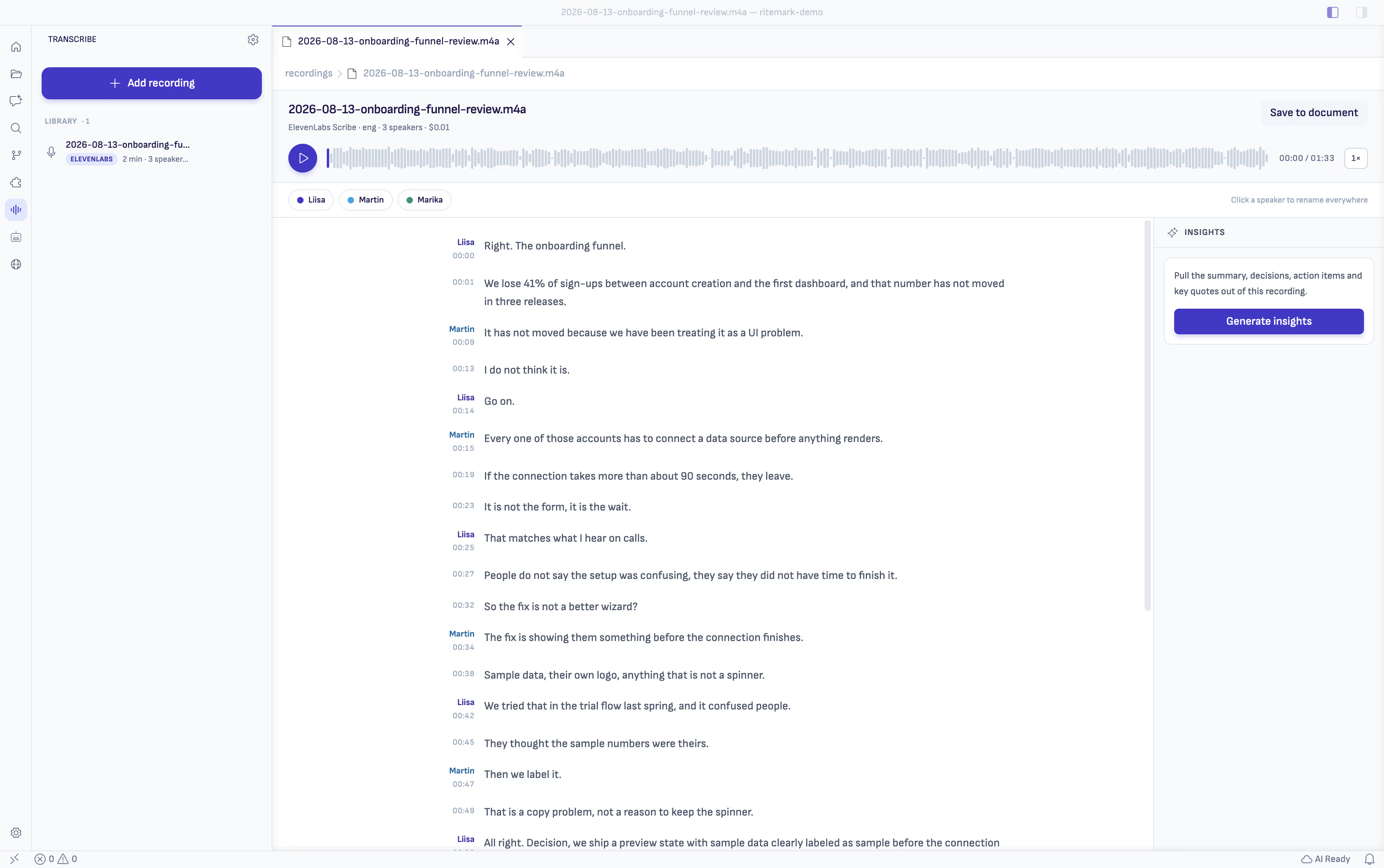
Each line remains a route back to the recording, rather than becoming detached text.
ElevenLabs initially labels people as Speaker 1, Speaker 2 and so on. Rename a speaker once and every matching line updates, including the document you save later.
Insights that lead back to the source
Ritemark can pull out a summary, decisions, action items, open questions and key quotes. Insights are drafted by the AI provider you chose, so the transcript text is sent to that provider even when the audio stayed on your Mac. Every item carries a playable timestamp. If an item cannot be tied to a real transcript line, Ritemark discards it instead of presenting it as a finding.
That makes the output useful for more than a quick recap. You can check a client quote before sending it, return to the exact discussion behind a decision, or confirm who took an action without scrubbing through an hour of audio.
The result is Markdown you own
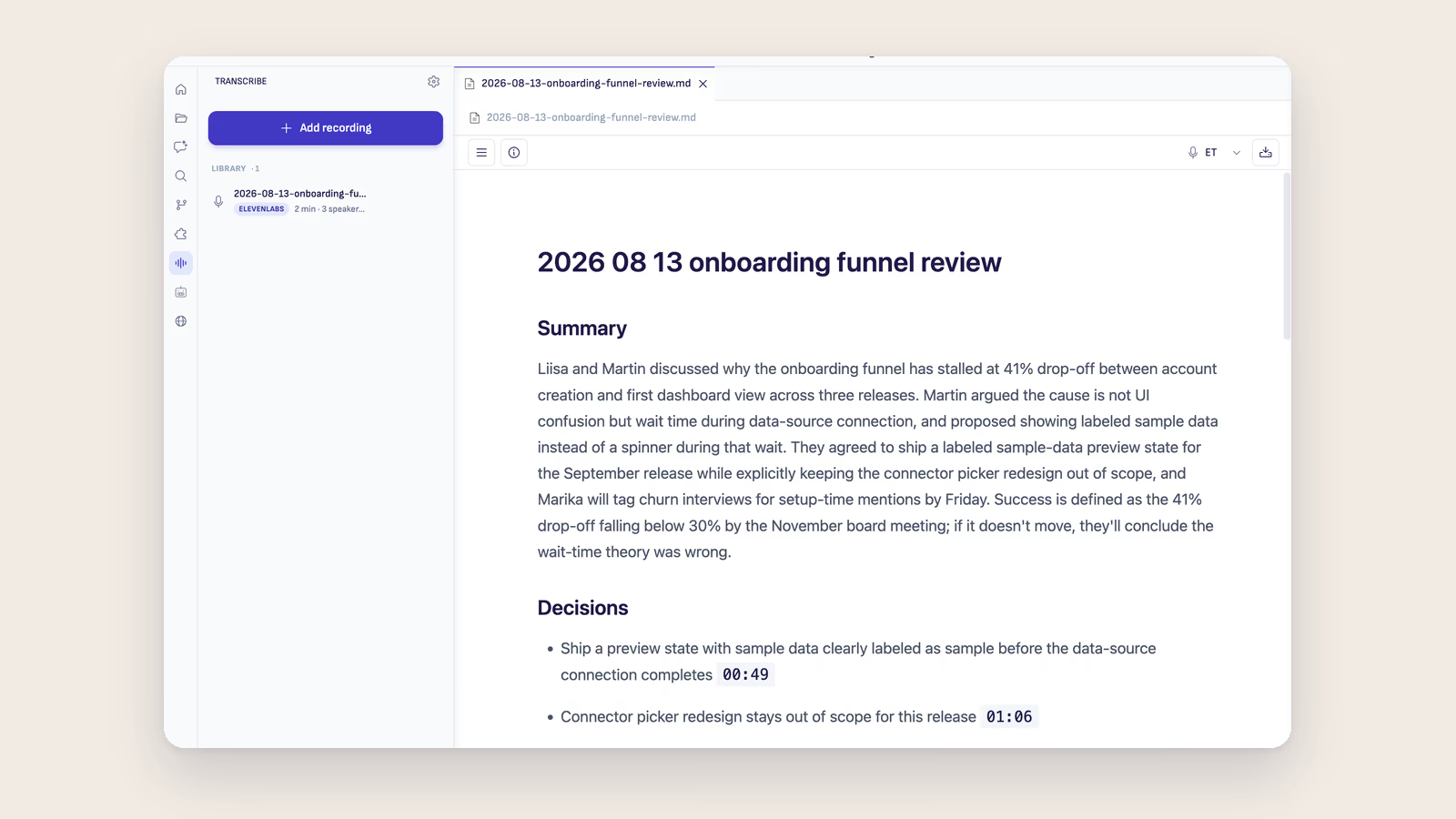
Choose Save to document and Ritemark writes a Markdown file to a folder you select. It includes front matter, speaker headings and timestamps, and remains linked to the recording in the workbench.
Once saved, the transcript becomes the active file for the AI sidebar. You can ask an agent to turn the meeting into a follow-up note, compare an interview with your research questions, or restructure a workshop into a brief. The agent works from text you can inspect and edit, not from an audio file it cannot read.
For a step-by-step walkthrough, see the Transcribe guide.
Long recordings can finish in the background
A 60-minute recording transcribes locally in about two and a half minutes on Apple silicon, though timing varies by machine. You can close the Transcribe panel while it runs and follow progress on the Activity Bar icon. Cancellation stops the job immediately.
If Ritemark closes during transcription, the recording returns marked Interrupted rather than disappearing. Recordings are scoped to the folder where they were created, and Show all projects lets you find work from other folders. If an audio file moves, you can relink it without losing its transcript data.
Download Ritemark v1.9.0
| Platform | Download |
|---|---|
| macOS Apple silicon | Ritemark-arm64.dmg |
| macOS Intel | Ritemark-x64.dmg |
| Windows x64 | Microsoft Store |
Both macOS builds are notarized and have the notarization ticket attached. The Windows installer is Authenticode-signed, although SmartScreen may still show a warning while the app builds reputation. Auto-update will offer v1.9.0 on your next launch, and your settings, documents and conversation history are preserved.
Frequently asked questions
What audio files can Ritemark transcribe?
Ritemark Transcribe accepts .m4a, .mp3, .wav, .flac, .ogg and .aac files.
Can Ritemark transcribe audio without uploading it?
Yes, on Apple silicon Macs. Choose On-device Whisper to keep the audio on your machine. This engine is free but does not separate speakers.
Which transcription option separates speakers?
ElevenLabs Scribe separates speakers. It uploads the recording and shows the estimated cost before transcription starts.
Does Transcribe work on Windows?
Yes. Transcribe works on Windows x64 with ElevenLabs Scribe. On-device transcription is not available on Windows yet.
Does local transcription work on an Intel Mac?
No. On-device Whisper currently requires Apple silicon. Intel Mac users can transcribe with ElevenLabs Scribe.
Can I correct speaker names?
Yes. Rename a speaker once in the Transcript Workbench and every line from that speaker updates throughout the transcript and saved document.
What does Ritemark save?
Ritemark saves a Markdown document with front matter, speaker headings and timestamps in the folder you choose. The document stays linked to its recording.
Can the AI sidebar use the transcript?
Yes. After you save it, the transcript becomes the active file and can be used as context by the AI sidebar.