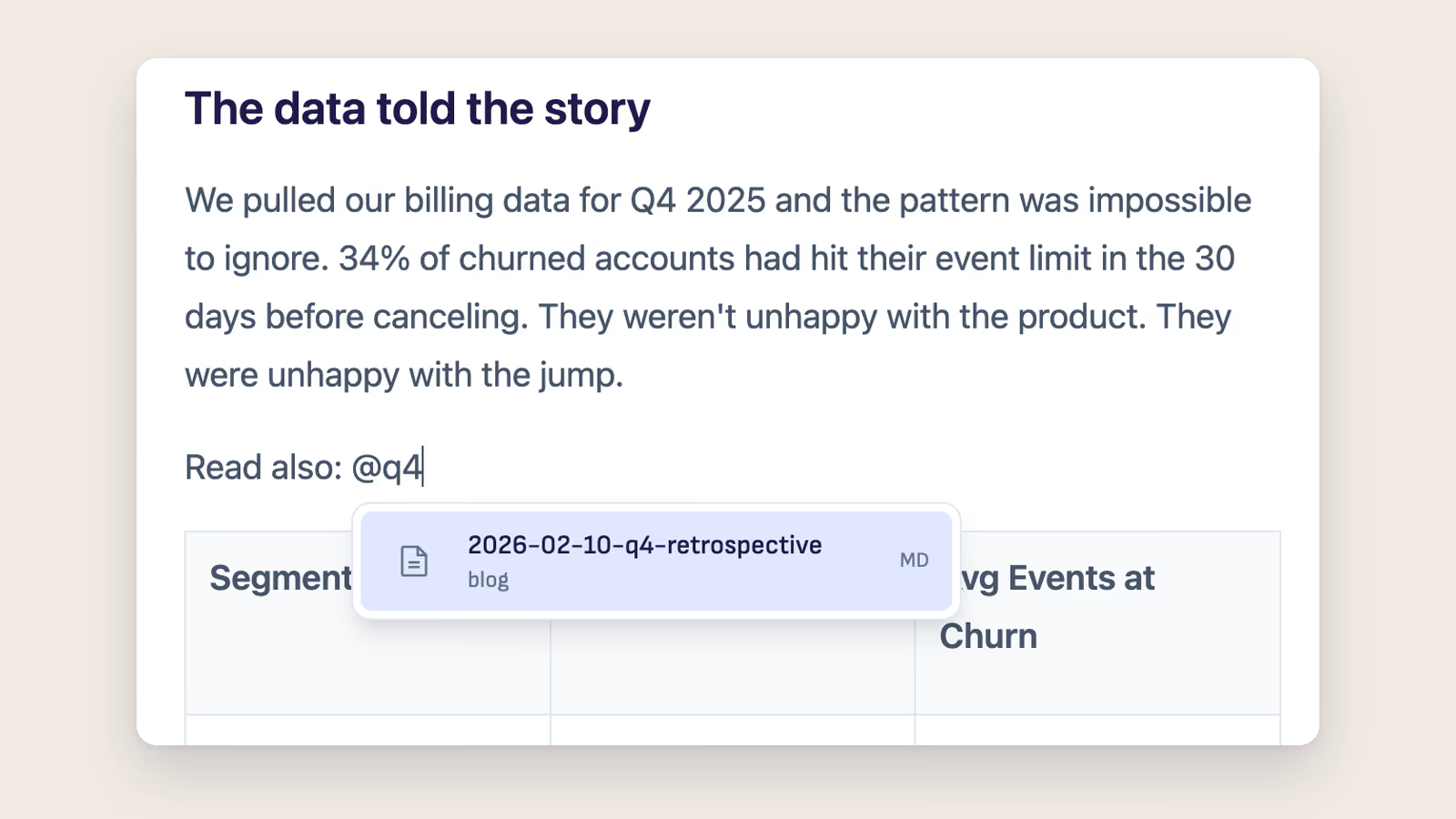
Markdown links have always been manual work. You type the brackets, you type the path, you get the relative path wrong, you go back and fix it. v1.7.2 makes that loop much shorter — type @, pick a file, done. Then Cmd-click it and the file opens. The document and the workspace start to feel like the same thing.
Type @ to link any file
Anywhere in the editor, type @ and a file search picker appears at the cursor position. Start typing to filter down your workspace files, use arrow keys to navigate the list, press Enter and a Markdown link is inserted with the correct relative path and the file's basename as the visible text.
All workspace files are searchable, not just markdown. If your prose needs to reference a PDF spec, a CSV, a source file, or a diagram, @ finds it.
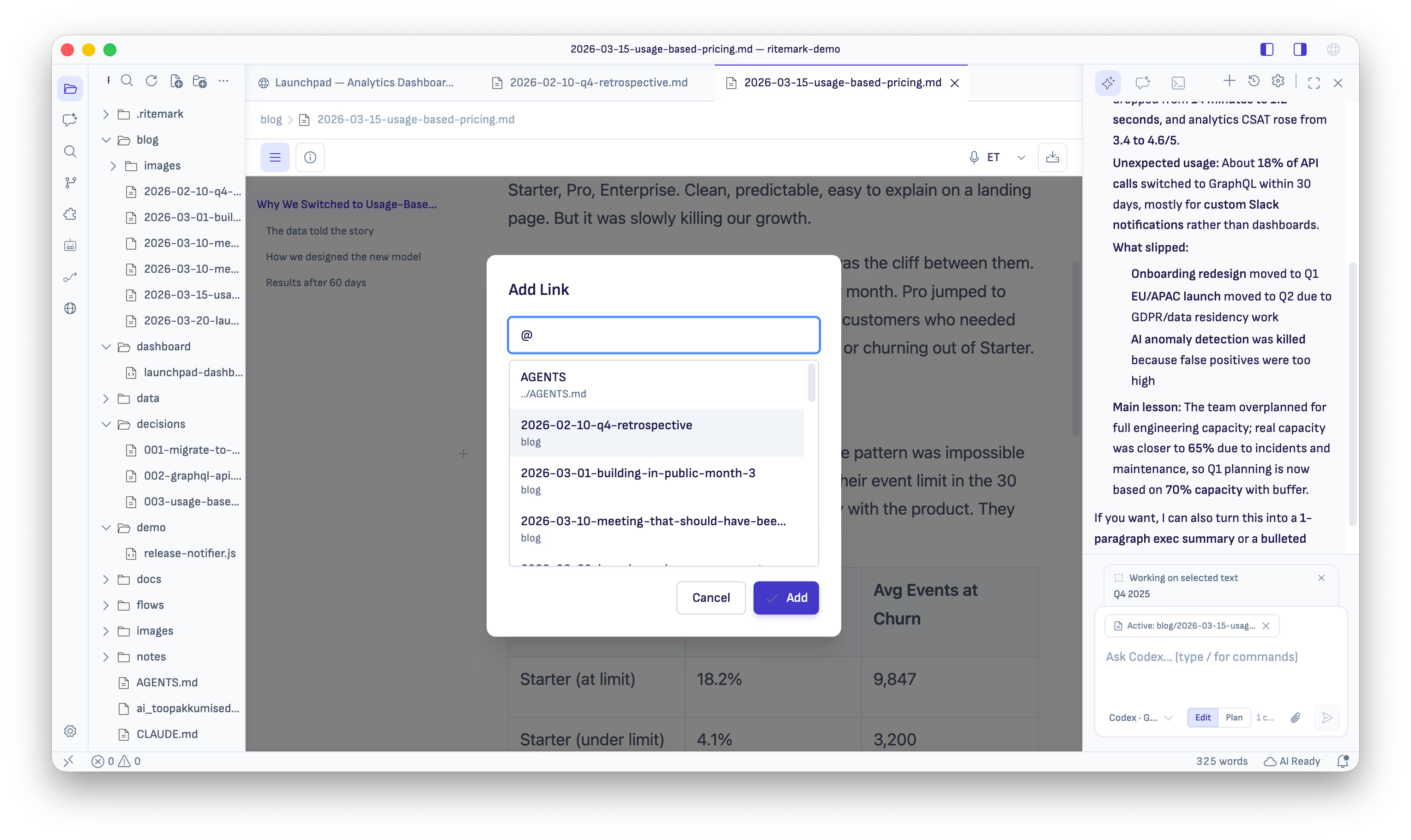
The Add Link dialog (Cmd+K) understands the same @ prefix, so both paths lead to the same picker. Whether you prefer to trigger it inline or through the dialog, the flow is identical.
Cmd-click follows internal links
Once a link exists, Cmd-click follows it. Markdown files open as Ritemark documents in a new tab. Other files (PDFs, images, CSVs, source code) open through VS Code's default handler for that type. External URLs go to the system browser as before.
If a link target is missing or outside the workspace, you get a non-blocking warning. Nothing fails silently. A regular click still opens the Edit Link dialog, which is the same behavior as before.
Heading levels from the Table of Contents
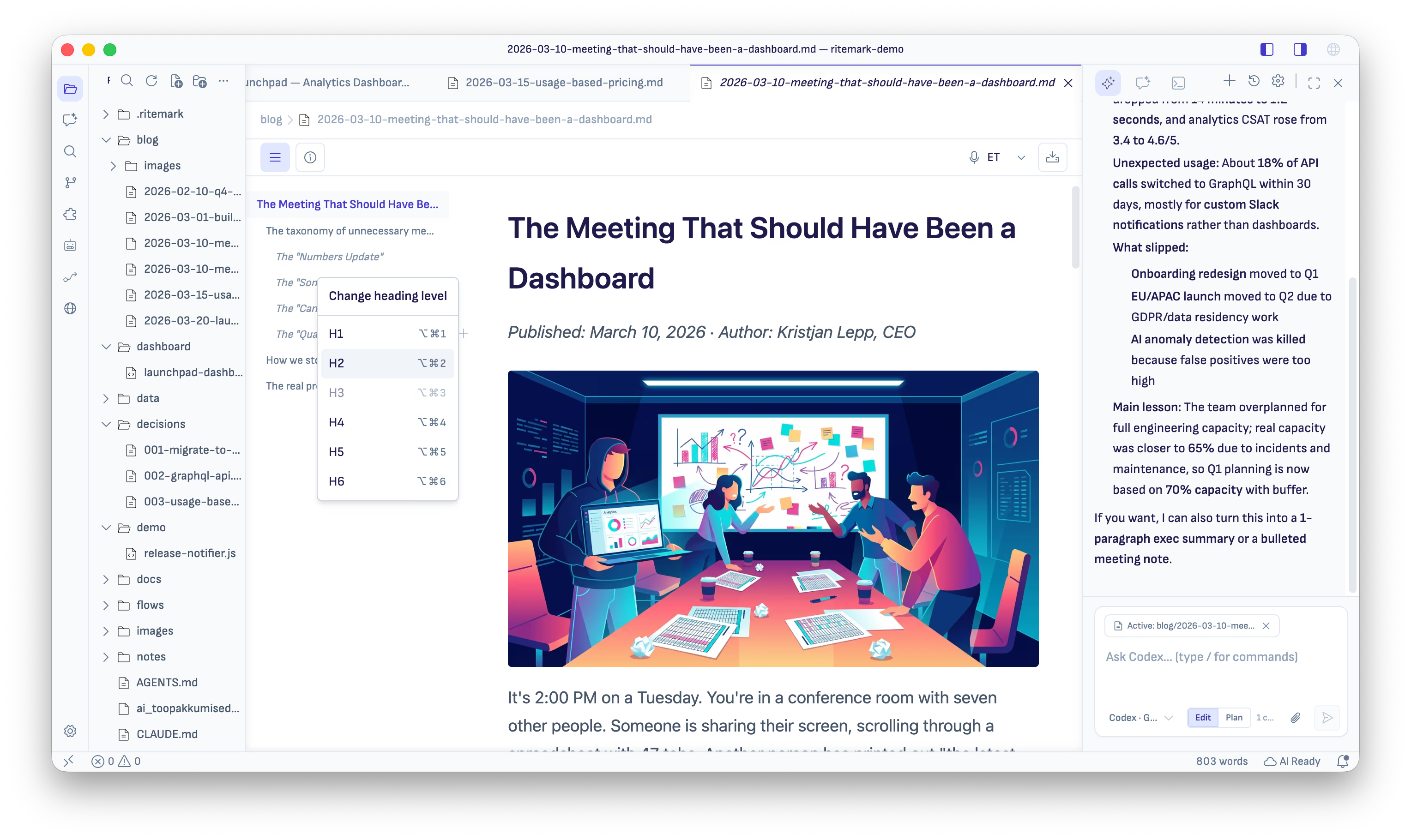
The TOC gained a right-click context menu. Right-click any heading row and select "Change heading level" to pick H1 through H6. The keyboard shortcuts ⌥⌘1–6 on macOS (or Ctrl+Alt+1–6 on Windows) also work globally in the editor.
The change records as a single undo step and your scroll position is preserved. The TOC panel itself is now a persistent 220px sticky rail on screens 960px wide and above, so it does not collapse while you are working with it.
AI model picker improvements
The model picker rows now show two lines: the model name and version on top, a short purpose line below. Long model lists are now constrained in height with a vertical scrollbar instead of running off screen. The pointer cursor is consistent across the list.
In the Settings diagnostics panel, the Claude entry now shows the CLI version and SDK version together. The Codex entry uses runtime detection for its version rather than a hardcoded string.
Download
- macOS (Apple Silicon) — Ritemark-arm64.dmg
- macOS (Intel) — Ritemark-x64.dmg
- Windows (x64) — Microsoft Store
Both macOS builds are signed and notarized by Apple. Auto-update will offer v1.7.2 to existing v1.7.1 users on next launch. Settings, documents, and conversation history are preserved.
FAQ
Does @ file linking work if I open a single file without a workspace?
The picker requires an open workspace folder. Without one, there are no workspace files to search. Open a folder in Ritemark and all files inside it become searchable.
Which file types can I link with @?
All of them. Markdown files rank highest in results, then documents and data files, then code and configs. The only exclusions are generated folders like node_modules, .git, dist, and build.
What happens if a linked file is missing or moved? Cmd-click on a broken link surfaces a non-blocking warning in the editor. Nothing crashes or fails silently. You can edit the link via the Edit Link dialog (regular click on the link).
Does Cmd-click work on external URLs too?
No. External URLs (anything starting with http:// or https://) continue to open in the system browser as before. Cmd-click for internal navigation applies only to relative file paths.
Can I change a heading level without using the TOC?
Yes. ⌥⌘1-6 on macOS (or Ctrl+Alt+1-6 on Windows) works anywhere in the editor, not only in the TOC panel.
Is v1.7.2 a free update? Yes. Ritemark is free and open source. All updates are free.