Ritemark v1.5.3: Find in Document, Table of Contents
Some features feel so basic you forget they're missing until the moment you need them. CMD+F in a long document. A table of contents you can click to jump around. These are not exciting AI features. They're the kind of thing you reach for on autopilot, and when it doesn't work, you lose your train of thought.
Ritemark v1.5.3 adds proper find-in-document search and a one-click Table of Contents panel. This is a writer quality-of-life release. No new AI nodes, no new integrations. Just two features that make working inside a long markdown document feel right.
CMD+F Find in Document
Until now, pressing CMD+F in Ritemark triggered VS Code's native file-search overlay. That overlay is designed for searching across files in a project, not for finding a word inside the document you're editing. It pulls you out of the writing context, shows results from files you don't care about, and generally gets in the way.
v1.5.3 replaces that behavior with a compact find bar at the top of the markdown editor. Press CMD+F (or Ctrl+F on Windows) and a small input field appears. Start typing and matches highlight live in the document as you type. The active match gets a brighter color so you can see exactly where you are. A counter in the corner shows something like "3 of 12" so you know how many matches exist and which one you're looking at.
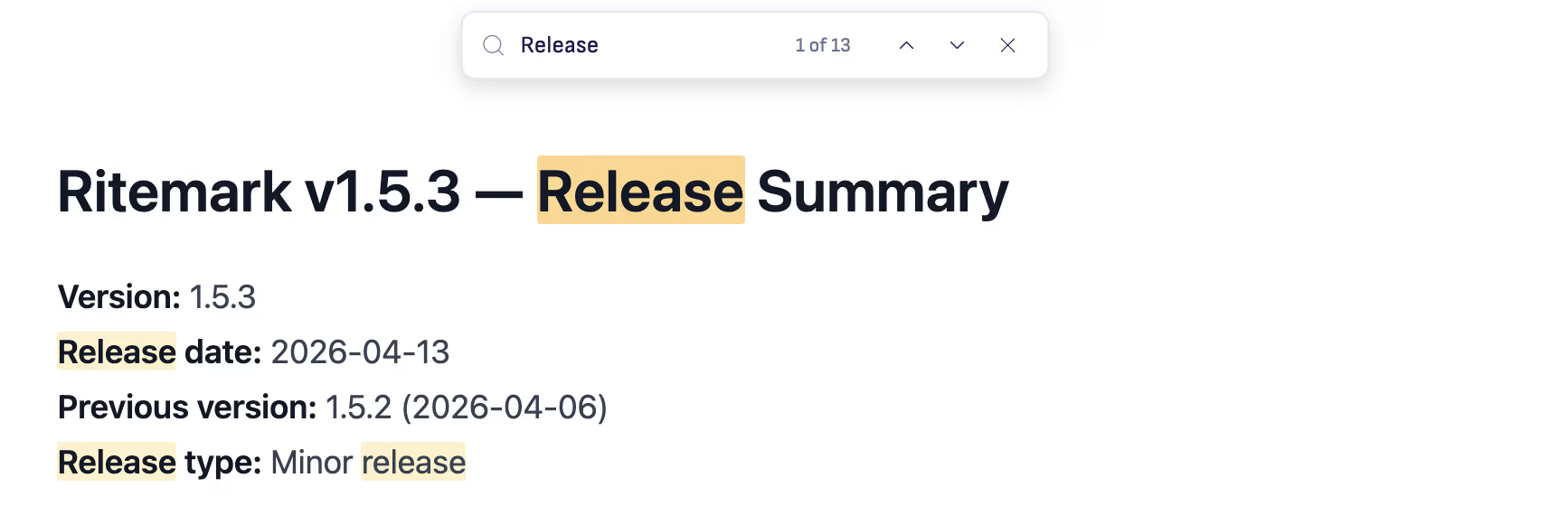
Navigation is keyboard-first. Enter moves to the next match, Shift+Enter goes back. Press CMD+F again and it advances forward too. Escape closes the bar and clears all highlights.
The highlights themselves are ProseMirror decorations, not DOM hacks. They survive edits. If you find a match, start editing the document, and come back to the find bar, the highlights rebuild automatically. You don't lose your search state just because you fixed a typo.
One important scope detail: this find bar only appears in the markdown editor. If you're viewing a PDF, DOCX, or spreadsheet, those viewers keep their native find behavior. CMD+F does what each viewer expects.
Table of Contents
Long documents with many headings need a way to move around quickly. Scrolling through 3,000 words to find a section you wrote yesterday is wasted time.
v1.5.3 adds a "Contents" button in the document header. Click it and a panel appears listing every heading in the current document, from H1 down to H6. The hierarchy is visual: top-level headings are bold, subheadings are muted and indented progressively. You can see the structure of your document at a glance.
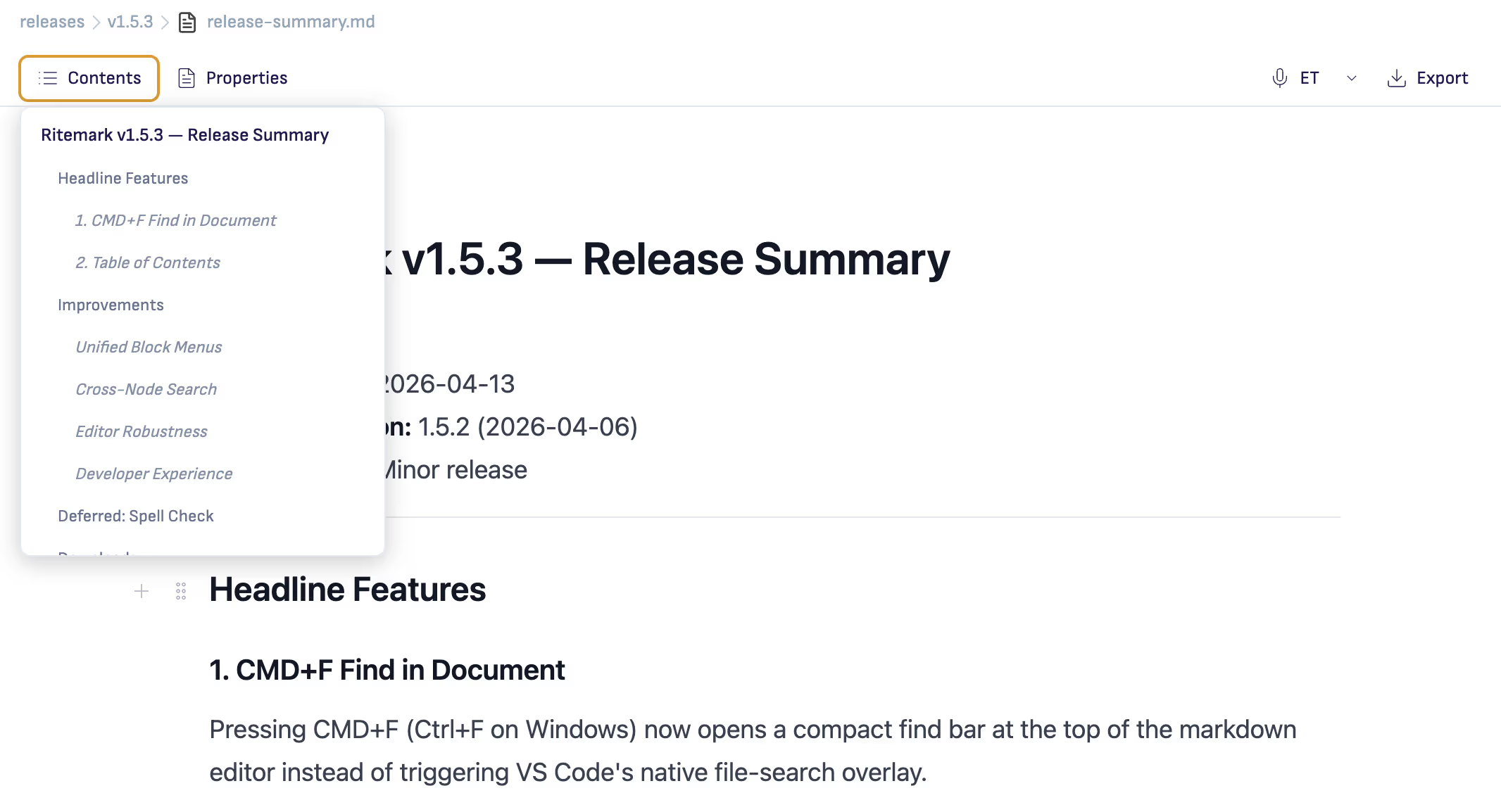
Click any heading in the list and the editor scrolls straight to that section. The panel auto-updates as you write. Add a heading, remove one, rename one, and the contents panel reflects the change after a short 300ms debounce. No manual refresh needed.
If the document has no headings, the panel shows a helpful empty state instead of a blank box. Dismiss the panel by clicking outside it or pressing Escape.
There's no configuration involved. No settings to toggle, no frontmatter property to add. If your document has headings, the Contents button works.
Unified Block Menus
A smaller change in v1.5.3 that affects everyday editing: the slash command menu (type / on an empty line) and the + button in the editor margin now share a single source of truth. Both entry points show the same 13 block types: Text, Heading 1 through 3, Bullet List, Numbered List, Task List, Quote, Code Block, Table, Mermaid Diagram, Image, and Divider.
Previously these menus had slightly different item lists and inconsistent styling. Now they're identical. This is the kind of thing most users won't notice, which is exactly the point. It just works the way you'd expect.
Cross-Node Search
The new find bar handles a subtle edge case that trips up simpler search implementations. When text spans formatting boundaries, say a phrase where one word is plain and the next is bold, the search still finds it. The matching logic works across ProseMirror node boundaries rather than searching each node in isolation.
This matters in practice. If you bold a name in the middle of a sentence and then search for the full sentence, you'll find it. Previous approaches would have missed the match because the text lives in separate nodes internally.
Download
v1.5.3 is available now for all platforms:
| Platform | File |
|---|---|
| macOS Apple Silicon (M1/M2/M3) | Ritemark-arm64.dmg |
| macOS Intel | Ritemark-x64.dmg |
| Windows | Ritemark-Setup.exe |
Windows users: SmartScreen may show a warning on first run. Click More info then Run anyway. See detailed instructions
If you're already using Ritemark, the Update Center will notify you when v1.5.3 is available. New to Ritemark: download and install, then open a workspace and start writing.
FAQ
What's new in Ritemark v1.5.3?
Two headline features: CMD+F find-in-document with live match highlighting and keyboard navigation, and a Table of Contents panel that lists every heading in your document for one-click jumping. The release also includes unified block menus, cross-node search, and editor stability improvements.
How does CMD+F work differently now?
Previously, CMD+F triggered VS Code's file-search overlay, which searches across all files in the project. Now it opens a compact find bar scoped to the document you're editing. Matches highlight live as you type, a counter shows your position ("3 of 12"), and you navigate with Enter and Shift+Enter.
Does the find bar work in PDF and DOCX viewers?
No. The find bar is scoped to the markdown editor only. PDF, DOCX, and spreadsheet viewers keep their native find behavior. CMD+F does what each viewer expects.
How do I open the Table of Contents?
Click the "Contents" button in the document header. A panel appears with every heading in the document. Click a heading to jump to it. The panel auto-updates as you write.
Does Table of Contents require any setup?
No configuration needed. If your document has headings (H1 through H6), they appear in the panel automatically. Documents without headings show an empty state message.
What happened to spell check?
Spell check was planned for v1.5.3 but deferred after three implementation approaches hit technical blockers. The main challenge is supporting multiple languages in a single document. It will ship in a future dedicated sprint.
Is Ritemark free?
Yes, Ritemark is free. Using AI agents requires an Anthropic API key or Claude.ai subscription for Claude, or a paid ChatGPT subscription for Codex.