
Windows SmartScreen Warning
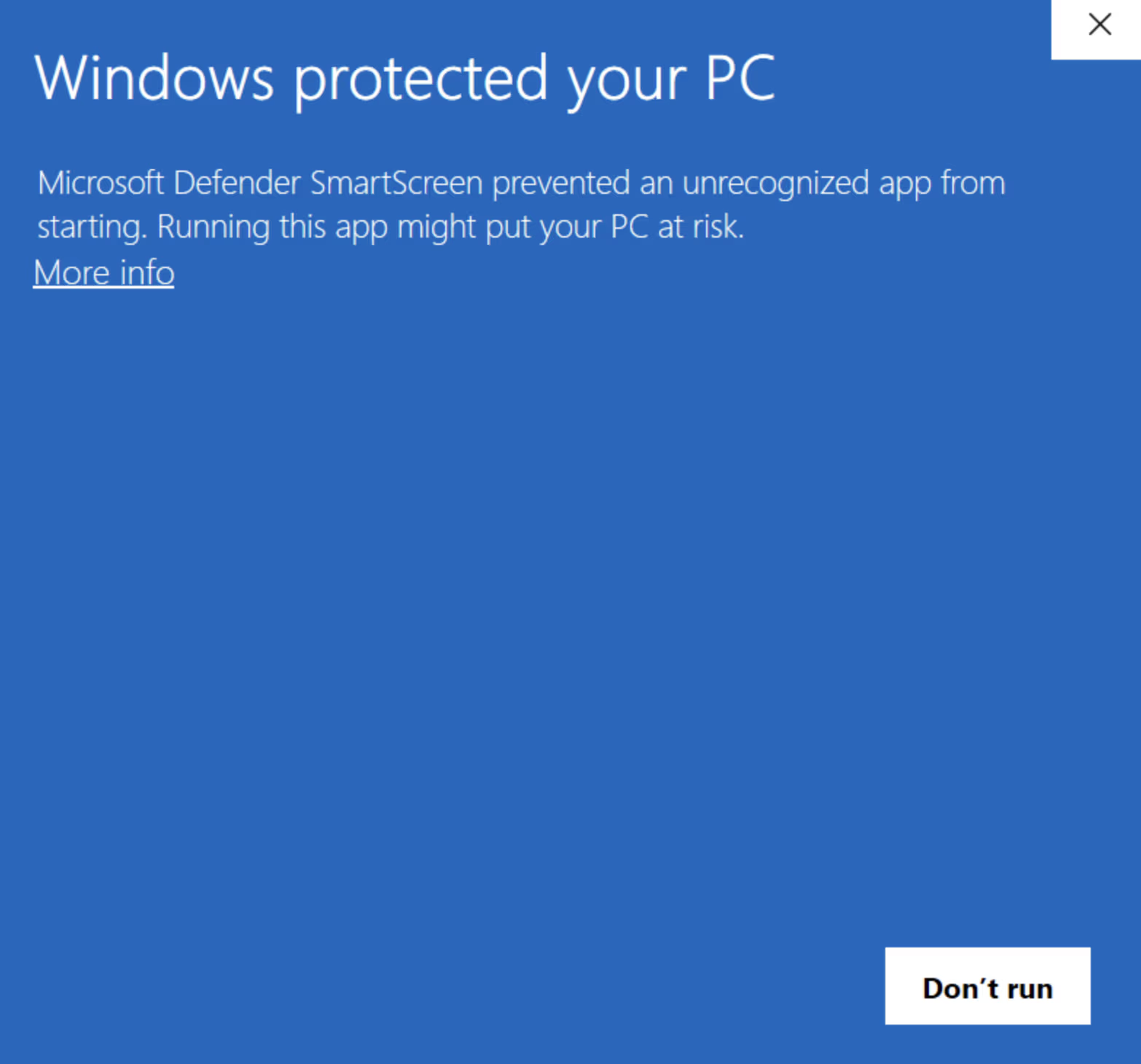
You've just downloaded Ritemark, double-clicked the installer, and Windows throws a blue warning screen at you. "Windows protected your PC." Sounds scary, right?
It's not. Let's get you past this in about 30 seconds.
Why SmartScreen Shows the Warning
Windows SmartScreen keeps a reputation database of software. When an application is new or hasn't been downloaded by a large number of people yet, SmartScreen flags it as "unrecognized" -- not because it's dangerous, but because Microsoft hasn't seen it enough times to build a reputation score.
Ritemark is a young application. We're a small, independent developer, and our installer simply hasn't accumulated enough download history for Microsoft to give it the green light automatically. This is the same hurdle every new application faces on Windows, from indie games to developer tools.
Note: SmartScreen saying "unrecognized" is very different from SmartScreen saying "malicious." If Windows Defender or your antivirus flags a file as a virus or malware, that's a different situation entirely. The SmartScreen warning for Ritemark is purely a reputation issue -- the app is new, not harmful.
How to Install Ritemark Anyway
When you see the blue "Windows protected your PC" screen, here's what to do:
-
Click More info -- this is a small text link on the warning screen, easy to miss. It sits just below the main warning message.
-
A new button appears: Run anyway. Click it.
-
The Ritemark installer launches normally. Follow the setup steps and you're done.
That's it. You only encounter this screen once -- when you first run the installer. After Ritemark is installed, it opens like any other application on your system.
Success: Ritemark is now installed. Open it from your Start menu or desktop shortcut and start writing.
What If "More Info" Doesn't Appear?
In some cases, your organization's IT policies or a stricter SmartScreen configuration may hide the "More info" link entirely. If that happens, try this alternative approach:
Right-click the downloaded installer file (Ritemark-Setup.exe) and select Properties. At the bottom of the General tab, you'll see a security note that says "This file came from another computer and might be blocked to help protect this computer." Check the Unblock checkbox next to it, then click Apply and OK. Now double-click the installer again -- it should run without the SmartScreen warning.
If your computer is managed by your company's IT department and neither method works, you may need to ask your IT admin to allow the installation. Show them this article -- the installer is downloaded directly from our official GitHub releases page.
Is Ritemark Safe?
Absolutely. Ritemark is built by Productory, an Estonian company. The installer is distributed through GitHub, one of the most trusted platforms for software distribution. Every release is built from our source code and published as a signed GitHub Release.
Your documents stay on your machine. Ritemark doesn't upload your files anywhere, doesn't phone home with your data, and doesn't require an account to use. The only network requests happen when you explicitly use AI features -- and even then, only the text you select gets sent to the AI provider you've configured.
Quick Reference
| Situation | Solution |
|---|---|
| Blue "Windows protected your PC" screen | Click More info, then Run anyway |
| "More info" link missing | Right-click installer, Properties, check Unblock |
| Company-managed PC blocks installation | Contact your IT admin with the GitHub release link |
| Windows Defender flags as virus | This should not happen -- contact us if it does |
Related
-
Getting Started -- Full setup guide from download to first document
-
Common Issues -- Solutions to other frequently encountered problems
Happy writing!