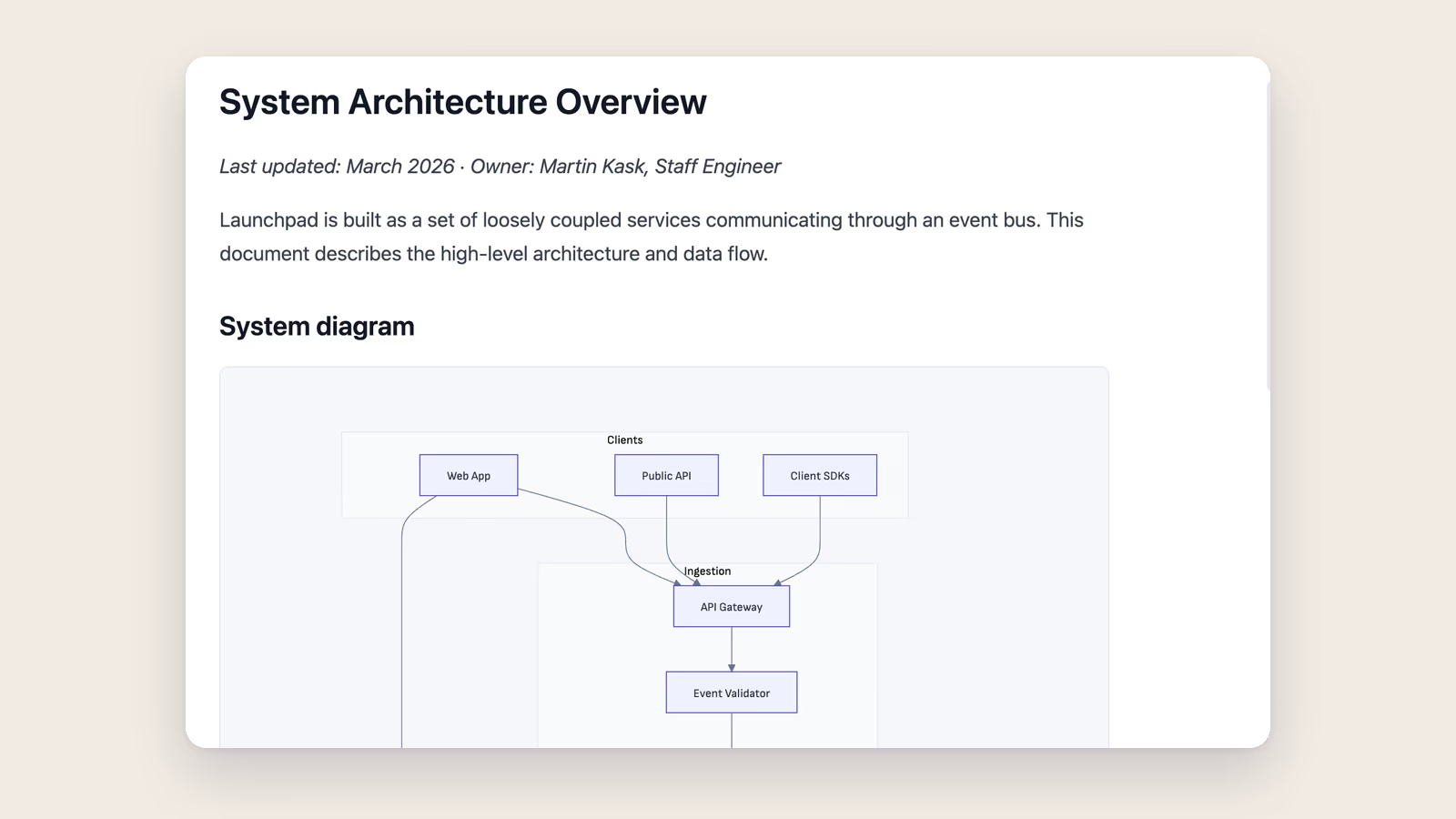
Writing tools should show your thinking, not just your words. Sometimes a flowchart explains a process better than three paragraphs. Sometimes a sequence diagram saves you from writing "first A calls B, then B responds to A, then A calls C" over and over. That's what mermaid diagrams are for, and Ritemark now renders them directly in your documents.
v1.5.1 also makes AI agents more predictable and transparent. Plans show up as a reviewable interface instead of getting buried in chat text. Interactive questions from agents continue the conversation after you answer them. And a new extensions marketplace lets you browse and install VS Code extensions without leaving the app.
Mermaid Diagrams in the Editor
You can now write a fenced code block with mermaid as the language, and Ritemark renders it as an SVG diagram right in the editor. Type /mermaid from the slash command menu or write the fence manually. Either way, the diagram appears as soon as the syntax is valid.
Each mermaid block has a toggle in the top-right corner that switches between the rendered diagram and the source code. Click it when you want to edit the definition, click it again to see the result. The switch is instant.
The diagrams are theme-aware. Light mode gets light backgrounds, dark mode gets dark backgrounds. You don't configure this. It follows whatever theme you're already using.
Seven diagram types are supported: flowchart, sequence, class, state, entity-relationship, Gantt, and pie chart. That covers most documentation and planning needs. If your syntax has errors, Ritemark shows a clear message but still lets you edit the source code, so you're never locked out of fixing a broken diagram.
When you export to Word or PDF, mermaid diagrams are automatically converted to PNG images. The person receiving your document sees the visual diagram even if they've never heard of mermaid.
AI Agents You Can Actually Follow
The sidebar agents (Claude Code and OpenAI Codex) now handle interactive moments more gracefully. When an agent asks you a multiple-choice question, the options render inline as clickable choices. After you pick one, the conversation continues from where it left off. Previously, these interactive moments could feel disjointed. Now they're part of the natural flow.
Plans are the bigger change. When an agent proposes a plan of action, it shows up as a dedicated reviewable UI element, not as a block of text in the chat stream. You can see exactly what the agent intends to do before it does it. During execution, a compact "current plan" widget stays visible above the input field so you always know where things stand.
There were edge cases where clearing a conversation and starting fresh didn't properly reset the plan display. A leftover plan bar could make new plans invisible. That's fixed. Clearing a conversation now reliably clears the plan state too.
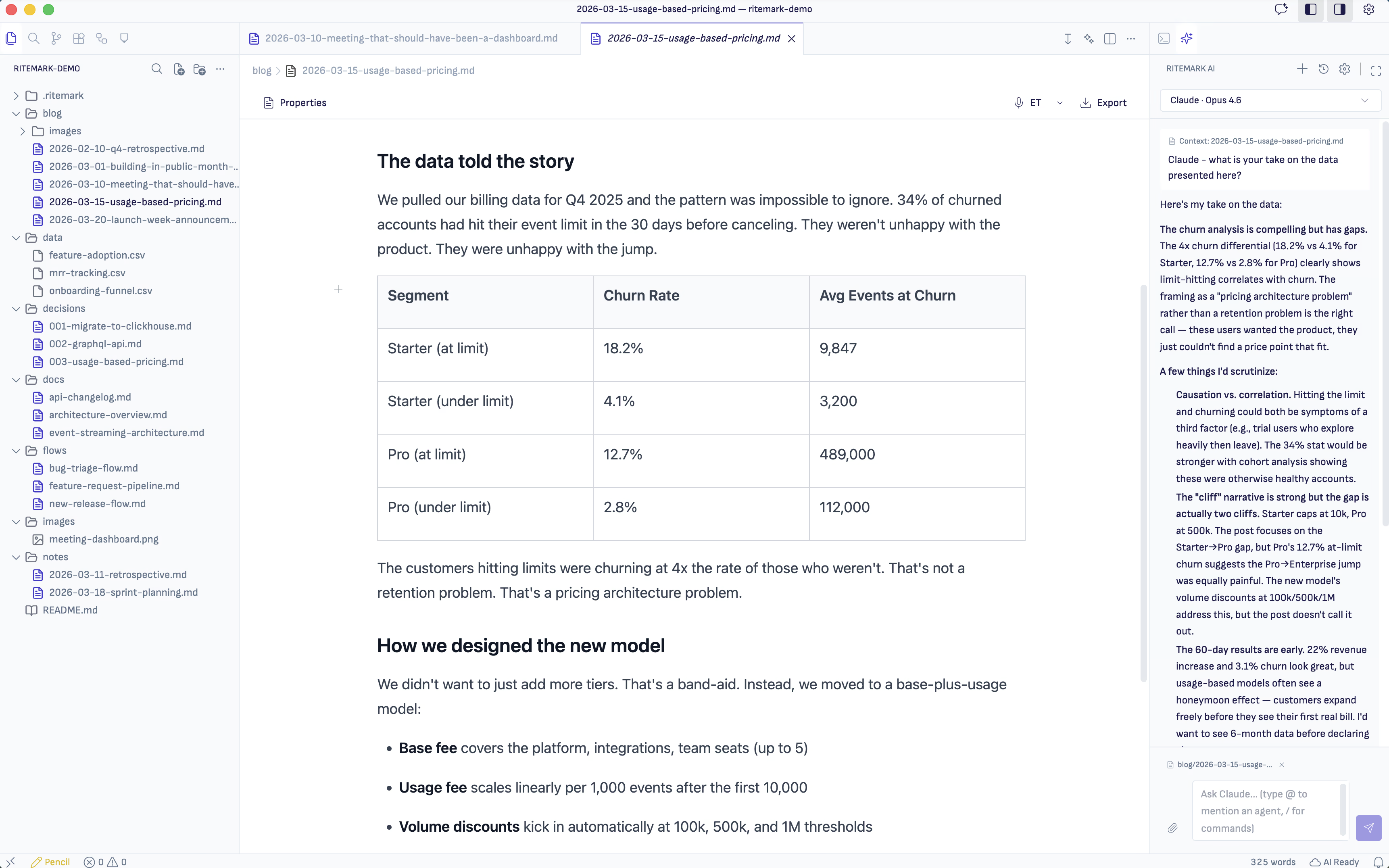
For debugging AI agent issues, v1.5.1 adds an optional debug trace log. You can enable it in Settings, AI, Debug Trace. When something goes wrong with an agent interaction, the trace provides details for troubleshooting without cluttering the normal experience.
Codex had a bug where it could enter planning mode on its own, without you asking for it. That no longer happens. Plan mode only activates when you explicitly request it.
Extensions Marketplace
Ritemark is built on VS Code OSS, which means it's compatible with VS Code extensions. Until now, adding extensions required manual installation. v1.5.1 adds a marketplace browser directly inside the app.
You can search for extensions, read descriptions, and install them with a click. This opens up a range of possibilities, from language support to additional formatters to Git tools. The marketplace works the same way it does in VS Code, just accessible from within your writing environment.
Menu Cleanup
v1.5.1 removes the Go, Terminal, and Run menus from the menu bar. These were inherited from the VS Code base and made sense for a code editor, but not for a writing app. The Edit and View menus are also trimmed down to include only actions relevant to writing.
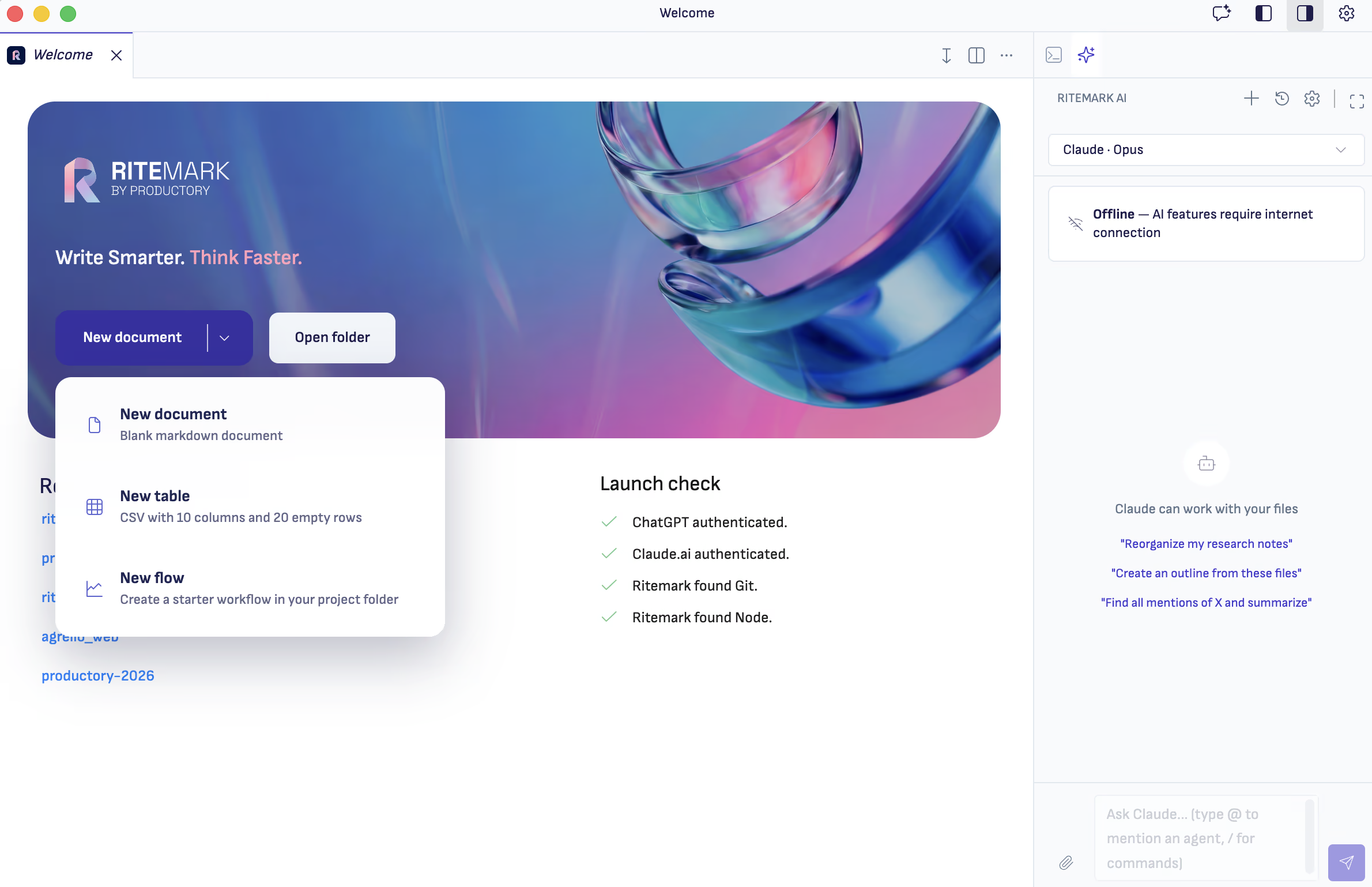
The new file creator is simpler too. Instead of showing every possible file type, it now offers Markdown and CSV. Those are the two formats Ritemark is built to edit, and having a focused list means less confusion.
One fix worth mentioning: Cmd+B now always triggers Bold formatting. In earlier versions it could toggle the sidebar instead. That's been corrected since v1.4.0, but if you noticed it acting up again, v1.5.1 makes sure it stays fixed.
Bug Fixes
Image pasting had a regression where pasting a new image could overwrite previously pasted images in the same document. That's fixed. Each pasted image now gets a unique filename.
The extensions marketplace search no longer crashes in OSS builds. This was an edge case, but it affected users building Ritemark from source.
Download
The update is available for all platforms:
| Platform | File |
|---|---|
| macOS Apple Silicon (M1/M2/M3/M4) | Ritemark-arm64.dmg |
| macOS Intel | Ritemark-x64.dmg |
| Windows | Microsoft Store |
Windows users: Ritemark is now in the Microsoft Store, which installs it for you. (Updated September 2026.)
If you're already running Ritemark, the Update Center will notify you when v1.5.1 is ready. New users: download and start writing with diagrams.
FAQ
What are the main updates in Ritemark v1.5.1?
Three areas: mermaid diagrams render directly in the editor with code/diagram toggle and export support, AI agent reliability is improved with reviewable plans and inline interactive questions, and a new extensions marketplace lets you browse and install VS Code extensions from within Ritemark.
How do I create a mermaid diagram?
Type /mermaid in the editor or write a fenced code block with mermaid as the language. The diagram renders automatically when the syntax is valid. Use the toggle button to switch between code and diagram views.
Which diagram types are supported?
Flowchart, sequence, class, state, entity-relationship, Gantt, and pie chart. These cover most documentation and planning scenarios.
Do mermaid diagrams export to PDF and Word?
Yes. Mermaid diagrams are automatically converted to PNG images during export. Recipients see the visual diagram without needing a mermaid renderer.
What changed with AI agent plans?
Plans now appear as a dedicated UI element instead of chat text. A compact widget above the input shows the current plan during execution. Clearing a conversation properly resets the plan display.
Is Ritemark free?
Yes, Ritemark is free and will remain free. Using AI agents requires an Anthropic API key or a paid Claude.ai subscription for Claude Code, or a paid ChatGPT account for Codex.
Where can I find previous release notes?
All Ritemark updates are available on the Ritemark blog. v1.5.0 upgraded the VS Code foundation and added the Update Center, v1.4.1 added Codex and plan mode, v1.4.0 brought Claude Code to the sidebar.