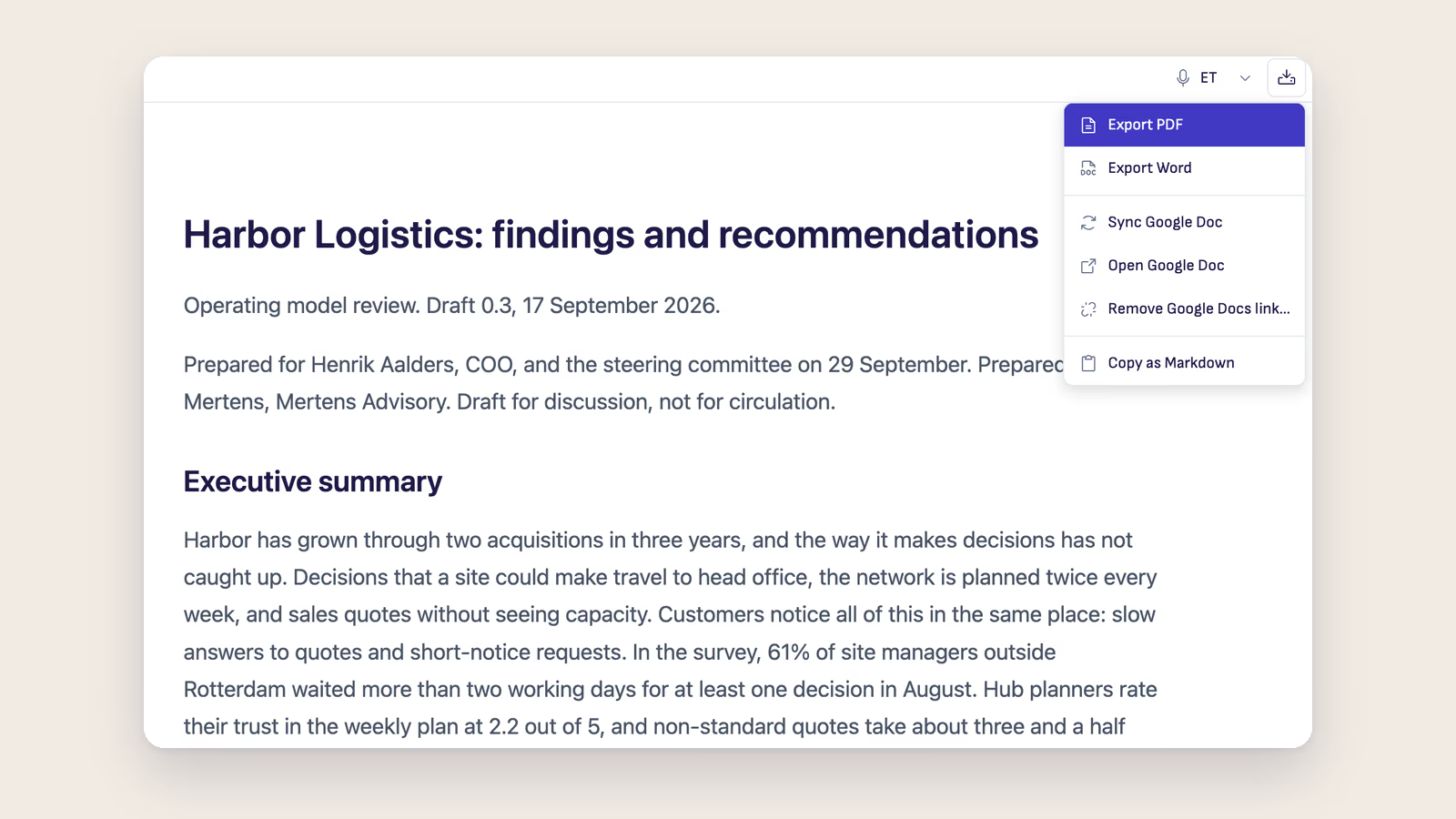
You finish a document in Ritemark, and the people who need it work in Google Docs. Until now, every round of edits meant copying it across by hand and fixing the formatting again.
Ritemark v1.12.0 is out. Here's what changed.
Publish a Markdown document as a Google Doc
Connect your Google account once, in the new Google Docs card in Settings. Then choose Create Google Doc in the Export menu, and the document appears in your Google Drive as a real Google Doc. Headings, lists, tables, links, code, quotes, images and diagrams come through.
Ritemark remembers which Doc belongs to which file. After your next edit, Sync Google Doc updates that same Doc, so its link and sharing stay as they were and no copies pile up in Drive.
Sync goes one way. Your Markdown file is the original, and nothing is read back from Google Docs. Because Sync replaces the Doc's text, Ritemark asks before the first overwrite. It warns you again if someone has edited the Doc in Google Docs since your last Sync, with Open Google Doc so you can look first. When nothing has changed, it writes nothing.
Pick any Google Doc as a template, and new Docs start as a copy of it, with your fonts, colours, header and footer. Sync replaces only the text, so the look stays.
Ritemark asks Google for one permission, which covers only the Docs it creates and the template you pick. It can't see or change anything else in your Drive. Sign-in tokens are stored encrypted on your computer, and everything travels directly between your computer and Google. Disconnect revokes the access and never deletes a Google Doc. Ritemark now has its own privacy policy, with a section on exactly what publishing does with your Google data.
Two things Google's API can't do: a ticked checkbox arrives unticked, and bullets nested under a numbered item show as a., b.
Record straight into Transcribe
The Transcribe panel has a new Record button, marked with a dot, next to Add recording. While you record, the panel shows the elapsed time and how much audio is saved so far. Stop and use puts the recording in the same engine choice as an added file, and nothing is transcribed or uploaded until you choose an engine.
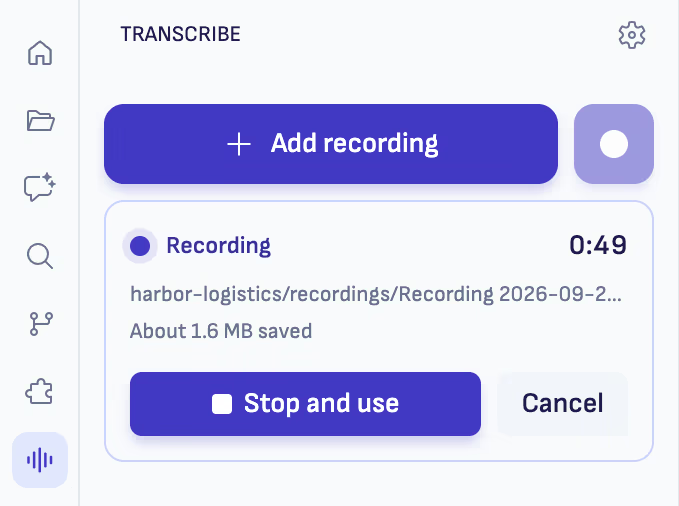
The file grows in your project's recordings folder while you record.
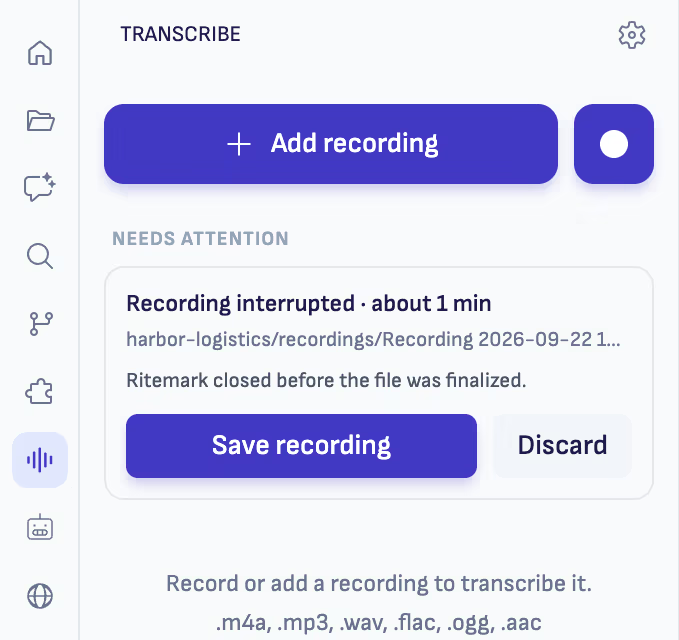
With a folder open, the recording is an ordinary WAV file in a recordings folder in your project. It's written to disk as you record, so if the panel reloads, or Ritemark quits or crashes mid-recording, the audio is kept and the panel offers Save recording or Discard.
The microphone is recorded as it is, with no echo cancellation or noise suppression, so if you record a call through your speakers, the other side is recorded too. Record works on macOS and Windows. On-device transcription needs a Mac with Apple silicon, so on an Intel Mac or on Windows you transcribe with ElevenLabs, using your own ElevenLabs API key, and the recording is uploaded only once you choose it. The Transcribe guide has the details.
Word documents as pages, PowerPoint files as slides
A Word document now shows its pages where Word put them, with the right number on each page. Covers and page decorations placed behind the text appear, and fonts embedded in the document are used. Office fonts your Mac doesn't have, such as Calibri and Aptos, are drawn in a close system font instead of Times. A document made by another program, such as a Google Docs export, has no saved page breaks, so the preview lays out its pages the way Word would, and they come close to Word's.
A .pptx file opens as its slides, one under another, with each slide's speaker notes beneath it. It's drawn on your computer, and nothing is uploaded. Text, tables, pictures, shapes, layouts and design themes come close to PowerPoint, and charts are drawn approximately.
The previews share one quiet toolbar with the page or slide you're on, zoom and Fit width. Cmd+F, or Ctrl+F on Windows, opens the same find bar as the Markdown editor, and it now searches PDFs too, counting the matches on every page.
The previews come close to the originals, but they aren't identical. Animations, transitions, audio and video aren't played, and a note tells you when a file has content the preview can't show exactly. For the exact layout, or to present, use Open in Word or Open in PowerPoint.
Also in this release
A clearer Agent Chat
The conversation you're in now has a header with its title. Its ⋮ menu has Rename, Pin or Unpin, and Delete, the same as in the conversation history. The box you type in grows to eight lines, and you can drag its top edge to make it taller. Every link in a reply now does something, or says why not. A file outside your project is shown in its folder rather than opened, because the AI wrote that path.
Transcript search, and tabs that fit
A search field above the transcript highlights every match as you type and shows where you are, such as 3 of 12. With many files open, tabs now shrink to fit the row. Hover a tab to see its full name.
Claude Opus 5.5
Anthropic requires Claude Code 2.1.280 or newer for Opus 5.5, and Ritemark now comes with 2.1.281. The Claude Code model menu follows your sign-in, so Opus 5.5 appears there when your Claude plan or API key includes it. If you had chosen Opus, you move to Opus 5.5 automatically. When a model you used is no longer available, Ritemark says so in the chat instead of switching quietly.
Fixes
Shift+End used to select everything to the end of the document, so the next keystroke could delete text you couldn't see. It now stops at the end of the line. A year such as 2026. at the start of a paragraph stays a sentence instead of becoming a numbered list. Struck-through text keeps its line when you save, and images kept in a shared images/ folder of your project now show in the editor. Ritemark also no longer pauses at launch while it checks Claude and Codex. The release notes list every fix.
FAQ
Do changes made in Google Docs come back into Ritemark?
No. Publishing is one-way. Your Markdown file is the original, and the next Sync warns you before it overwrites edits made in Google Docs.
What can Ritemark see in my Google Drive?
Only the Google Docs it creates and the template you pick. It can't see or change anything else in your Drive.
Can I edit Word or PowerPoint files in Ritemark?
No. The previews are read-only. To edit or present, use Open in Word or Open in PowerPoint.
How do I use Claude Opus 5.5 in Ritemark?
Update to v1.12.0 and choose Opus 5.5 in the Claude Code model menu. It's listed when your Claude plan or API key includes it.
Download
| Platform | File |
|---|---|
| macOS Apple Silicon | Ritemark-arm64.dmg |
| macOS Intel | Ritemark-x64.dmg |
| Windows x64 | Microsoft Store |
If you already run Ritemark, it offers the update to v1.12.0 itself. The Microsoft Store serves v1.12.0 once Microsoft has reviewed the update. Until then, a new Store install starts on v1.11.0 and Ritemark offers the update. Full notes are on the GitHub release page.
Ritemark extends your Markdown file into the Google Doc your colleagues read. Your AI, extended.