
Getting Started with RiteMark
You're about to meet your new favorite writing tool. In just 5 minutes, you'll have RiteMark installed and your first document created.
Let's go.
Download and Install
Head over to our GitHub releases page and download the installer for your platform. RiteMark is available for macOS (Apple Silicon and Intel) as a DMG and for Windows as Ritemark-Setup.exe.
On macOS, open the DMG and drag RiteMark to your Applications folder. On Windows, run Ritemark-Setup.exe and follow the installer prompts. That's it -- installation done.
💡 Tip: After dragging, you can eject the disk image by right-clicking it and selecting "Eject".
First Launch on macOS
When you open RiteMark for the first time, macOS might show a security warning. This happens because we're an independent developer, not a big corporation.
Here's how to open it anyway:
-
Find RiteMark in your Applications folder
-
Right-click (or Control-click) on it
-
Select Open from the menu
-
Click Open in the dialog that appears
You only need to do this once. After that, RiteMark opens like any other app.
First Launch on Windows
When you run the Ritemark installer for the first time, Windows SmartScreen may show a blue "Windows protected your PC" warning. This happens because Ritemark is a new application and hasn't built up enough download history with Microsoft yet — it's not a security issue.
To get past it, click More info on the warning screen, then click Run anyway. The installer will launch normally. You only see this once.
For a detailed walkthrough with screenshots, see Windows SmartScreen Warning.
Open Your First Project
RiteMark is project-based -- it works with folders, not individual files. This keeps your documents organized and lets you see everything in one place.
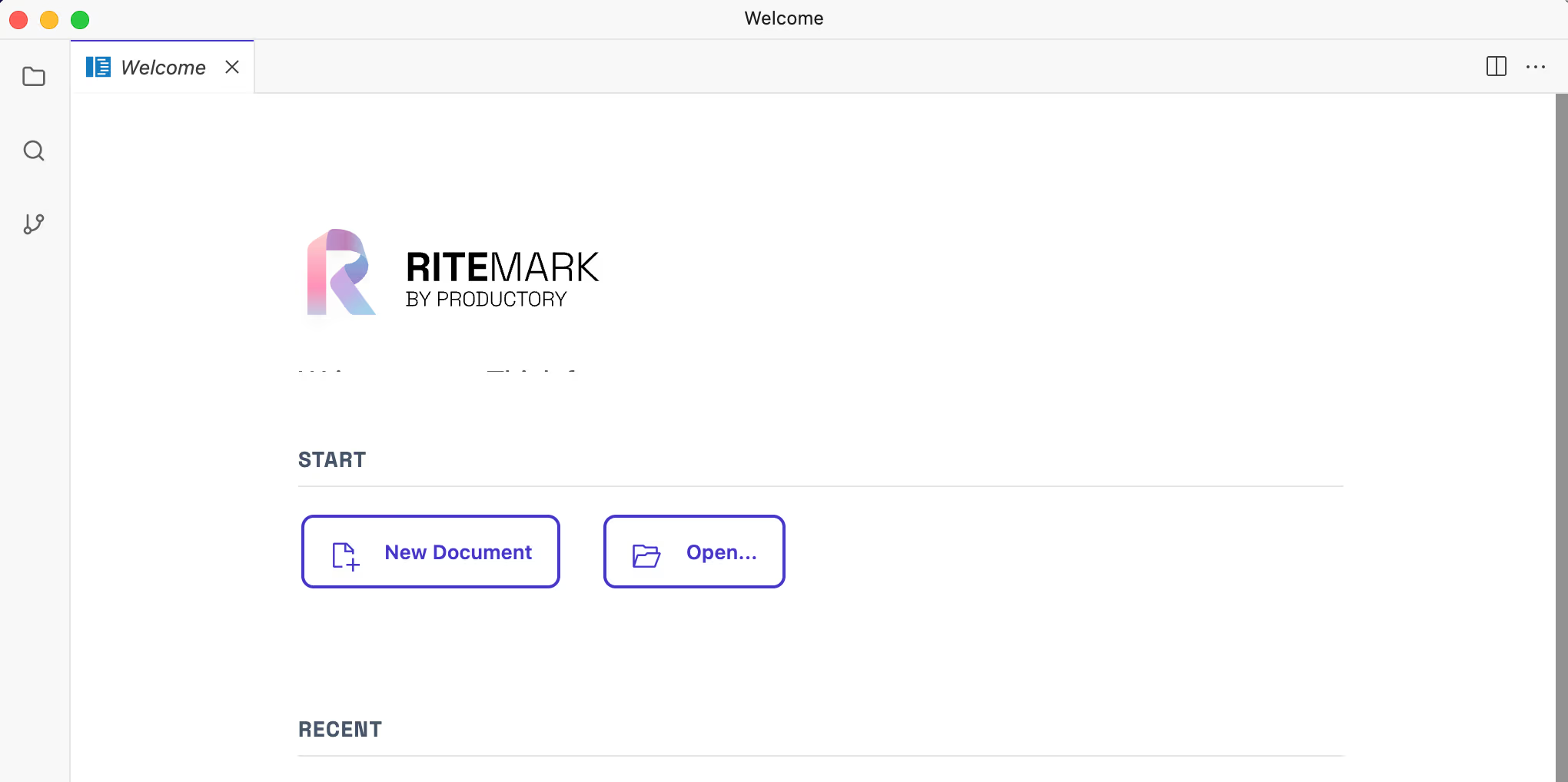 Screenshot of Welcome page
When you first open RiteMark, you'll see the Welcome Page. It shows a launch check panel with the status of your environment -- Claude, ChatGPT, Git, and Node -- so you know right away if everything is ready. Below the checks, quick-action buttons let you jump straight into creating a new document, a new table, or a new flow, or you can open a recent file.
Click Open (or use File -> Open Folder) and select any folder on your computer. If you don't have one ready, create a new folder called "My Notes" or similar.
Your folder now appears in the sidebar on the left. This is your project explorer.
Create Your First Document
Here's the fun part. Right-click anywhere in the sidebar and select New File. Name it something like hello.md and press Enter.
The file opens in the editor. Start typing — your text appears beautifully formatted as you write.
🎉 Congratulations! You've just created your first RiteMark document.
Three Things to Try Right Now
1. Slash Commands
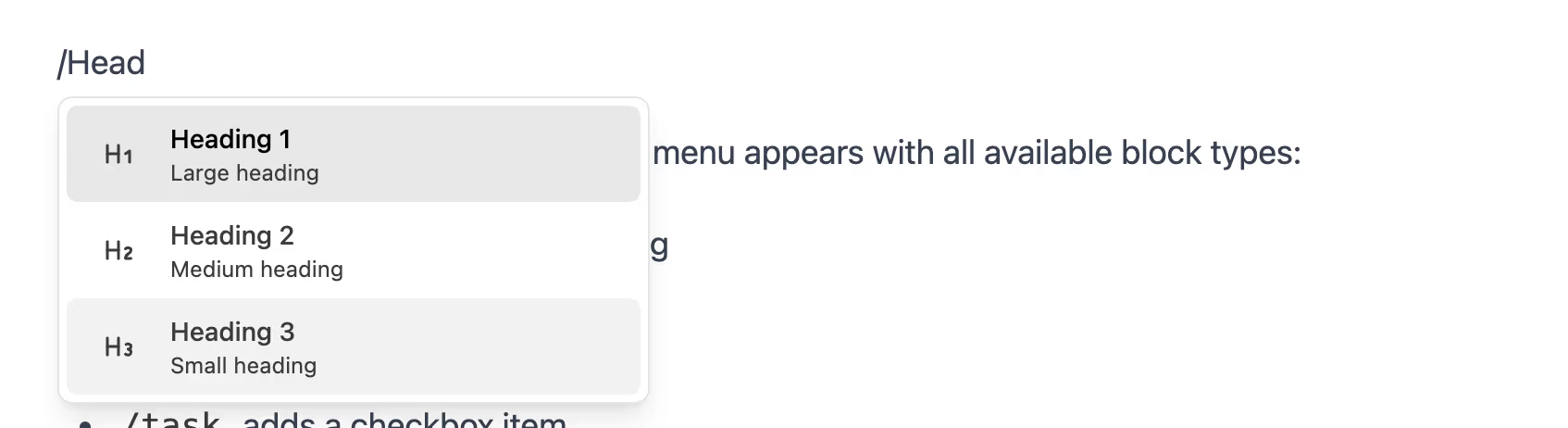 Screenshot of usage of slash commands
Type / anywhere in your document. A menu appears with all available block types:
-
/heading1creates a large heading -
/bulletstarts a bullet list -
/taskadds a checkbox item
Try typing /heading1 and pressing Enter. Magic.
2. Quick Formatting
Select any text you've written. A floating toolbar appears with formatting options. Click B for bold or I for italic.
Even faster? Use keyboard shortcuts: ⌘B for bold, ⌘I for italic.
3. Relax — It Auto-Saves
Notice there's no save button? RiteMark saves your work automatically, about a second after you stop typing. The status bar at the bottom shows you when the file was last saved.
No more lost work. No more "did I save that?" anxiety.
What's Next?
You've got the basics down. Here's where to go from here:
Set up AI assistant — RiteMark includes a simple AI assistant that can help you write, edit, and brainstorm. Configure your API key to unlock it.
Explore the editor — Learn about all the block types and keyboard shortcuts to speed up your workflow.
Export your work -- Share your markdown as PDF, Word, or HTML. See export options.
Open web pages alongside your writing -- As of v1.7.0, .html files, external URLs, and localhost:* open as rendered pages in the same tab bar as your markdown. It's a real browser inside Ritemark, useful for previewing exports, checking references, or running a local docs server.
Check for updates -- The new Update Center in Settings lets you check for updates, install them with pause and resume support, and skip versions you don't want. No more downloading DMGs manually for most updates.
Quick Reference
| What you want to do | How to do it |
|---|---|
| Create a new file | Right-click in sidebar → New File |
| Insert a heading | Type /heading1 |
| Make text bold | Select text, press ⌘B |
| Start a bullet list | Type /bullet |
| Export to PDF | Click Export → PDF |
Stuck?
Check out Common Issues for solutions to frequent problems, or browse the full support documentation for detailed guides on every feature.
Happy writing!