
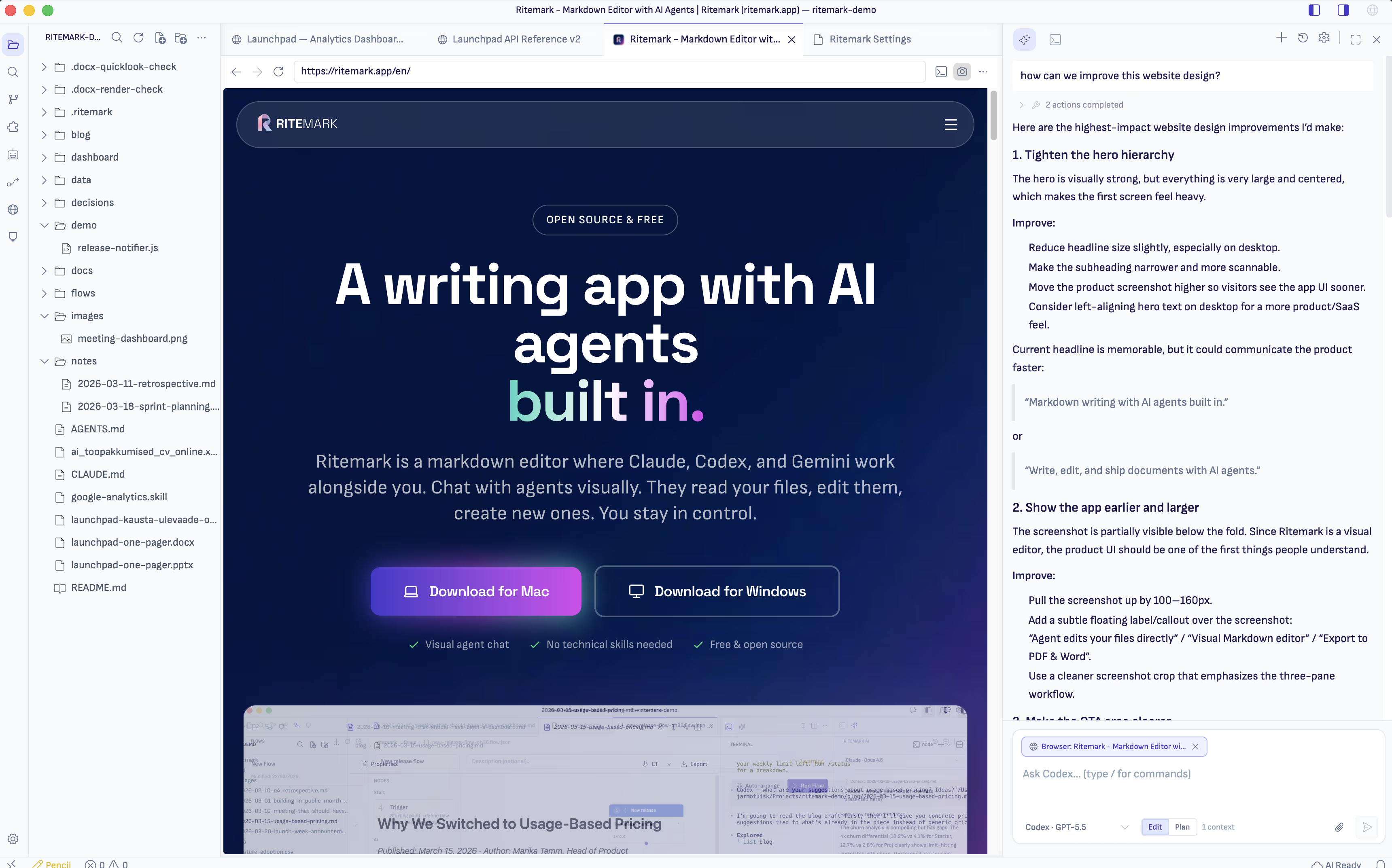
Ritemark includes a real browser pane. Local .html files, external websites, and localhost:* dev servers open as rendered pages — in the same tab bar as your markdown files.
This isn't an iframe preview. It's a full Electron browser with back/forward/reload history, DevTools, its own cookie store, and proper script and style rendering. Sites that block iframe embedding work. Your own .html files work. Your running dev server works.
Opening Pages
From the file Explorer: click any .html file and it opens as a rendered page by default. To edit the markup instead, right-click the file and choose Open as Text.
From the terminal: Cmd+click any localhost:* URL and it opens in the integrated browser instead of the system browser. The dev loop stays inside one app.
From the tab bar: drag, split, and close browser tabs exactly like markdown tabs. Close with Cmd+W.
Sharing Browser Context with the AI
The AI sidebar (Claude and Codex) can see the browser tab you're looking at — but only when you allow it.
The first time you focus a browser tab with the AI sidebar open, Ritemark asks "Share with Agent?" Until you click Allow, nothing about the page — not the URL, not the title, not the DOM — reaches the AI.
Once you allow, the AI receives the page URL, title, and an ARIA outline on every turn. You can ask things like:
- "Summarize this article"
- "What does this button do?"
- "Why is the spacing around the title so narrow?"
- "Is the colour contrast WCAG-AA compliant?"
The AI answers from the actual page, not from guessing at the URL.
The composer chip. A globe-icon chip in the composer shows the page title, and it shows exactly what goes with your next message. As of v1.12.0 it appears only while the active tab is shared with the AI. A tab you declined, or one whose prompt is still waiting for your answer, shows no chip, and your message carries nothing from that page. Click × (Remove from this message) to drop browser context for one turn without affecting the next.
Claude Code and Codex receive the shared page with your messages. OpenCode doesn't, so no chip appears while an OpenCode model is selected. On Windows, a shared page is sent with your message again as of v1.12.0.
Annotation mode. Click the camera icon in the browser toolbar to attach a screenshot of the current viewport to the next AI turn. Useful for visual and layout questions — the AI sees exactly what you're looking at.
As of v1.7.3, when annotation mode is on, the composer shows a live 56×56 screenshot thumbnail chip in place of the URL chip — refreshing about every five seconds as you scroll or interact with the page. The chip is what the AI will receive on the next turn, so the preview matches reality instead of just naming the URL. Dismiss the chip with × to drop the browser context for that prompt.

Agents Can Re-Observe a Page — browser_snapshot (v1.7.3)
AI agents working with the integrated browser used to have only one way to "look at" a page: navigate to it. Re-checking the page after a click or a form-fill meant re-navigating, which lost any in-page state, or falling back to an external Playwright server.
v1.7.3 adds a browser_snapshot tool that returns the current ARIA outline of the active browser tab — URL, title, and full accessibility tree — without navigating. Claude Code sees it as mcp__ritemark_browser__browser_snapshot. Codex sees it as ritemark_browser_snapshot. OpenCode gets it through Ritemark's ritemark_browser MCP adapter, so on macOS it can read a page you shared even though the page doesn't go with its messages. The tool ships with the browser control tools, which means it's available on macOS only.
It is read-only and consent-aware. If the tab is not shared with Ritemark AI, the tool returns an error — no URL, no title, no page content leaks. Snapshots ride the same per-tab read consent as every other browser-aware capability.
Privacy and Consent
Consent is per-tab, per-session. If you close the browser tab and reopen it, Ritemark asks again.
Declining once does not disable the feature — it just means that tab stays private for this session. You can always open the AI sidebar and allow sharing at any point.
Nothing about the page reaches the AI until you explicitly allow it. This applies to URL, title, ARIA outline, screenshots, and the v1.7.3 browser_snapshot tool alike — unshared tabs return errors instead of content.
DevTools
Press F12 or right-click inside the browser pane and choose Inspect to open the Electron DevTools. Useful for debugging your own .html files or inspecting external pages.
AI Browser Control (v1.7.1)
In v1.7.0, the AI could read the browser tab you were looking at. In v1.7.1, it can also act on it. The AI sidebar can now navigate to a URL, click elements, fill form fields, type, and scroll the page — five tools in total. Reading the page and typing into the page are two different decisions, so v1.7.1 treats them that way.
This works on macOS only, and it's on by default, so there's nothing to turn on. The first time an AI agent tries to act on a browser tab, you get a separate consent dialog: "Allow AI to control this browser tab?" This is a different prompt from the v1.7.0 "Share with Agent?" read-share dialog. Control is a stricter permission — you grant it per tab, the same way you grant read.
The browser tab stays visible the whole time the AI is working. There is no headless tab, no hidden window. You watch the cursor move, the page navigate, the field fill. If something looks wrong, you close the tab or revoke consent.
Revoking read consent also revokes control consent. The AI cannot act on a page it cannot see.
For Claude Code SDK users, the tools surface as mcp__ritemark_browser__navigate, mcp__ritemark_browser__click, and so on. For Codex App Server, the same tools appear as ritemark_browser_navigate, ritemark_browser_click, and the rest of the set. OpenCode gets them through the ritemark_browser MCP adapter that Ritemark attaches to each OpenCode session, and as of v1.12.0 OpenCode knows it has them, as Claude Code and Codex do. The consent dialog works the same in all three.
HTML Files Open Cleanly (v1.7.1)
Clicking an .html file used to flicker briefly as the text editor opened and then handed off to the browser. v1.7.1 routes .html and .htm files to the browser editor at the workbench level, so there is no flash on click and no blank tab on cold start. The text editor never opens in the first place. Right-click → Open as Text still works when you want to edit the markup.
Troubleshooting
Page not loading
Check that the file path or URL is correct. For localhost:* URLs, make sure your dev server is running. External URLs that require login may need you to sign in first via the browser pane.
The AI isn't reading the page
Make sure you clicked Allow in the "Share with Agent?" prompt for this tab. The globe-icon chip in the composer confirms the page goes with your next message. As of v1.12.0, no chip means the page isn't going: the tab isn't shared yet, or an OpenCode model is selected, since OpenCode doesn't receive the page with your messages. Focus the browser tab again to re-trigger the prompt, or pick Claude Code or Codex.
Can't edit an HTML file — it opens as a page
Right-click the file in Explorer and choose Open as Text.
AI won't navigate or click — control tools aren't available
Browser control works on macOS only. Approve the "Allow AI to control this browser tab?" dialog when it appears. If you revoked read consent for the tab, share the page again first, because revoking read consent also revokes control.
Quick Reference
| What you want to do | How to do it |
|---|---|
| Open an HTML file as rendered page | Click it in Explorer |
| Edit HTML source | Right-click → Open as Text |
| Open localhost in the browser pane | Cmd+click the URL in terminal |
| Share page with the AI | Click Allow in "Share with Agent?" prompt |
| Drop browser context for one turn | Click × on the globe chip in composer |
| Add a screenshot to the AI turn | Click camera icon in browser toolbar |
| See the actual screenshot the AI will receive (v1.7.3) | Live 56×56 thumbnail chip in the composer with annotation mode on |
| Let an agent re-read the page mid-task (v1.7.3) | browser_snapshot tool — works only on shared tabs |
| Open DevTools | F12 or right-click → Inspect |
| Let the AI control a tab (macOS) | Approve the "Allow AI to control this browser tab?" dialog |
Related
- AI Assistant — Full guide to the Claude and Codex sidebars
- Core Editor — Supported file types and editing basics
- Terminal & AI — Terminal with localhost link routing