
Draw architecture diagrams, flowcharts, and sequence diagrams right where the prose lives.
As of v1.8.0, Ritemark embeds and edits draw.io diagrams directly in your markdown. You draw in a full draw.io editor that lives inside the app, the diagram is saved as a file next to your document, and the picture embedded in your markdown refreshes the moment you save. Diagrams that used to live in a separate tool now live inside the document.
Insert a Diagram with /diagram
In any markdown file, type /diagram and press Enter. Ritemark does three things in one step:
- Creates
images/diagram.drawio.svgnext to the file - Embeds it at the cursor
- Opens the diagram editor
You start drawing immediately. There's nothing to set up and no file to create by hand.
 Type
Type /diagram to create, embed, and open a diagram in one step
A Full draw.io Editor, Offline
Any *.drawio.svg file opens in a complete draw.io editor (v30.0.4). It's vendored into the app and runs fully offline. There's no CDN call, no account, and no sign-in. The shape palette, the canvas, and the format panel are all there, exactly as you'd expect from draw.io.
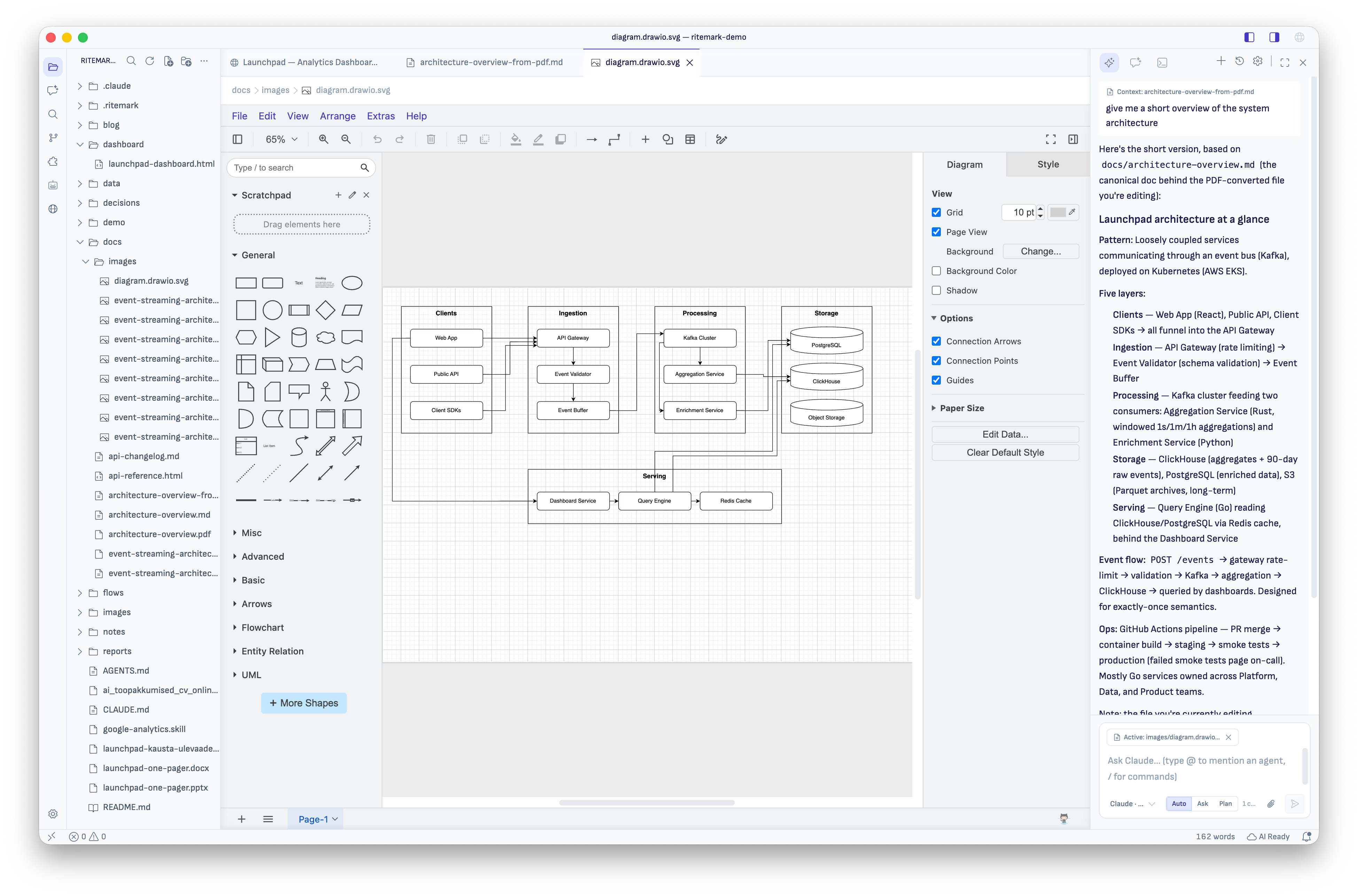 The full draw.io editor running inside Ritemark, with the AI sidebar alongside
Editing an Embedded Diagram
To edit a diagram that's embedded in markdown, double-click it. A single click only selects it, and a hover tooltip explains how. Double-clicking opens the diagram in its own editor tab.
Diagrams Autosave, and the Embed Refreshes Live
Diagrams autosave the same way markdown files do. There's no Ctrl+S to remember; the tab's dirty indicator briefly flashes as your changes are written.
Edit in the diagram tab, switch back to the markdown, and the picture is already updated. The embed refreshes the moment the diagram is saved.
This live refresh works for all embedded images, not just diagrams. If any image file under the document's folder changes on disk, the embed updates in place, so you never have to reload the document to see the latest version.
As of v1.12.0, a diagram saved outside the document's own folder works too, for example in one shared images/ folder at the top of your project, as long as it's inside the folder you have open. It shows in the editor, refreshes in place while you edit it, and comes through in PDF and Word export and when you publish to Google Docs, which converts diagrams to PNG.
Files That Render Anywhere
A .drawio.svg is a dual-format file. It's a normal SVG that displays correctly in GitHub, other editors, and any SVG viewer, while carrying its own editable diagram source inside.
The round-trip is lossless. Open the file in Ritemark, edit it, save it, and it's still a clean SVG that renders everywhere. You commit one file to your repo and it serves both purposes: a picture readers can see, and a diagram you can keep editing.
One Thing to Know
Everything in the editor works offline, with one exception: choosing a Google Font for diagram text needs a network connection to fetch the font. Drawing, editing, saving, and embedding all work fully offline.
Draw.io vs. Mermaid
Ritemark now covers both kinds of diagram:
| Approach | Use draw.io when | Use Mermaid when |
|---|---|---|
| How you make it | You want to draw freehand with shapes and a canvas | You'd rather describe the diagram in text |
| Stored as | A .drawio.svg file next to the document |
A fenced mermaid code block inside the document |
| Best for | Architecture diagrams, detailed layouts, anything visual | Quick flowcharts, sequence diagrams, version-friendly diffs |
Both render inside your document. Pick whichever fits the diagram you're making.
Quick Reference
| Action | How |
|---|---|
| Insert a diagram | Type /diagram in a markdown file |
| Edit an embedded diagram | Double-click it (single click selects) |
| Save | Autosaves, like markdown |
| See your edit in the doc | Switch back to the markdown -- it's already refreshed |
| Share the file | Commit the .drawio.svg; it renders in GitHub and stays editable |
Related
- Mermaid Diagrams - Text-based diagrams from fenced code blocks
- Core Editor - Editor features and slash commands
- Export - PDF and Word export options