
Mark up a document the way you would on paper, then send the exact passage and your note straight to an AI agent.
As of v1.8.3, Ritemark has comments. Select a passage, add a note, and it shows up as a margin annotation next to your text. The commented span gets an anchor highlight, so you always see what a note refers to. Comments are saved inside the Markdown file itself, so they survive every save and travel with the document.
The reason comments exist here isn't just review markup. A comment can be assigned to an AI agent, and the commented passage plus your note go to the conversation you have open in the AI sidebar, so you never have to copy-paste the text or re-explain the context.
New in v1.11.0: a comment you send to an agent now shows what really happened to it. The task goes to the conversation you have open in the AI sidebar, and the comment says Queued for Claude only after the agent has accepted the work. When the task finishes, the agent's short summary appears under your note with a link to the conversation. Hovering a highlight opens its comment, clicking pins it open, and a finished comment offers Mark as done. See Send a Comment to an Agent.
New in v1.8.6: comments became a command center for agents. The toolbar badge shows the document's real comment count, a mention is picked up anywhere in the note, and sending runs one ordered task per agent.
Add a Comment
There are two ways to leave a note.
On selected text. Select the passage you want to comment on, then click Comment in the bubble menu that appears. The selected span gets an anchor highlight, and a note opens in the right margin where you type your comment.
A standalone note with ///. Type /// anywhere in the document and press Enter (or Space) to drop a quick standalone note without selecting anything first. Use this when the note is about the spot rather than a specific span of text: a reminder, a question, a to-do for later.
Either way, the note lives in the margin rail on the right, lined up with the point in the document it refers to.
Writing the Note
The note box resizes. Drag its bottom-right corner to make it taller. It stops at eight lines, or at 40% of the window height if that is smaller, and the Cancel and Comment buttons stay reachable at any height. Ritemark keeps the height you chose for the rest of the session, and a new window starts at two lines again.
Typing @ opens the list of agents straight away. Keep typing to narrow it, move with the arrow keys, and press Enter or Tab to insert an agent, or Escape to close the list without inserting anything. Clicking an agent works too. The chosen agent is shown in the note while you write and on the comment after you save.
Open and Pin a Comment
Hover the highlighted text, or its marker in the margin, and the comment opens. Move the pointer away and it closes again. When you leave the highlighted text there is a short pause first, long enough to reach the note in the margin.
To keep a comment open, click it, either on the highlighted text or on its marker in the margin. A pinned comment gets a colored border and stays open wherever the pointer goes, so buttons such as Send to Claude stay within reach. Only one comment is pinned at a time, and clicking another comment moves the pin to it. To close a pinned comment, click its highlighted text again or click anywhere in the text that isn't a comment.
As of v1.11.0, collapsed comments no longer cover the text they annotate.
As of v1.12.0, the buttons on a pinned comment work on the first click. In v1.11.0, clicking Edit comment, the trash icon, Mark as done or Send to Claude on a pinned comment unpinned it instead, and the click was lost.
Edit, Delete, or Mark as Done
To change a comment, open it and click the pencil icon (Edit comment). Change the text, then press Comment (or Enter) to save, or Cancel to leave it as it was.
To delete a comment, hover its marker in the margin and click the trash icon. The margin note is removed and the highlighted text returns to plain text.
Once a comment's task has finished, the trash icon becomes a checkmark labelled Mark as done. It is the same action under a truer name: the comment is cleared from the document. Clearing a comment is always your call. An agent never removes a comment itself, and nothing is marked resolved for you when a task finishes.
Send a Comment to an Agent
This is what makes comments more than review markup.
Mention an agent in a comment and that comment becomes a task for the agent you named:
| Mention | Agent |
|---|---|
@claude |
Claude (Anthropic) |
@codex |
Codex (OpenAI) |
@opencode |
OpenCode (bring your own key) |
The mention can sit anywhere in the note, not only at the start (v1.8.6), so "this opening reads abrupt, @claude soften it" works exactly like a note that opens with the mention.
A Send to Claude button appears on the comment (or Codex, or OpenCode, depending on who you mentioned). Above it, one line names the conversation the work will go to. Pressing the button sends three things: your note without the @mention, the exact passage the comment is anchored to so the agent reads the same words you did, and the name of the document you are working in.
For example, highlight a paragraph that reads awkwardly, add the comment @claude tighten this and cut the repetition, and press Send to Claude. Claude gets the paragraph and your instruction together, and works on exactly that passage. No copy-paste. No re-explaining the context.
Where the Task Goes
A comment task goes to the conversation you have open in the AI sidebar. That is the whole rule. There is no conversation picker and no extra step to confirm the destination, and a brand-new empty conversation counts: the task simply starts it.
The line above the Send button names that conversation before you press it. If nothing is open yet, it says New conversation. If the conversation is busy, your task waits in its prompt queue and runs next. If the conversation is running a different agent from the one you mentioned, the task still goes there and runs as the agent you mentioned, the same runtime switch the sidebar composer offers. The line above the Send button tells you so first by adding · Claude takes over (or Codex, or OpenCode).
Once sent, the task stays with that conversation. Switching to another conversation afterwards does not move it.
Send Several Comments at Once
The comment button in the document toolbar opens the Comments menu. Its badge carries the document's real comment count, and the menu header breaks the count down: 4 total · 2 assigned · 2 unassigned.
Assigned comments are grouped by agent, one row per agent with the note text underneath, so you can see what Claude and Codex are about to get before anything runs. Comments with no mention stay out of the groups, under a plain line that says Unassigned comments are never sent. A note you left for yourself stays a note.
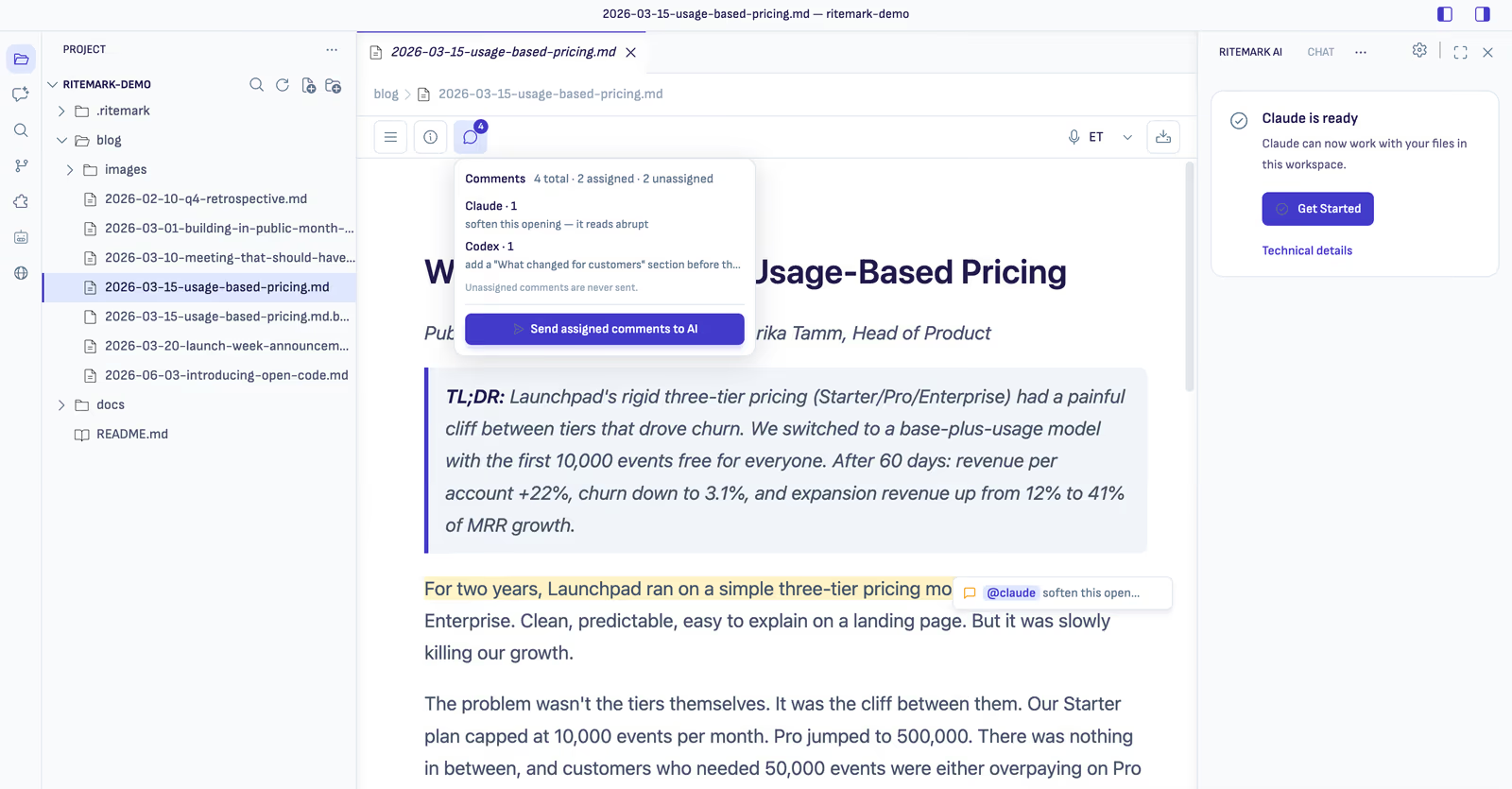
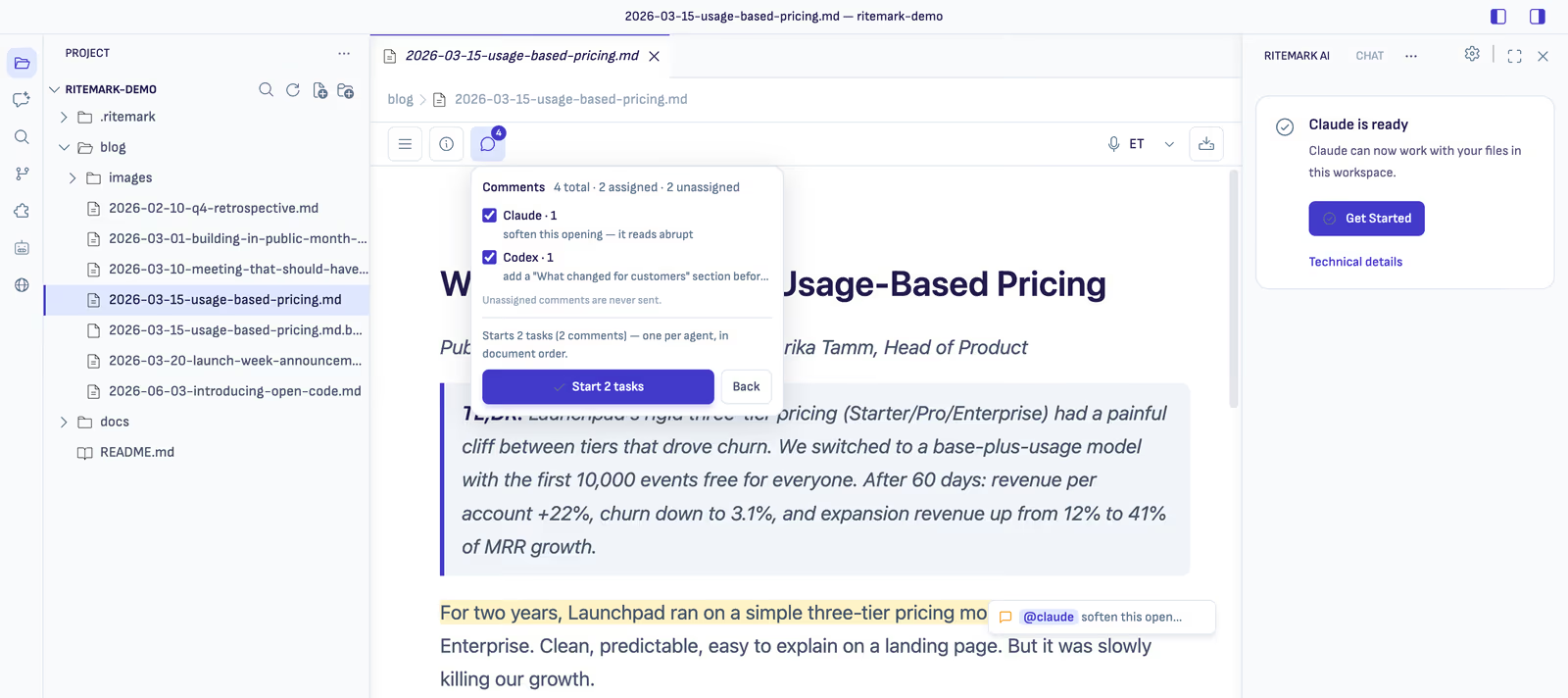
Click Send assigned comments to AI and nothing runs yet. A confirm step shows a checkbox per agent group, a sentence saying how many tasks will start (one per agent, with comments in document order), and the line naming the destination conversation. Untick a group to leave it out, check the destination, then press Start tasks. The button carries the count, for example Start 2 tasks.
Each group then answers for itself as its answer arrives, for example:
✓ Claude · 2 queued → Release note review
! Codex · Codex is signed out. Sign in and try again.   [Sign in]
You never get a blanket "all sent" message when only one group was accepted.
What Each Status Means
The comment shows its own task's state. It never shows another comment's state, and never the state of the conversation in general.
| What you see | What it means |
|---|---|
| Sending task… | Ritemark is asking the agent to take the work. The button is disabled so one click cannot become two. |
| Queued for Claude | The agent accepted the task, and it is waiting its turn in that conversation. |
| Claude is working | The agent is on it right now. |
| Needs your input | The agent asked a question, wants a plan reviewed, or needs permission. Open the conversation to answer. |
| Claude completed this task | Finished, with a short summary underneath. |
| Task failed · … | The task ran and did not finish. The reason is shown in plain words, with Retry and Open conversation. |
| Task cancelled | You stopped the run in the AI sidebar. Retry sends it again. |
| Task interrupted when Ritemark closed | The app closed before the work finished. The line names the cause, so you may also see Task interrupted when the agent stopped or Task interrupted before it reached the agent. Retry sends it again. |
| Conversation no longer available | The destination conversation was deleted. Only Retry is offered, because there is nothing left to open. |
Every state is a symbol plus a sentence, not just a color. The state survives reloading the document, closing and reopening the tab, and restarting Ritemark. If work was cut short by a restart, the comment says so instead of pretending it is still running.
When a Task Is Refused
A refusal is different from a failed task: the task is never created. The refusal appears on the comment itself, or on that agent's group in the Comments menu, together with the action that fixes it.
| What you see | What to do |
|---|---|
| Claude is signed out. Sign in and try again. | Press Sign in to open that agent's sign-in. Ritemark checks the agent before it queues the task, so a signed-out agent never leaves you with a task that only looks accepted. |
| That conversation already has ten prompts waiting. Let one finish and try again. | Let one of the queued prompts finish, then press Try again. A full queue is a refusal, not a silent success. |
| Save this document to disk before sending comments to an agent. | Save the document. Until you do, there is no file for the agent to read, so pressing Send again will not help. |
| The document is still saving. Try again in a moment. | Wait a moment, then press Try again. |
| That comment is no longer in the document. | The note was deleted or edited away while the request was on its way. |
Where the Reply Appears
When the task finishes, the agent's short, plain-language summary of what it did appears on the comment, below your own note, with Open conversation. If the agent worked without producing an answer to read, the comment says so rather than inventing one. It is one short summary, not a reply thread.
The full exchange lives in the conversation: the reasoning, the file changes, and everything else. Open conversation takes you to the exact conversation that ran the task, not simply the one currently on screen.
Your comment is never rewritten. The status line, the summary, and the buttons are shown beside your note. The note itself, the highlighted passage, and the Markdown in the file stay exactly as you wrote them, and clearing the comment stays your call with Mark as done.
Comments Are Saved in the Markdown
Comments persist because they're written into the Markdown file itself, not stored in a separate database. A commented span round-trips as a <mark data-comment> element, and standalone notes are stored as HTML comments in the file. No sidecar file is created.
That means your comments survive every save, come back exactly as you left them when you reopen the document, and travel with the file if you commit it or move it. Because they're part of the file, comment changes show up in git diff like any other edit, so you can review or revert them the same way you would any change to the document. Comments are stripped from exports.
Each comment also carries a short identifier, so a queued task keeps pointing at the right note while you keep editing around it. Anchored comments have always had one. Standalone notes now get one too, which is why a standalone note can carry an {id:…} token in the raw file:
<!-- {id:6f1e9f0c-1c2a-4a6b-8f21-9a0f0b7c5d31} Rephrase this -->
The token belongs to Ritemark, not to your note. It never appears in the editor and is not sent to the agent as instruction text. Leave it alone: if you delete it by hand, Ritemark can no longer connect that note to its task. Opening an older document does not add identifiers or mark the file as changed. They are added the first time you send that comment to an agent, in one step that a single Undo reverses.
Known Limitations
Sending a comment to an agent has two limits:
- Unsaved documents. A document that has never been saved cannot be sent to an agent, because there is no file for the agent to read. Save it first.
- Moving the file outside Ritemark. Renaming or moving a document inside Ritemark keeps its comment tasks attached. Moving the file with Finder or Explorer while a task is running does not.
Two rough edges in v1.8.3 were fixed in v1.8.4:
- Multi-bullet comments split per bullet (#150). If you selected across several bullet points and commented on them together, the comment split into a separate note per bullet. Since v1.8.4 it stays one comment.
- Comment button low-contrast hover (#151). The Comment button's hover state was hard to see against the toolbar in dark theme. It is readable since v1.8.4.
Update Ritemark to the latest version to get the fixes.
Quick Reference
| Action | How |
|---|---|
| Comment on a passage | Select text, click Comment in the bubble menu |
| Quick standalone note | Type /// anywhere in the document, then press Enter or Space |
| Open a comment | Hover the highlighted text or its marker in the margin |
| Keep a comment open (v1.11.0) | Click the highlighted text or its marker to pin it |
| Make the note box taller (v1.11.0) | Drag its bottom-right corner |
| Assign a comment to an agent | Type @ and pick Claude, Codex, or OpenCode, or write @claude, @codex, or @opencode anywhere in the note |
| Send one comment (v1.11.0) | Send to Claude (or Codex, or OpenCode) on the comment |
| Check where a task will go (v1.11.0) | Read the line above the Send button |
| Send several comments | Comments menu in the toolbar, Send assigned comments to AI, then Start tasks |
| Edit a comment | Open it and click the pencil icon (Edit comment) |
| See the agent's full answer (v1.11.0) | Open conversation on the comment |
| Clear a finished comment (v1.11.0) | Click the Mark as done checkmark |
| Keep a note private to yourself | Leave the mention out. Unassigned comments are never sent |
| Where comments are stored | Inside the Markdown file, so they persist across saves |
Related
- AI Sidebar - Three agents in one sidebar (Claude Code, Codex and OpenCode); where comment tasks queue and run
- Core Editor - Editor features and slash commands
- Agent Library - Browse all agents in one place