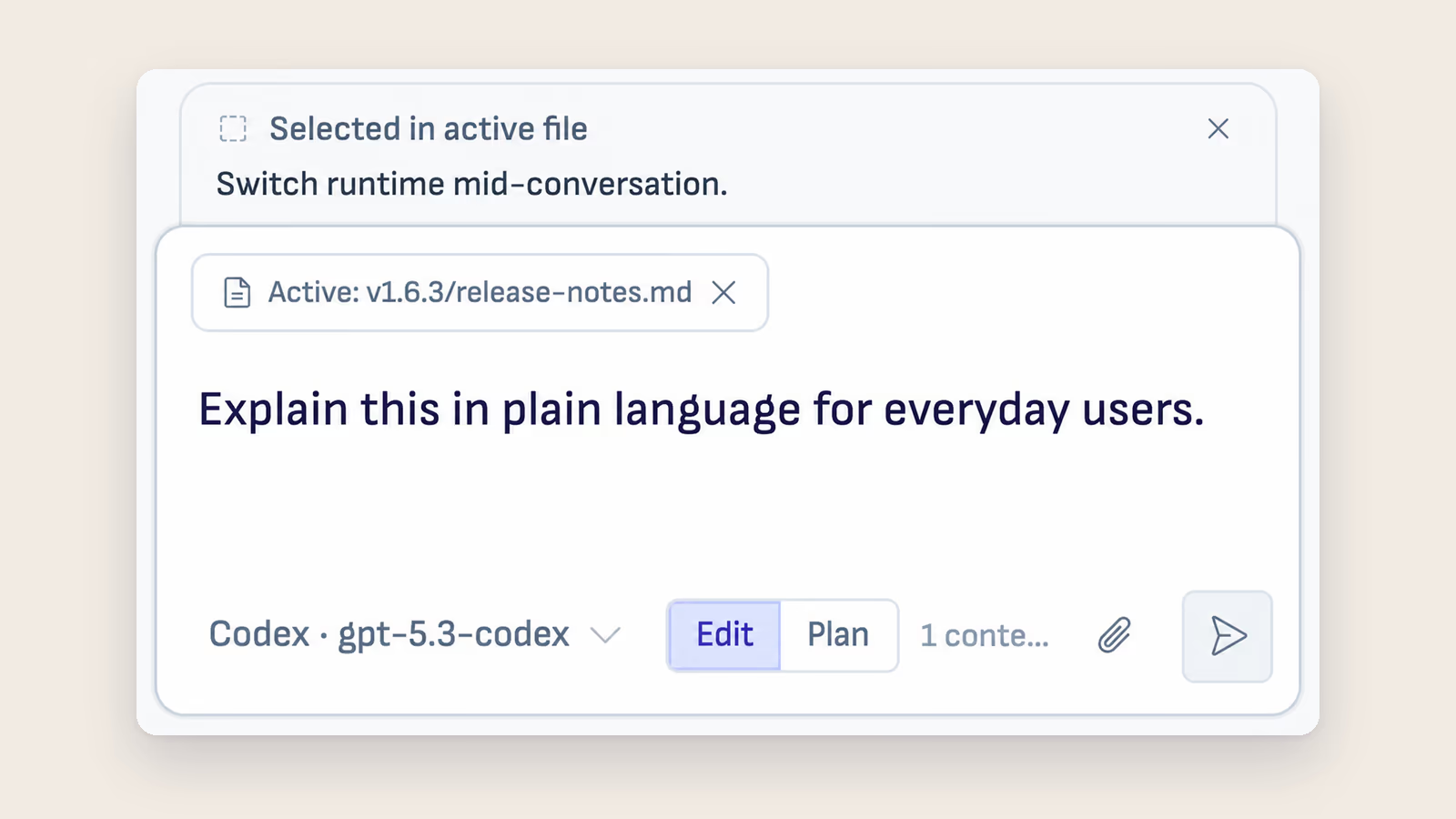
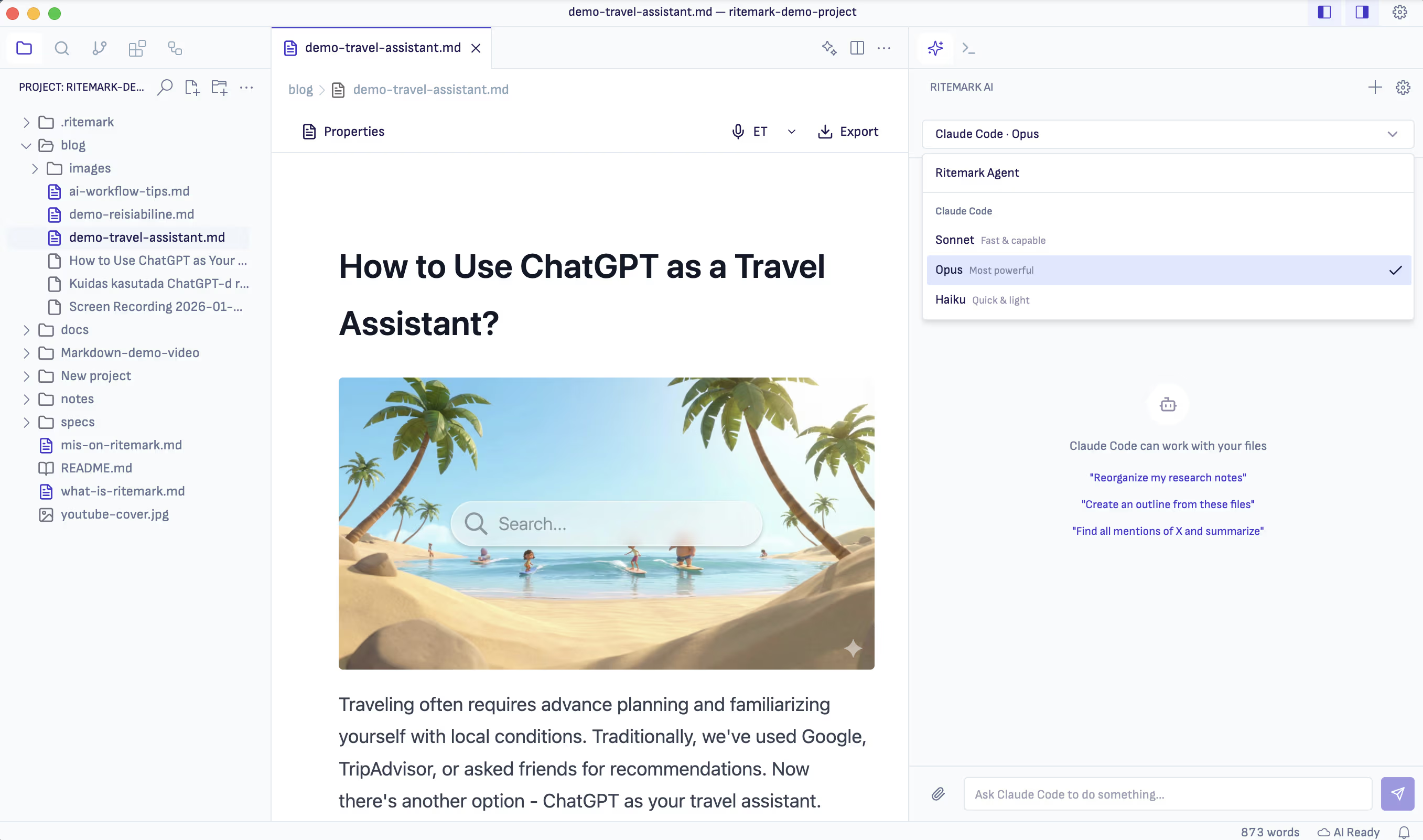
The AI sidebar is the chat panel in Ritemark where an AI agent works on the files in your open folder: it reads your documents and edits them in place when you ask. Three agents run in it. Claude Code uses your Claude plan or an Anthropic API key, OpenAI Codex signs in with your ChatGPT account, and OpenCode (since v1.7.3) uses your own API keys. You pick one from the model menu under the message box, and you can change agents in the middle of a conversation. If you are new to agents, Best AI Agents for Markdown Writing compares them with tools you can run in the terminal.
New in v1.12.0: the conversation you're in is named in a header with a ⋮ menu for renaming, pinning and deleting it, and you can drag the composer taller. Every link in a reply does something or says why not. Claude Opus 5.5 joins the Claude Code model menu, and Ritemark no longer switches models without telling you. The browser chip appears only for a page the AI actually gets, and on Windows the bundled Claude Code and Codex need neither Git nor Node.js.
New in v1.11.0: a comment you send to an agent goes to the conversation you have open and reports back on the comment itself, from queued to finished. See Comments as a Command Center. Report AI issue in the status bar opens a window for reporting AI output you object to; see Report AI Output. The model list adds Claude Fable 5.1 and GPT-6 Astra, and the bundled runtimes are updated.
New in v1.8.6: the sidebar now keeps the promises its interface makes. Plan mode is enforced by the runtime, so a planning agent cannot write to a file. The model you pick is the model that runs on every path, and any substitution is stated out loud. The prompt queue holds up to ten editable follow-ups. Scheduled agents ask before they are armed. And the composer identifies AI before the first interaction, keeping an AI information button available afterward. It shows the selected runtime, provider or service, and model; explains what context may leave the device; and reminds you to review AI output. See AI Information in Ritemark.
Three Agents, One Sidebar
The AI Sidebar hosts three different AI agents, each with its own strengths. You pick the right tool for the job, and they all work directly with your documents.
Claude Code is Anthropic's autonomous coding agent, but it works just as well for writing. Use it when you need to restructure entire documents, research topics and expand sections, or make complex multi-file changes. It reads your files, understands context, and executes changes directly.
OpenAI Codex is OpenAI's coding agent. It's particularly strong for technical documentation, code-heavy content, and API docs. Signs in with your ChatGPT account. OpenAI includes Codex in every ChatGPT plan, the free one with tighter limits. As of v1.7.0, Codex is a stable agent in Settings, no longer flagged as experimental. The compatibility probe now tries both argv shapes, so the spurious "Some agent features are unavailable" banner is gone. The model list updates from an online catalog, so new Codex models appear without reinstalling Ritemark.
OpenCode (v1.7.3, bring-your-own-key) is the third chat runtime, integrated via the Agent Client Protocol alongside Claude Code and Codex. Configure your own API key for OpenAI, Google AI, Anthropic, or OpenRouter in Settings → OpenCode, and the model picker gains an OpenCode group with every provider you have configured. See Setup OpenCode for the full key-setup walkthrough and the File Change Approval flow.
To switch agents, open the model menu under the message box and pick a model from the agent you need. The menu shows the agent and model you're on.
As of v1.6.3, a single conversation can use multiple runtimes. Start a thread with Claude and send the next message through Codex, and both turns stay in the same thread. In a conversation that uses more than one runtime, each assistant response carries a small provenance line that tells you which runtime and model produced it.
The composer has one mode control for how much rope an agent gets: Manual, Auto or Plan only. Auto is the default. Manual and Auto work the same in all three runtimes, and Plan only is available for Claude Code and Codex. See Autonomy and Plan Mode below.
You can also pin any agent from the Agent Library for the conversation by right-clicking it and choosing Launch Chat. The pinned agent shows up as an indigo chip in the composer.
Parallel Agent Chats (v1.8.5)
As of v1.8.5, the AI sidebar is no longer a single conversation. It holds several independent chats at once, each with its own session and history, laid out in a new thread rail down the right edge of the sidebar.
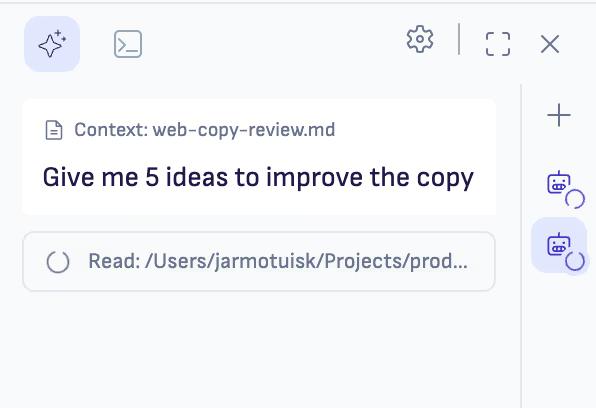
Open a new chat while another is mid-run. Each thread carries its own session, so an agent keeps working in the background even while you are looking at a different thread, and its reply always lands in the thread that asked. Nothing crosses over. Click a thread in the rail to switch to it and its history restores instantly.
A few details worth knowing:
- Per-thread runtime. You can set the runtime per thread, so one conversation runs on Claude while another runs Codex or OpenCode.
- A sensible cap. There is a cap on how many threads you can open at once. When you reach it, Ritemark tells you rather than quietly spawning more sessions.
- Brand-indigo icons. The thread-rail robot icons use Ritemark's brand indigo in both light and dark themes, instead of picking up per-runtime brand colors.
Browser-Aware AI Chat
As of v1.7.0, the AI sidebar can see what's on screen in the integrated browser, but only after you say yes.
When a browser tab is open in Ritemark, the composer shows a "Share with Agent?" prompt. Accept it and the next AI turn receives the page URL, title, and ARIA outline of the page. A small globe icon chip appears in the composer to show you exactly what the agent is seeing. Nothing reaches the AI until you allow it, and you can revoke sharing for any turn. As of v1.12.0, the chip appears only while the active tab is shared, and your message sends exactly what the chip shows. A tab you declined, or one whose prompt is still waiting for your answer, shows no chip.
There's also a camera icon in the browser toolbar. Click it and Ritemark attaches a viewport screenshot to your next AI message, so you can ask the agent about something visual on the page. This is annotation mode, and it's a one-shot per turn.
This works the same with Claude and Codex. The browser context follows the conversation, not the runtime. OpenCode doesn't receive the page with your messages, so no chip appears while an OpenCode model is selected. On Windows, a shared page is sent with your message again as of v1.12.0.
Live screenshot chip in the composer (v1.7.3)
When annotation mode is on, the composer used to show a plain URL chip — which was misleading, because what actually gets attached to your prompt is a screenshot of the page, not the URL. As of v1.7.3 the composer shows a live 56×56 screenshot thumbnail chip in place of the URL chip whenever annotation mode is active. The thumbnail refreshes about every five seconds as you scroll or interact with the page, so it always previews what the AI will receive on the next turn. Dismiss the chip with × to drop the browser context for that prompt.
browser_snapshot — agents can re-observe pages (v1.7.3)
Agents working with the integrated browser used to have only one way to "look at" a page after a click or a form-fill: navigate to it again, losing page state. v1.7.3 adds a browser_snapshot tool that returns the current ARIA outline of the active tab — URL, title, and full accessibility tree — without navigating.
The tool surfaces as mcp__ritemark_browser__browser_snapshot for Claude Code and as ritemark_browser_snapshot for Codex, and OpenCode gets it through Ritemark's ritemark_browser MCP adapter. It ships with the browser control tools below, so it's available on macOS only. It is read-only and consent-aware: an unshared tab returns an error, and no URL, title, or page content leaks. Snapshots stay subject to the same per-tab read consent as everything else in browser-aware chat. Full setup details in the In-App Browser article.
Browser control (v1.7.1, macOS, opt-in)
In v1.7.1, the AI sidebar can also act on the browser tab — not just read it. There are five new tools: navigate, click, fill, type, and scroll. The AI can open a URL, click a button, fill a form, type into a field, and scroll the page. The browser tab stays visible the whole time so you see every action as it happens.
This is gated behind a dedicated "Allow AI to control this browser tab?" dialog, separate from the v1.7.0 read-share prompt. Reading the page and typing into the page are two different decisions, and Ritemark treats them that way. Revoking read consent also revokes control consent — the AI cannot act on a page it cannot see.
This works on macOS only, where it's on by default with nothing to turn on, and the AI asks for a separate consent per tab before it can act. Under the hood, Claude Code SDK sees the tools as mcp__ritemark_browser__* and Codex App Server sees them as ritemark_browser_*. OpenCode gets the same tools through the ritemark_browser MCP adapter, and as of v1.12.0 it knows it has them, as Claude Code and Codex do. Full setup details in the In-App Browser article.
Chat History
Every conversation is saved per project, so you can jump back to a previous thread without losing context. Pin up to five, and reopen any older one from the All conversations list. Click an entry to reopen it; the runtime and model that produced each turn are still visible from the provenance line.
As of v1.8.5, with parallel agent chats each thread keeps its own history. Close a thread and reopen it later and the full conversation comes back exactly where you left it. As of v1.10.0, saved conversations also survive a restart.
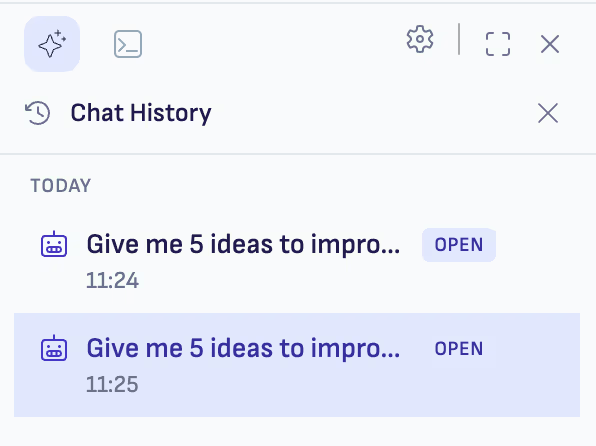
In v1.7.1, the History panel reloads the conversation list whenever the folder context loads. Earlier builds loaded the list only once on startup, so older conversations were saved correctly but never appeared in the panel until a restart. They are all visible now.
While we're here: code-block copy buttons, "Copy as Markdown" in the export menu, and Cmd+C/Cmd+V inside table cells also work properly in v1.7.1. The clipboard now routes through the extension host instead of the sandboxed webview, so the copy and paste actions that silently failed before now succeed.
The Conversation Header and Composer (v1.12.0)
As of v1.12.0, a header above the transcript shows the title of the conversation you're in, so you always know which one you're typing into. Its ⋮ menu has Rename, Pin or Unpin, and Delete, with the same words and confirmations as the conversation history. Titles also follow the language of your prompt now. Before, a title could come out in another language when your own Claude setup contained text in it, such as skills described in Estonian.
The composer grows with what you write, up to eight lines instead of about five. To set the height yourself, drag the handle on its top edge, up for taller and down for shorter, as far as the sidebar allows. With the handle focused, the arrow keys do the same. Double-click the handle to go back to fitting the text. Ritemark keeps the height you chose while it's open, and the send button and model control always stay on screen, even at large zoom levels.
The Prompt Queue (v1.8.6)
The composer never locks during an agent run. Type a follow-up while Claude Code, Codex, or OpenCode is still working, press Enter, and the prompt parks in a queue above the input instead of being dropped or blocked. The composer says so in its placeholder: Add a follow-up... (Enter queues it for when the agent finishes).
As of v1.8.6 the queue holds up to ten prompts per chat, and you can see all of them. A header reads Queued · 2/10 with the waiting prompts listed underneath in the order they will send. Edit a prompt while it sits there, or clear it before it ever goes out.
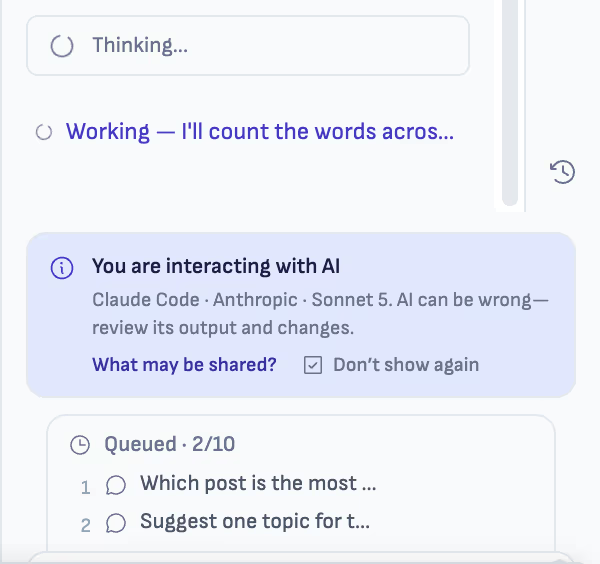
The queue drains only when the agent is genuinely free, one prompt at a time, so a follow-up never lands in the middle of a run. Comment tasks use the same queue: as of v1.11.0, a comment sent from the document goes to the conversation you have open and waits in its queue if that conversation is busy. Removing it from the queue tells the comment it was cancelled.
Earlier versions (v1.7.3) allowed a single queued prompt with no way to edit it.
Autonomy: Manual or Auto
Autonomy decides how much an agent may do without stopping to ask. You set it per conversation from the picker in the composer, and it applies identically to all three runtimes (Claude Code, Codex, and OpenCode). A single shared gate replaced the old Codex-only Edit/Plan toggle in v1.8.0.
- Auto (the default) — the agent acts on its own. It edits files and runs commands directly, with no approval prompts. This is the behavior Claude Code already had.
- Manual — before the agent writes a file or runs a shell command, an approval card appears with Approve and Reject. You review every change before it happens.
Because the runtimes share one gate, an approval card from Codex looks and works exactly like one from OpenCode or Claude Code.
Plan Mode, Enforced by the Runtime
Plan mode is Plan only, one of the three options in the composer's mode control, next to Manual and Auto. Choose it when you want to see what an agent intends to do before it does any of it.
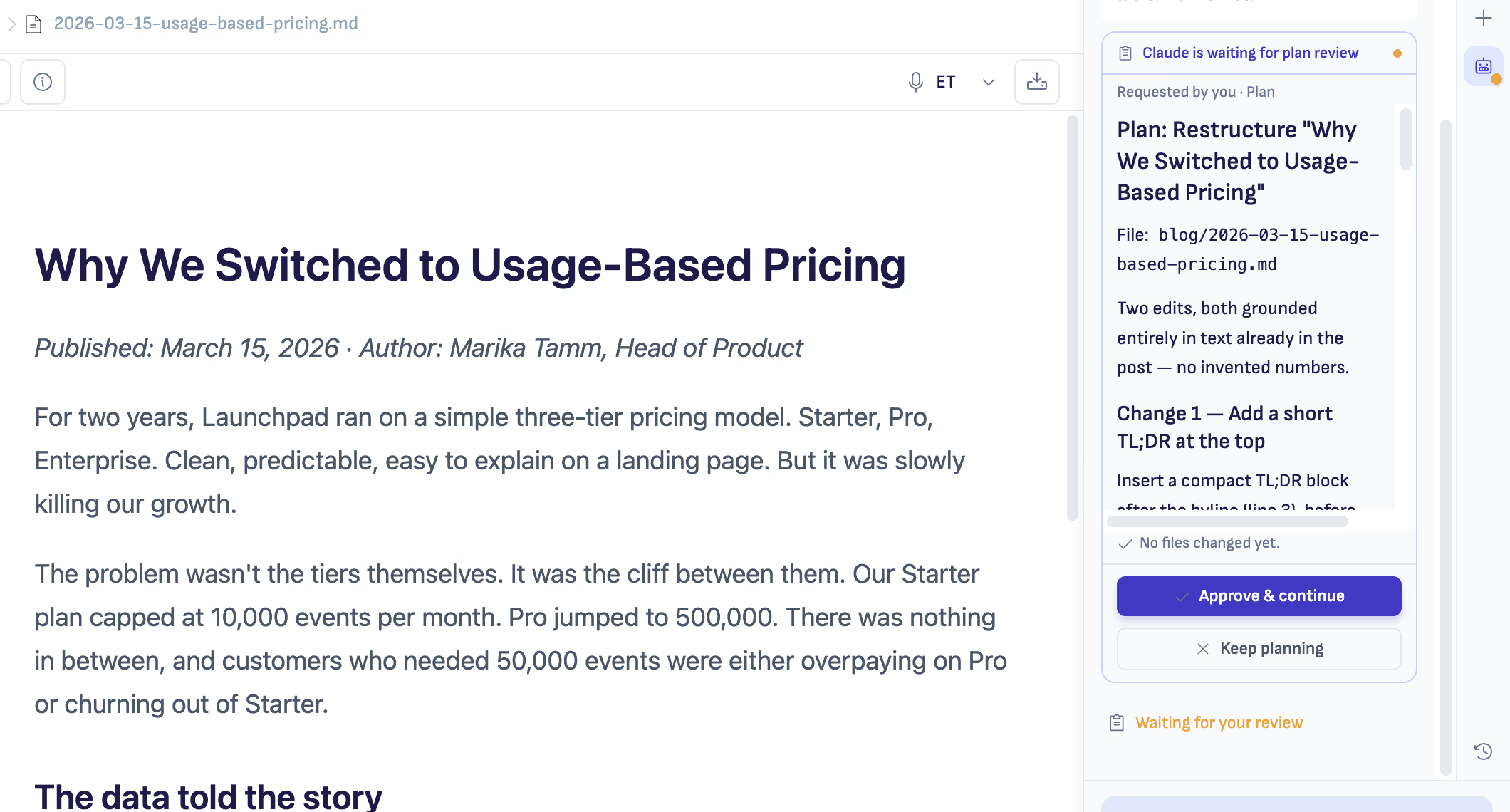
As of v1.8.6, "plan only" is no longer an instruction the model is asked to follow. It is enforced by the runtime. While a conversation is planning, the agent has no ability to write to a file at all, so a model that decides halfway through to start editing simply cannot. The card that comes back says No files changed yet, and that line is a statement of fact rather than an assumption about the model's behavior.
Three things follow from the enforcement:
-
The plan always surfaces for review. A planning turn ends in a review card headed with which agent is waiting ("Claude is waiting for plan review") and how the plan was requested ("Requested by you · Plan"). The card shows the full plan and the file it concerns, and the sidebar marks the conversation Waiting for your review.
-
Approving hands over to the autonomy you already chose. Click Approve & continue and the agent proceeds under Manual or Auto exactly as you set it. Approving a plan never quietly promotes the agent to a freer mode. Keep planning sends it back to work on the plan some more.
-
Model-initiated planning is labeled. If the model chose to plan on its own initiative rather than because you asked for a plan, the card says so, so you can tell your own gate apart from the model's judgement.
Typing "plan first" in a prompt no longer switches the mode. Choose Plan only in the mode control instead.
The card itself has been reliable since v1.7.3: the buttons render only while the agent is genuinely blocked waiting on your call, the layout is flat and single-level, and the full plan text is shown rather than truncated to the last section.
Note: OpenCode has no Plan only option. Use Manual to approve each action as it comes.
Tip: Plan mode earns its keep on significant document restructuring. Read the plan, confirm it matches your intent, then approve.
The Model You Pick Is the Model That Runs (v1.8.6)
Picking a model used to be reliable in chat and vague everywhere else. As of v1.8.6 the selected model is pinned on every path an agent can run:
| Path | Model used |
|---|---|
| Chat turns in the sidebar | The model in the picker |
| Queued prompts | The model that was selected when the prompt was queued |
| Comment tasks | The model in the picker for that agent |
| Flows | The model configured on the node |
| Scheduled agents | The model on the agent, on every run |
If the runtime cannot honor the pick and resolves something different, the conversation says so out loud instead of quietly substituting. The AI information banner names the runtime, provider, and model that actually produced the turn, and so does the provenance line under each response in a conversation that mixes runtimes, so the badge in the composer is load-bearing rather than decorative.
Scheduled AI Agents (v1.8.0)
As of v1.8.0, an AI agent can run on a schedule while Ritemark is open. Set it up once and the agent runs headlessly at the time you choose — a daily briefing every morning, a weekly summary every Friday, a recurring report.
There are two ways to schedule an agent:
- The Schedule picker in the Agent editor. Open an agent and choose Interval mode (every N minutes or hours, from presets) or Days mode (weekday chips Mon–Sun, with Every day / Weekdays / Weekends presets, plus a time of day). A plain-English summary reads back what you picked — "Runs daily at 09:00" — so there's no guessing. Everything is in local time. If you actually want raw cron, there's an Advanced escape hatch, but you never need it.
- A
schedule:block in the agent's.mdfile. Add the block directly to the agent file. Edits take effect live, with no restart.
Ritemark asks before anything is armed (v1.8.6). Opening a folder that defines scheduled agents does not quietly start them. Ritemark asks once whether the scheduled agents in that folder should run, and nothing is armed until you say yes. The answer is reversible any time from the Agent Library, so you can switch scheduling on later or turn it off for a folder you no longer want running on a timer. Folders that were already using scheduling before you updated keep working as they were.
Scheduled runs also honor the pinned model. The model set on the agent is the model every run uses, and a substitution is reported rather than made silently. See The Model You Pick Is the Model That Runs.
Safe by default. A scheduled run happens without you watching, so Ritemark is conservative: scheduled runs auto-approve file reads but block file writes and shell commands until you grant a one-time approval. If a run tries to write a file or run a command, it stops and adds an amber "needs review" row in the Agent Library's SCHEDULED section. Click Review & approve, confirm the exact blocked action, and the agent re-runs with that single action allowed — once. Future runs stay restricted.
Always visible. The status bar shows live scheduling state: "N scheduled" when idle, a spinner with the task label while a run is in progress, and amber "N needs review" when something is waiting on you. When a run finishes, a completion toast shows the first line of the agent's output with Open result and Show runs buttons.
Scheduled runs are isolated, fresh sessions — they never touch your interactive conversations. Their run history (the last 10 runs per task) lives in its own SCHEDULED section in the Agent Library and persists across restarts.
One limitation to know: scheduled tasks run only while Ritemark is open. There is no background OS daemon yet.
File Attachments by Runtime
The composer accepts images, PDFs, and text files, but the way they reach the model differs by runtime and file type.
-
Claude Code receives image, PDF, and text attachments through its native attachment input.
-
Codex receives image attachments as image input. For text and PDF work, prefer a file from the open folder or a path chip so Codex can read the file with its local tools.
-
OpenCode receives the attachment payload through its ACP prompt path. Whether a model can interpret the format depends on the selected provider and model.
Only attach content you are prepared to send to the selected provider. The AI information guide explains the full context and data path.
Comments as a Command Center (v1.8.6)
Comments are the shortest path from a passage in your document to an agent that fixes it. Mention @claude, @codex, or @opencode in a comment and that note becomes a task for the agent you named. As of v1.8.6 the mention is detected anywhere in the comment body, not only at the start, so you can write the way you think and still route the note.
As of v1.11.0, a comment task goes to the conversation you have open in the AI sidebar. There is no conversation picker and no dialog to confirm the destination, and a brand-new empty conversation counts. The line above the Send to Claude button (or Codex, or OpenCode) names that conversation before you press it, and if the conversation runs a different agent from the one you mentioned, the line says so by adding · Claude takes over.
The comment says Queued for Claude only once the agent has really accepted the work. When it can't, it says why and offers the fix: a signed-out agent (Sign in), a conversation that already has ten prompts waiting, or a document that has never been saved. The status survives reloading the document, reopening it, and restarting Ritemark, and work that was cut short offers Retry. When the task finishes, the agent's short summary appears under your note with Open conversation, which takes you to the exact conversation that ran the task. Your note, the highlighted passage, and the Markdown file are never rewritten, and clearing the comment with Mark as done stays your call.
To send several comments at once, open the Comments menu from the document toolbar, where the badge carries the document's real comment count. Assigned comments are grouped per agent, and unassigned ones sit apart under a line that reads Unassigned comments are never sent. Tick the groups you want, check the line naming the destination conversation, and press Start tasks. Each agent receives one task built from its own comments in document order, and each group reports its own result, so you never get a blanket "all sent" when only one group was accepted.
You don't have to select text, copy it into the composer, and re-explain what you want done. Highlight the passage, write the instruction as a comment, and send. Full walkthrough in the Comments article.
Interactive Questions
AI agents don't always have enough context to complete your request perfectly. Instead of guessing, they now ask clarifying questions mid-task.
When an agent needs more information, it pauses and presents you with selectable options. Pick the one that fits, or choose "Other" to type a custom response. This back-and-forth dialogue helps the agent understand exactly what you want.
For example, if you ask Claude Code to "improve this document," it might ask: "What aspect should I focus on?" with options like "Make it more concise," "Add more technical detail," or "Improve the structure."
File Context Menu
Getting files into your AI conversation is now as easy as right-clicking.
In the Explorer sidebar, right-click any file or folder and select "Send to AI Chat". The file appears as a context chip in your conversation, and the agent can read and reference it directly.
The active file chip automatically shows whichever document you're currently editing. It tells you which file path is included with the turn, and you can remove the chip before sending. An agent with file-reading permission may still read other files in the open folder later while completing the task.
Ritemark uses smart deduplication to prevent the same file from being added multiple times. If you accidentally send the same file twice, it recognizes the duplicate and keeps your context window clean.
You can also drag and drop file paths directly into the chat input. All three agents support this workflow.
Links in the Chat Open in Ritemark (v1.8.6)
When an agent's reply refers to a file in your open folder, the reference is a working link. Click it and the file opens in Ritemark rather than doing nothing or handing off to another app. Line-anchored references in the README.md:12 form are handled too, so a pointer to a specific line takes you there.
As of v1.12.0, every link in a reply does something, or says why not. A file in your project opens in its editor, and a folder is shown in the project tree. A file outside your project is shown in Finder (File Explorer on Windows) rather than opened, because a path in a reply is written by the AI, not by you. A missing file names the path. A link Ritemark doesn't open from chat, such as mailto:, says so and offers Copy link. Right-click a link, or press Shift+F10, for the rest: Reveal in project, Locate in Finder (Show in File Explorer on Windows), Copy path, Open in browser or Copy link, depending on where it points.
Context Window Protection
Every AI has a limited context window - the amount of text it can "remember" at once. Ritemark now helps you stay within those limits.
The usage bar at the top of the sidebar shows your estimated context usage. It turns yellow at 60% and red at 80%, giving you visual feedback as your conversation grows.
When you hit 70%, a warning banner appears suggesting you use /compact to summarize the conversation or start a fresh one. This keeps your AI responsive and prevents the dreaded mid-conversation memory loss.
If you push past the limit, Ritemark shows an overflow explanation with a clear "Start Fresh" button. No confusion about what went wrong - just a clear path forward.
Rewriting Selected Text
Select a passage in your document and send it to the chat, then ask Claude Code, Codex or OpenCode to rewrite it. Try prompts like "make this shorter," "more formal," or "simplify for a general audience." In Auto the agent edits the file directly, and in Manual it asks before it writes.
Setting Up Each Agent
Claude Code
Claude Code ships inside Ritemark, so there is nothing to install:
- Open the AI sidebar. The first time, it offers the sign-in right away; later, pick a Claude model in the model menu under the message box
- Click Sign in with Claude.ai and finish the sign-in in your browser, or click Use API key instead and paste an Anthropic API key
- Start chatting
Claude Code needs a paid Claude plan or an Anthropic API key. The free Claude plan does not include it.
As of v1.5.0, there is a dedicated Claude Account section in Settings where you can see your authentication method, CLI version, and billing source at a glance. Settings and the AI sidebar sync in real time, so any status change appears immediately in both places. On Windows, binary detection issues that affected earlier versions have been fixed, including .cmd/.exe shim resolution.
OpenAI Codex
Codex ships inside Ritemark and signs in with your ChatGPT account:
- Pick a Codex model in the model menu under the message box, or open Settings and find ChatGPT Account
- Click Sign in with ChatGPT and finish the sign-in in your browser
- Start chatting
Note: OpenAI includes Codex in every ChatGPT plan, the free one with tighter limits. Heavy use fits a paid plan better.
Starting with v1.5.0, a dedicated ChatGPT Account section in Settings shows your email, plan, and connection status. OAuth login handling has been improved for more reliable sign-in.
OpenCode
OpenCode ships inside Ritemark too. It has no sign-in of its own: paste your own API key for OpenAI, Google AI, Anthropic or OpenRouter in Settings, then pick a model from the OpenCode group in the model picker. See Set Up OpenCode.
Agent Runtime
Some users prefer to run the Claude or Codex CLI they already have installed system-wide instead of the version bundled with Ritemark. As of v1.7.0, Runtime preference under Settings -> Agent Runtime lets you choose between two modes:
- Bundled (default) -- Ritemark uses the Claude Code and Codex it ships with. No setup needed.
- Use system install -- Ritemark uses the Claude or Codex already on your PATH, and falls back to the bundled copy when it finds none.
Under Currently active, Settings shows which copy each agent runs: Bundled with app or System installation.
On Windows, the bundled Claude Code and Codex need neither Git nor Node.js, so as of v1.12.0 setup no longer asks for them. Ritemark checks for Git for Windows and Node.js only with Use system install: a Claude or Codex installed with npm runs on Node.js, and a Claude you installed yourself may need Git Bash. The bundled Claude runs its commands in Git Bash when Git for Windows is installed, and in PowerShell, which is built into Windows, when it isn't.
Model Picker and Runtime Diagnostics (v1.7.2)
As of v1.7.2, the model picker is clearer about what each option does. Every row now shows two lines: the model name and version on top, and a short description of what it's good for underneath. When a runtime offers a long list of models, the picker keeps a constrained height with its own vertical scrollbar, so it never pushes the rest of the sidebar around.
Settings diagnostics also got more precise. The Claude Account section shows the CLI version and the SDK version together, so you can tell exactly which pieces are installed. The Codex section uses runtime detection to report the active version. If something looks off with an agent, these two lines tell you what Ritemark is actually running.
Updated Runtimes and New Models
Ritemark updates the bundled Claude Code, Codex and OpenCode runtimes with its releases. In v1.8.5 they were re-validated specifically against parallel sessions, two threads on the same runtime at once, so the parallel agent chats are proven on the bundled binaries, not just single-turn chat.
The model list comes from a live model-catalog feed. New Claude, Codex and OpenCode models join the model picker without a reinstall. Pick one the same way you would any other model.
Agents That Know Their Surroundings (v1.8.5)
As of v1.8.5, every agent run starts with a short capability context: a system description of the Ritemark environment — that it's a Markdown editor, that there's an integrated browser, and which tools are available. The result is agents that reach for Ritemark's own editor and browser tools instead of guessing at a foreign command-line environment. Prompt-injection safety is unchanged: agents still refuse instructions embedded inside a document you have opened.
Claude Fable 5.1, GPT-6 Astra, and Updated Runtimes (v1.11.0)
As of v1.11.0, the bundled runtimes are Claude Code 2.1.270 (with Claude Agent SDK 0.3.270), Codex 0.154.0, and OpenCode 1.18.30.
The model list adds Claude Fable 5.1 and GPT-6 Astra, along with current Gemini text models. In the Claude section, Claude Fable 5.1 is the current long-horizon model, and Claude Fable 5 stays available as the previous Fable generation. The Claude model list is served from a live catalog feed, so newly released Claude models appear without a reinstall.
Two runtime fixes came with the update. Codex stops more reliably when you press Stop immediately, and late events from an old thread can no longer land in another conversation. OpenCode turns that finished successfully now end as Done instead of showing a false Failed marker.
Claude Opus 5.5 and No Silent Model Switches (v1.12.0)
Anthropic requires Claude Code 2.1.280 or newer for Claude Opus 5.5, and as of v1.12.0 Ritemark ships Claude Code 2.1.281 (with Claude Agent SDK 0.3.281). Opus 5.5 appears in the Claude Code model menu whether you sign in with a Claude subscription or an API key. If you had chosen Opus, you move to Opus 5.5 automatically.
Your sign-in decides the list. With a Claude subscription, the menu follows your subscription, even when an API key is also saved in Settings. With an API key, it follows what your key can use.
Ritemark no longer switches models quietly. If the model you last used isn't available any more, the chat says so and names the model it uses instead, for example that Opus 5.5 isn't available right now and Sonnet 5 answers. If your account can't use a model, for example because your plan or organization doesn't include it, the message names the model and asks you to choose another in the model menu.
Ritemark checks its public model list every 10 minutes and applies a change without a restart. A list older than the app can no longer hide a model the app already knows, and a model marked as retired disappears everywhere. A new model is never made the default automatically.
Quick Reference
| Agent | Best For | Setup Required |
|---|---|---|
| Claude Code | Document restructuring, research | Bundled. Paid Claude plan or Anthropic API key |
| OpenAI Codex | Technical docs, code-heavy content | Bundled. Your ChatGPT account |
| OpenCode (v1.7.3) | Any provider via your own API key | Bundled — paste keys in Settings → OpenCode |
| Feature | How to Use |
|---|---|
| Switch agents | The model menu under the message box |
| Run chats in parallel (v1.8.5) | Open threads in the thread rail on the right edge; each keeps its own session and history |
| Use a newly released model | Pick it in the model picker. The list updates from an online catalog |
| Re-test AI connection (v1.8.5) | Click "Check again" on the "AI Offline" badge |
| Set autonomy | Manual or Auto in the composer picker — same across all runtimes |
| Plan only (v1.8.6) | Choose Plan only in the composer's mode control (Claude Code and Codex). The runtime blocks writes while planning |
| Approve a plan (v1.8.6) | Approve & continue hands over at the autonomy you chose; Keep planning sends it back |
| Confirm which model ran (v1.8.6) | The AI information banner, or the provenance line under the response when a conversation mixes runtimes |
| Schedule an agent (v1.8.0) | Schedule picker in the Agent editor, or a schedule: block in the agent .md |
| Arm or disarm a folder's scheduled agents (v1.8.6) | Answer the one-time prompt, or change it later in the Agent Library |
| Attach files (v1.8.0) | Attachment picker now works for Codex and OpenCode too, not just Claude Code |
| Send a comment to an agent (v1.11.0) | Mention @claude / @codex / @opencode in a comment, then press Send to Claude (or Codex, or OpenCode) on it. It goes to the conversation you have open |
| Send several comments (v1.11.0) | Comments menu in the toolbar, tick the agent groups, then Start tasks |
| Report AI output (v1.11.0) | Report AI issue in the status bar, or AI information → Report AI output |
| Use Claude Fable 5.1 or GPT-6 Astra (v1.11.0) | Pick it in the model picker |
| Use Claude Opus 5.5 (v1.12.0) | Pick it in the Claude Code model menu |
| Rename, pin or delete the conversation you're in (v1.12.0) | ⋮ menu in the conversation header |
| Make the composer taller (v1.12.0) | Drag the handle on its top edge; double-click it to fit the text again |
| Open a file an agent mentioned (v1.8.6) | Click the link in the chat, including README.md:12 style references |
| Reveal or copy a linked path (v1.12.0) | Right-click the link, or press Shift+F10 |
| Add file context | Right-click file, "Send to AI Chat" |
| Share browser page | "Share with Agent?" prompt in composer when a browser tab is open |
| Attach screenshot | Camera icon in browser toolbar (composer shows live 56×56 thumbnail in v1.7.3) |
| Agent re-reads the page mid-task (v1.7.3) | browser_snapshot tool, only on shared tabs |
| Queue a follow-up mid-run (v1.8.6) | Type and press Enter — up to 10 per chat, visible and editable while queued |
| Let AI control a browser tab (macOS) | Approve the "Allow AI to control this browser tab?" dialog |
| Switch runtime | Settings -> Agent Runtime -> Runtime preference (Bundled or Use system install) |
| Pick a model | Model picker rows show model/version + purpose (v1.7.2); OpenCode group refreshes on key save (v1.7.3) |
| Check installed versions | Settings -> Claude Account (CLI + SDK) or ChatGPT Account |
| Check context usage | Look at usage bar at top |
| Start fresh | Click "Start Fresh" or type /compact |
Privacy
Your text goes to the provider behind the agent you pick: Anthropic for Claude Code, OpenAI for Codex, and the provider whose key you use in OpenCode. That includes the open file, selected text, attachments and any other files the agent reads. Your API keys and OAuth tokens are stored securely on your machine. Ritemark has no cloud for your documents, and AI requests do not pass through a Ritemark server. Anonymous usage analytics are on by default and can be switched off in Settings.
Troubleshooting
If an agent isn't responding, check these common issues:
The sidebar shows "AI Offline" - Check your internet connection, then click Check again. As of v1.8.5, the "AI Offline" badge has a Check again link, so you can re-test the connection on demand instead of waiting out the 30-second poll or restarting the app.
The offline banner keeps appearing and disappearing - Fixed in v1.8.6. Earlier builds called you offline on a single failed probe, so one hiccup on a perfectly healthy connection was enough to flash the banner. Connectivity now races several independent endpoints, any response at all counts as online, and it takes two consecutive failed rounds before Ritemark says you are offline. Recovery is instant.
Claude Code not appearing - Open Settings, Claude Account, and check that it shows as connected. If not, sign in again from the AI sidebar.
Codex login spinner stuck - Try signing out in Settings and signing back in. If OAuth fails silently, check that you are signed in to the right ChatGPT account and have not hit its usage limit. In v1.5.0, OAuth handling has been improved to reduce silent failures.
Claude Code not working on Windows - Earlier versions had binary detection issues where .cmd/.exe shims were not resolved correctly, causing "spawn EINVAL" errors. Upgrade to v1.5.0 to fix this. After updating, check Settings -> Claude Account to confirm that Claude Code shows as connected.
Codex not working on Windows - The same binary detection fix in v1.5.0 applies to Codex. Check Settings -> ChatGPT Account for connection status.
"Some agent features are unavailable" banner - This appeared in some versions before v1.7.0 because the Codex compatibility probe only tried one argv shape. The probe now tries both shapes. Update to v1.7.0 or later and the false warning is gone.
Ritemark pauses at launch - Fixed in v1.12.0. The checks for Claude and Codex now run in the background, so the AI sidebar and your editors respond at once. With a Codex you installed yourself, the pause used to be about three seconds.
OpenCode shows Failed after a finished answer - Fixed in v1.11.0. A successful OpenCode turn now ends as Done instead of showing a false Failed marker after the answer and document edit completed.
Report AI issue doesn't open an email - See Report AI issue doesn't open an email.
Context window warning - Your conversation is getting long. Use /compact to summarize or start a fresh conversation.
Tip: Settings now shows real-time agent status for all three agents. If something looks wrong, the Account sections in Settings are the first place to check.
For more help, see Common Issues.
A Smaller v1.7.3 Touch — Edit Link
Not strictly an AI sidebar feature, but it lives one keystroke away from where you write. The Edit Link dialog now has an optional Display text field that pre-populates from the current selection when you create a link, and pre-fills with an existing link's current text when you re-open one. Clicking Update replaces both the text and the target in one step, so renaming a link is finally a single predictable action. The field is hidden during @file search to keep the file-link picker flow unchanged.
Related
- Comments - Send a comment to an agent and follow its task on the comment itself
- Set Up AI - Sign in to Claude Code or Codex, or add your own API keys for OpenCode
- Set Up OpenCode - Add the bring-your-own-key runtime
- Agent Library - Browse all agents in one place
- Agent Configurator - Configure an agent visually
- Terminal AI - Use AI agents in the terminal
- Setup Claude Code - Detailed Claude Code setup