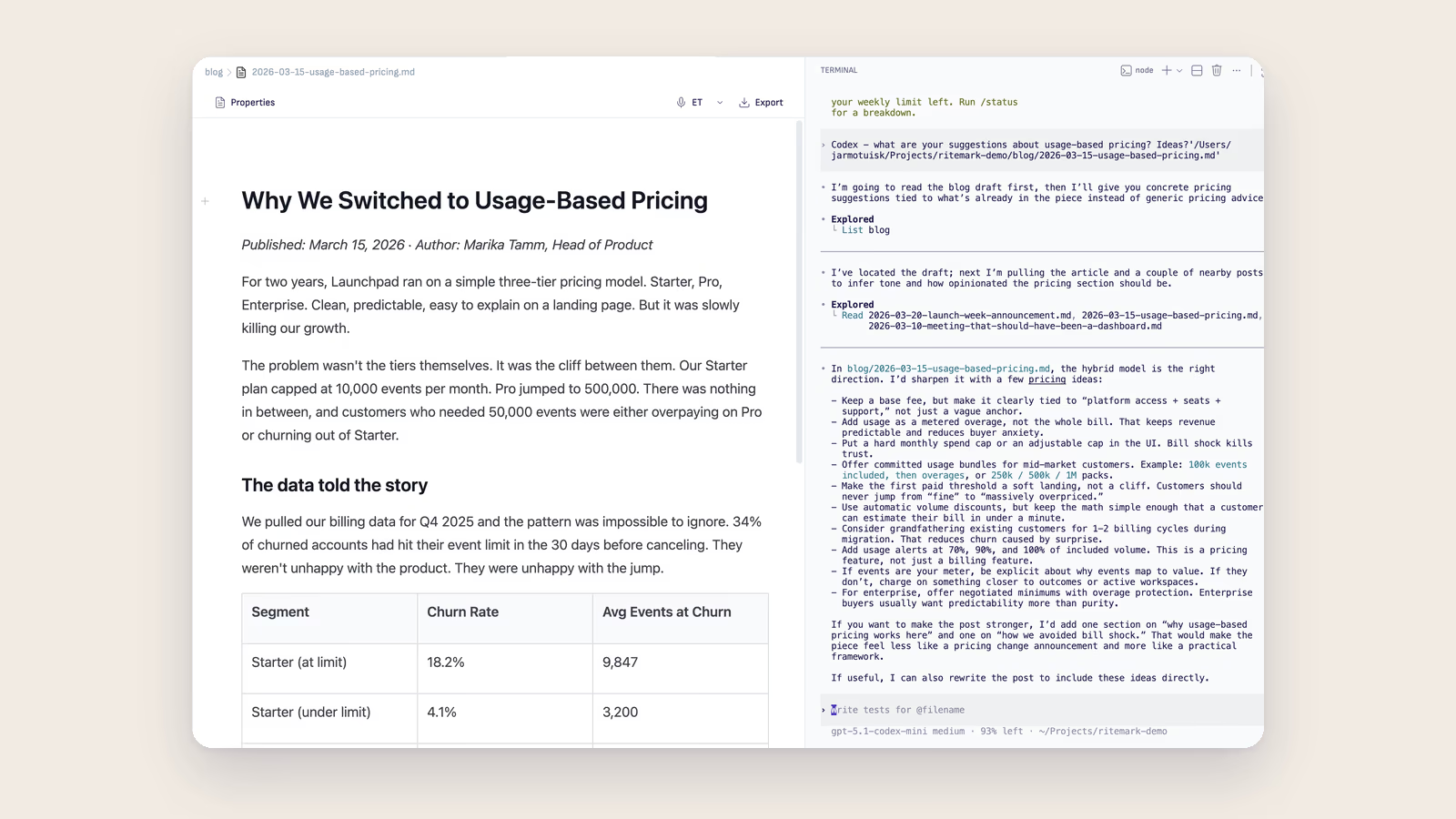
If you want a markdown editor with a terminal, your choices are a code editor like VS Code or Ritemark. Writing-focused editors such as Obsidian, Typora, iA Writer and Bear have no built-in terminal. Ritemark is a free writing app for Mac and Windows with a terminal tab in its AI sidebar, right next to the document, so a command-line tool like Claude Code, Codex CLI, git or pandoc runs in the folder you are writing in.
Most people never need the terminal, though. Ritemark's AI sidebar already runs Claude Code, Codex and OpenCode on your files with no command line at all. The terminal is there for the tools you install yourself. This page was last checked against Ritemark 1.14.0 in October 2026.
Why Does a Terminal in a Writing App Matter?
A built-in terminal cuts out the copy-paste workflow that slows down AI-assisted writing. Instead of switching between your editor and a browser-based AI, you run an agent directly where you write.
The traditional workflow involves opening your document in one app, copying text, pasting it into ChatGPT or Claude in a browser, reading the AI's response, copying the edited text back, and pasting it into your document. For a single edit, this takes about 2 minutes. For an article that needs translation, restructuring, and proofreading, you might repeat this cycle a dozen times.
A built-in terminal eliminates every copy-paste step. You run claude to start an interactive session, tell it "translate this file to Estonian", and it reads your document, proposes changes, and writes the result after you approve. Your editor shows the updated content right away. No tab switching, no clipboard gymnastics.
The bigger change is where the AI works. A chat window only sees the text you paste into it. An agent in the terminal sees the folder, so it can read your notes, edit the draft and create the next file in one go.
What Can You Run in a Markdown Editor Terminal?
With a real terminal inside your editor, you gain access to every command-line tool available on your system. AI agents, version control, build tools, and custom scripts all run in the same place where you write.
AI Writing Agents like Claude Code, Gemini CLI, and Codex CLI can read, edit, and create markdown files. They handle tasks from grammar checking to full document translation. These are tools you install yourself: Gemini CLI is not built into Ritemark, while Claude Code and Codex also ship ready to use in the AI sidebar. The terminal AI setup guide has the install and sign-in steps for each. To reach Gemini or other models with an API key and no install at all, use OpenCode in the sidebar.
Version Control with git lets you track changes, create branches for different drafts, and roll back AI edits that did not work out. Running git diff shows exactly what the AI changed.
Static Site Generators like Hugo, Jekyll, or Next.js can be previewed directly. Write a blog post and preview it on your local development server without switching windows.
Text Processing Tools like pandoc convert your markdown to PDF, DOCX, HTML, or any other format. Run pandoc article.md -o article.pdf and your document is exported.
Custom Scripts in Python, Node.js, or bash can automate repetitive tasks. A script that adds frontmatter to all markdown files in a folder, or one that checks for broken links, runs right where you write.
How Does a Terminal Compare to AI Plugins?
A built-in terminal gives AI agents full file system access, while editor plugins operate in a sandbox with limited capabilities. This matters because real writing tasks often involve reading one file, editing another, and creating new ones.
Some editors, particularly Obsidian, offer AI integration through plugins. While plugins provide a polished interface, they cannot match what a terminal-based AI agent can do:
| Capability | Terminal (Ritemark) | Plugin (Obsidian) |
|---|---|---|
| AI model choice | Any command-line tool you install | Plugin developer's choice |
| File system access | Full (read, write, create, delete) | Limited to vault |
| Multi-file operations | Yes (batch processing) | Usually single-note |
| Shell commands | All system commands available | Not available |
| Version control | Native git integration | Via separate plugin |
| Custom automation | Any script or tool | Limited to plugin API |
| Updates | Independent of editor | Depends on plugin maintainer |
| Offline AI tools | Yes (local models via ollama) | Rarely supported |
The terminal approach is the most flexible but requires comfort with command-line tools. Most people use Ritemark's AI sidebar instead, where Claude Code, Codex or OpenCode work on your files without any command line. The plugin approach is more user-friendly but limits what AI can do.
How Does Ritemark's Terminal Work?
Ritemark's terminal runs your own default shell, usually zsh on a Mac and PowerShell on Windows, with your PATH, environment variables and installed tools. It is not a restricted command palette.
It sits in the AI sidebar, as a tab next to the chat, so the document stays open beside it. It starts in the folder you opened in Ritemark, so an agent you launch there finds your files right away. A long job, like translating a whole folder, keeps running while you edit other files, and the editor shows each file as the agent saves it.
To get started with AI agents in the terminal, see the AI agent setup guide or the Claude Code setup guide.
Frequently Asked Questions
Which markdown editors have a built-in terminal?
Ritemark has one, as a tab in its AI sidebar, and so does VS Code, which is made for code rather than writing. Obsidian, Typora, iA Writer and Bear do not include a terminal.
Does Obsidian have a built-in terminal?
No. Obsidian does not include a terminal. There are community plugins that add limited terminal functionality, but they run within Obsidian's sandbox and cannot provide the same level of system access as a native terminal.
Can I use Claude Code in a markdown editor?
Yes. Claude Code is built into Ritemark's AI sidebar, and you can also run a Claude Code you install yourself in the built-in terminal. It reads your markdown files, edits them, and saves the changes. In the sidebar you choose whether it acts on its own (Auto, the default), asks before each change (Manual) or shows a plan first (Plan only). See the Claude Code setup guide.
Can I use the terminal for non-AI tasks?
Yes. The terminal is a full shell. Use it for git commands, file management, running build tools, SSH connections, or anything else you would do in Terminal on a Mac or PowerShell on Windows.
Is the terminal sandboxed or restricted?
No. Ritemark's terminal runs your actual shell, with the same permissions as Terminal on a Mac or PowerShell on Windows. It can do anything your user account can do, so treat what you run there with the same care.
What shell does Ritemark's terminal use?
Ritemark uses your system's default shell. On a Mac that is usually zsh, or bash or fish if you set one of those. On Windows it is usually PowerShell.
Can AI tools in the terminal break my files?
AI tools can modify files, so there is always some risk. Best practice: use git to commit your work before running AI edits. This way, you can review changes with git diff and revert with git checkout if needed. Claude Code also asks for approval before writing changes.
How do I open the terminal in Ritemark?
Open the AI sidebar and click the terminal icon at its top, next to the chat icon. The terminal opens as a tab in the sidebar, in the folder you have open.
Does Typora have a built-in terminal?
No. Typora is a minimal markdown editor focused on distraction-free writing. It does not include a terminal or any way to run command-line tools.
Start writing with Ritemark.
Free and open source. Mac and Windows.