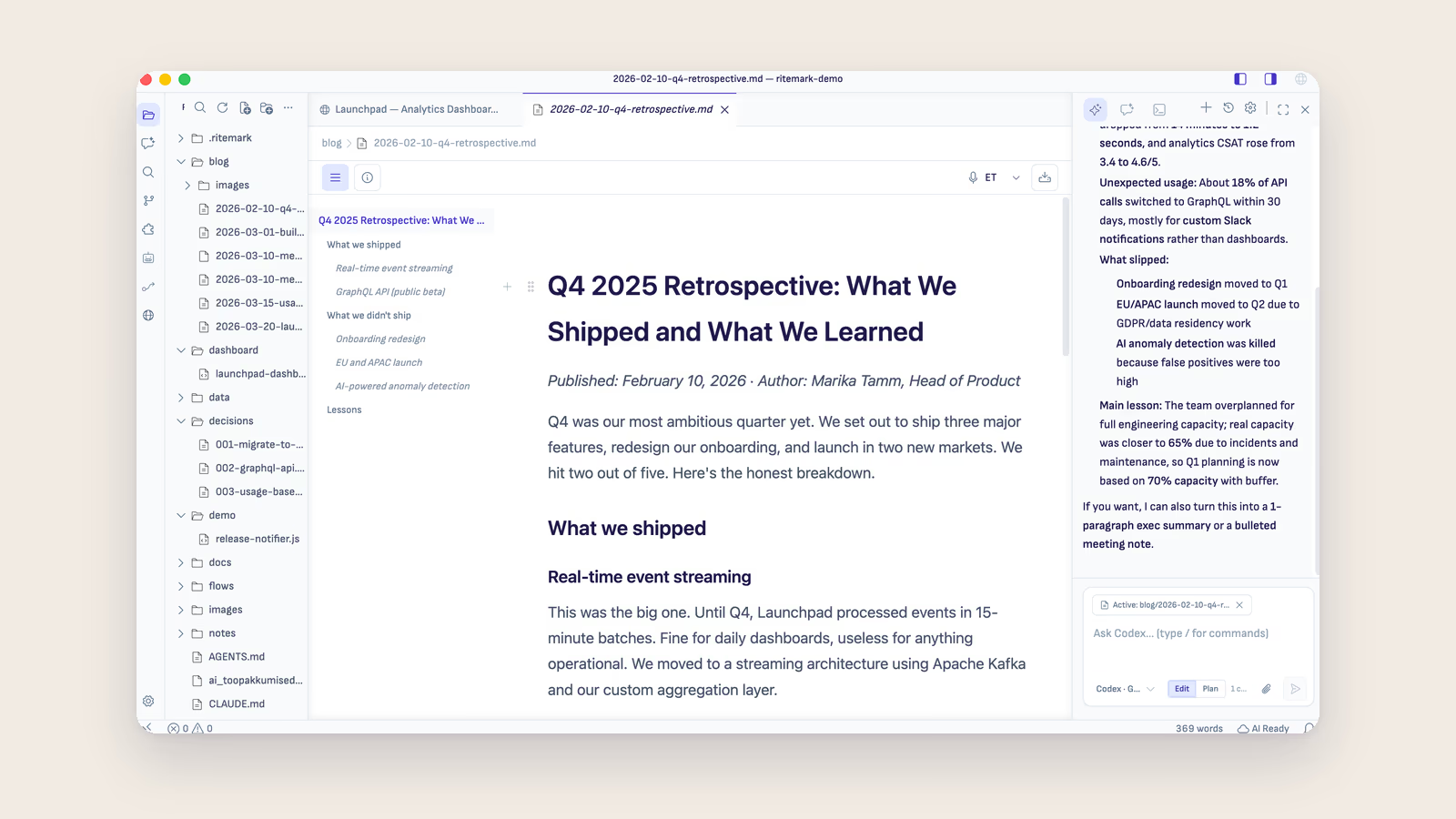
Ritemark is a free markdown editor for Mac and Windows where the AI you choose works directly in your files. You chat with Claude Code, Codex or OpenCode in a sidebar next to your document, without switching apps or copy-pasting between windows. Your files stay on your machine as plain markdown.
Think of it as a writing app that gives AI agents direct access to your documents. You write in a visual editor that renders markdown formatting in real time, and a built-in terminal panel lets you run any command-line tool while your document stays open and editable.
How Does Ritemark Work?
Ritemark combines three things that usually require separate apps: a visual markdown editor, a file manager, and an AI agent. When you open a folder in Ritemark, you see your documents on the left, formatted text in the center, and the AI sidebar on the right. A terminal panel is there too when you need it.
The editor shows your markdown as formatted text, similar to how a word processor displays headings, bold text, and lists. But underneath, everything is saved as plain .md files that work with any other text editor, GitHub, or static site generator.
The built-in terminal is a real terminal, not a limited command palette. You can install and run the command-line tools you would use in Terminal.app, iTerm or PowerShell. Together with the AI sidebar, this is what sets Ritemark apart from other markdown editors.
What Makes Ritemark Different from Other Editors?
Ritemark is the only writing-focused markdown editor with AI agents built into a sidebar and a real terminal beside them. Most editors focus on editing text. Ritemark focuses on the workflow between writing and AI-assisted editing.
| Feature | Ritemark | Obsidian | Typora | VS Code |
|---|---|---|---|---|
| Built-in terminal | Yes | No | No | Yes |
| Visual markdown editing | Yes | Yes | Yes | Extension |
| AI agent integration | AI sidebar (Claude Code, Codex, OpenCode) | Plugins | No | Yes |
| Local-first (no cloud) | Yes | Yes | Yes | Yes |
| Free | Yes | Yes (personal) | Paid ($15) | Yes |
| Runs on | Mac and Windows | Mac, Windows, Linux | Mac, Windows, Linux | Mac, Windows, Linux |
| Purpose | Writing + AI | Knowledge management | Writing | Code editing |
The key difference is purpose. Obsidian is built for knowledge management with graph views and bidirectional links. VS Code is built for programming. Ritemark is built specifically for writers who want AI tools integrated into their writing workflow.
Who Is Ritemark For?
Ritemark is designed for anyone who writes in markdown and wants to use AI tools as part of their workflow. Common users include technical writers creating documentation, bloggers drafting posts, developers writing README files and project docs, content teams producing marketing copy, and researchers organizing notes and papers.
If you currently write in one app and copy-paste to ChatGPT or Claude for editing, translating, or expanding text, Ritemark eliminates that back-and-forth entirely. The AI reads and edits your file directly.
Which AI Tools Work with Ritemark?
Three AI agents are built into Ritemark's sidebar: Claude Code (paid Claude plan or Anthropic API key), Codex (your ChatGPT account) and OpenCode (your own OpenAI, Google, Anthropic or OpenRouter keys). There is nothing to install. The built-in terminal can also run other command-line tools you install yourself.
Claude Code by Anthropic is the most powerful option for writing tasks. It reads your files, makes edits in place, and handles complex multi-step tasks like restructuring a document, translating to another language, or adding sections. Pick Claude in the AI sidebar and sign in with your Claude account or an Anthropic API key.
Codex by OpenAI is built into Ritemark's AI sidebar. Sign in with your ChatGPT account; there is nothing to install.
OpenCode lets you use models from OpenAI, Google (Gemini), Anthropic or OpenRouter with your own API keys. Only providers with a saved key appear in the model picker.
Custom scripts written in Python, Node.js, bash, or any language can read and modify your markdown files. If it runs in a terminal, it works in Ritemark.
For step-by-step installation instructions, see the AI agent setup guide or the Claude Code setup guide.
How Do You Get Started with Ritemark?
Getting started takes about two minutes:
- On a Mac, download Ritemark from the GitHub releases page. On Windows, open it in the Microsoft Store
- On a Mac, open the DMG and drag Ritemark to your Applications folder. On Windows, install it from the Store
- Launch Ritemark and open a folder containing your markdown files
- Start writing in the visual editor
- Open the AI sidebar, sign in to Claude or ChatGPT (or add an API key), and ask the agent to work on your document
No Ritemark account or subscription is needed; the AI runs on your own Claude or ChatGPT plan or API keys. No internet connection required for basic editing. Ritemark is completely free.
Is Ritemark Safe and Private?
Yes. Ritemark is signed and notarized by Apple, meaning macOS has verified it is free of malware. Your files stay on your machine as plain markdown, and Ritemark has no cloud sync. The app sends anonymous usage analytics by default, never your prompts or file contents, and you can turn it off in Settings. The privacy policy lists exactly what is collected.
When you use the AI sidebar, whatever the agent reads (your open file, files you add, selected text, attachments) goes to the AI provider you chose, under your own account and its terms: Claude Code sends it to Anthropic, Codex to OpenAI. Writing and editing work offline; the AI needs an internet connection. See how to keep your notes private while using AI writing tools for a fuller breakdown of what each AI feature actually sends.
Frequently Asked Questions
What file formats does Ritemark support?
Ritemark reads and writes standard markdown (.md) files. It also edits CSV and Excel (.xlsx) files, opens .xls files read-only, and shows PDF and Word documents. Your documents are saved as plain text with no proprietary formatting, so you can open them in any text editor.
Does Ritemark work on Windows?
Yes. Ritemark supports both macOS (Apple Silicon and Intel) and Windows. On Windows, you install it from the Microsoft Store. See the best AI writing tools for macOS comparison for how it stacks up against other Mac-native options.
Can I use Ritemark without AI tools?
Absolutely. Ritemark works as a standalone markdown editor without any AI tools installed. The terminal is optional and does not need to be open while writing.
How is Ritemark different from Notion?
Notion is a cloud-based workspace with databases, kanban boards, and team collaboration. Ritemark is a local-first writing app with an AI sidebar and a terminal. Choose Notion for team wikis and project management. Choose Ritemark for focused writing with AI assistance. See the best Notion alternatives for markdown writers for a fuller comparison.
Does Ritemark require an internet connection?
No. Writing and editing in Ritemark work offline. An internet connection is needed when you use the AI agents in the sidebar (Claude Code, Codex or OpenCode) or cloud AI tools in the terminal.
Who makes Ritemark?
Ritemark is built by Productory, Estonia's leading AI training company. It started as an internal tool for writing documentation and blog posts with AI assistance, and was released as a free app for anyone to use.
Is Ritemark open source?
Yes. Ritemark is released under the MIT License, built on VS Code, Electron, and xterm.js. Read the source code or see the best open source markdown editors comparison for how it stacks up against other open source options. Release builds are published on GitHub.
How is Ritemark different from iA Writer?
iA Writer ($49.99) is a focused writing app with no terminal and no AI integration. Ritemark is free, includes an AI sidebar with built-in agents and a terminal, and supports visual markdown rendering. Both are good writing apps, but Ritemark adds AI workflow capabilities.
Can I use Ritemark for documentation?
Yes. Ritemark works well for technical documentation, README files, API docs, and any markdown-based content. The terminal makes it easy to run build tools and preview sites, and the AI sidebar helps you expand or restructure documentation.