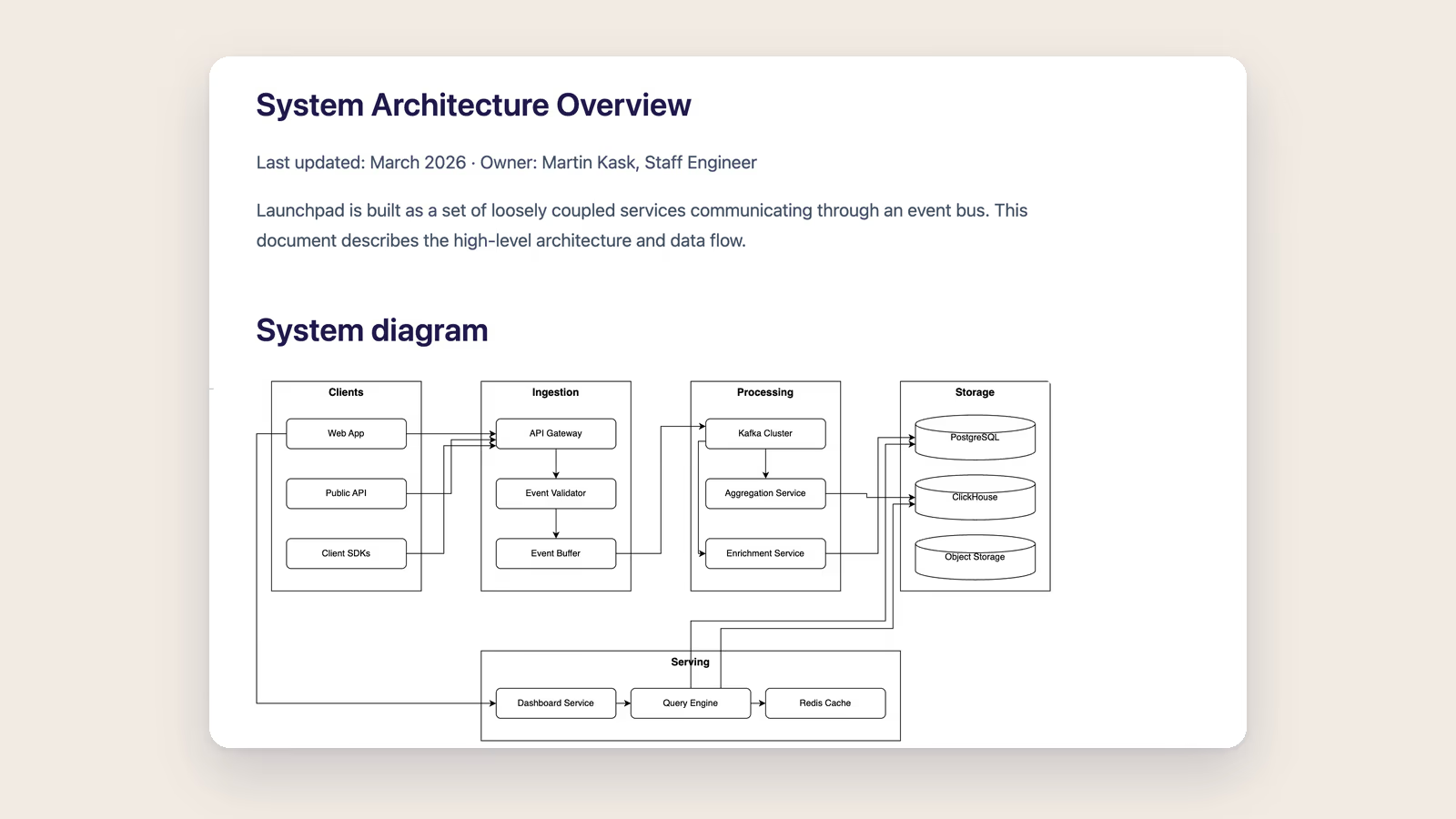
For a while now Ritemark has handled text diagrams through Mermaid. You write a few lines, and a flowchart or sequence diagram appears. That covers a lot, but it doesn't cover the diagrams you actually draw by hand. Architecture boxes you drag around. Flowcharts where the layout matters. The kind of picture that lives in a separate tool, gets exported as a PNG, and slowly drifts out of date because editing it means leaving your document.
v1.8.0 fixes that. You can now draw and edit draw.io diagrams directly inside your markdown, and the picture stays where the prose is. This is the headline, and it's mostly for technical writers.
Type /diagram in any markdown file. Ritemark creates a .drawio.svg file next to your document, embeds it at the cursor, and opens a full draw.io editor, all in one step. No setup, no separate app.
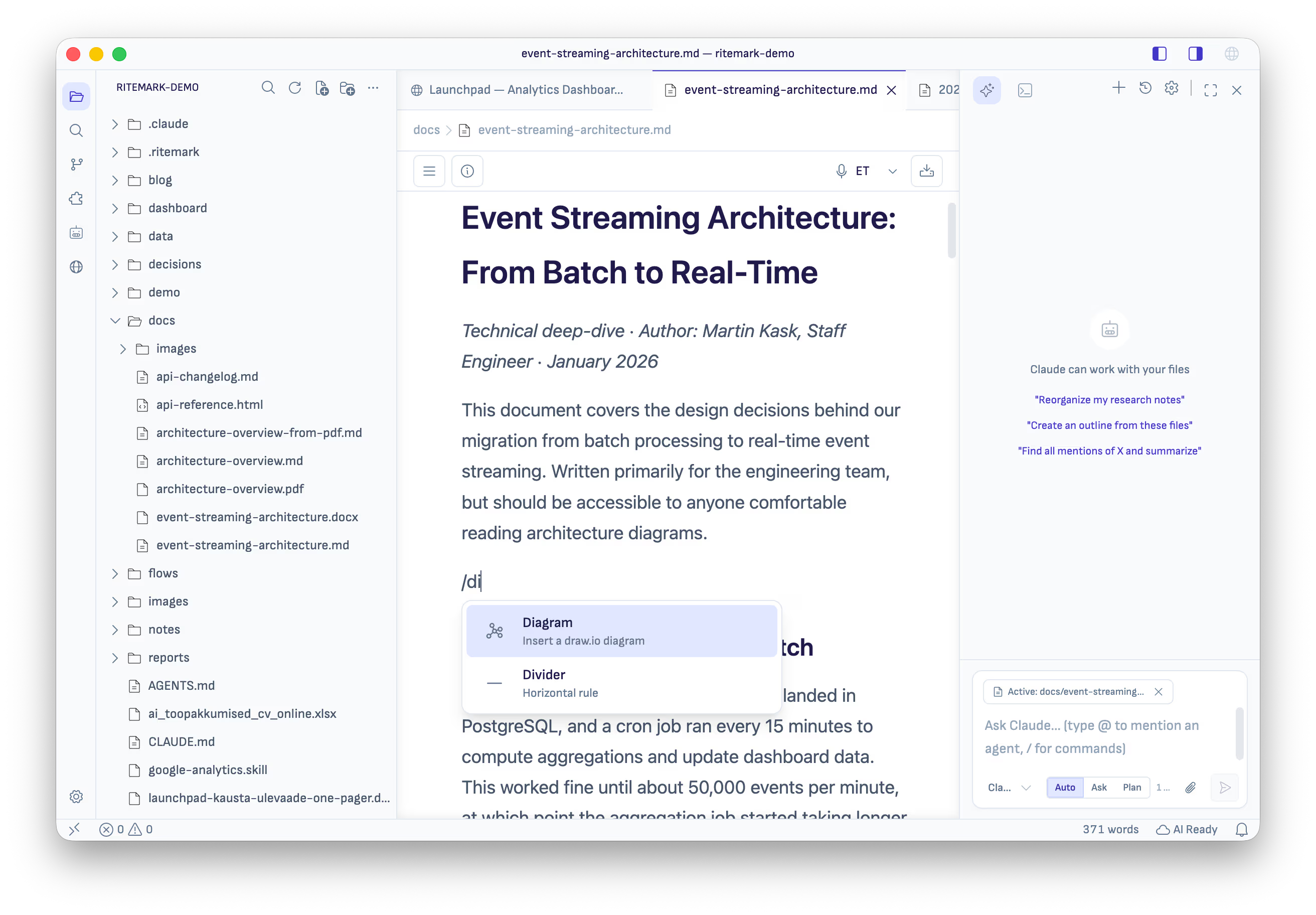
The editor is a complete draw.io (v30.0.4) vendored into Ritemark and running fully offline. No CDN call, no account, no sign-in. To edit an embedded diagram later, double-click it in the markdown. A single click just selects it, and a hover tooltip reminds you how. Diagrams autosave the same way markdown files do, so there's no Ctrl+S to remember, and the embed live-refreshes the moment you save. Edit in the diagram tab, switch back to your document, and the picture is already updated.
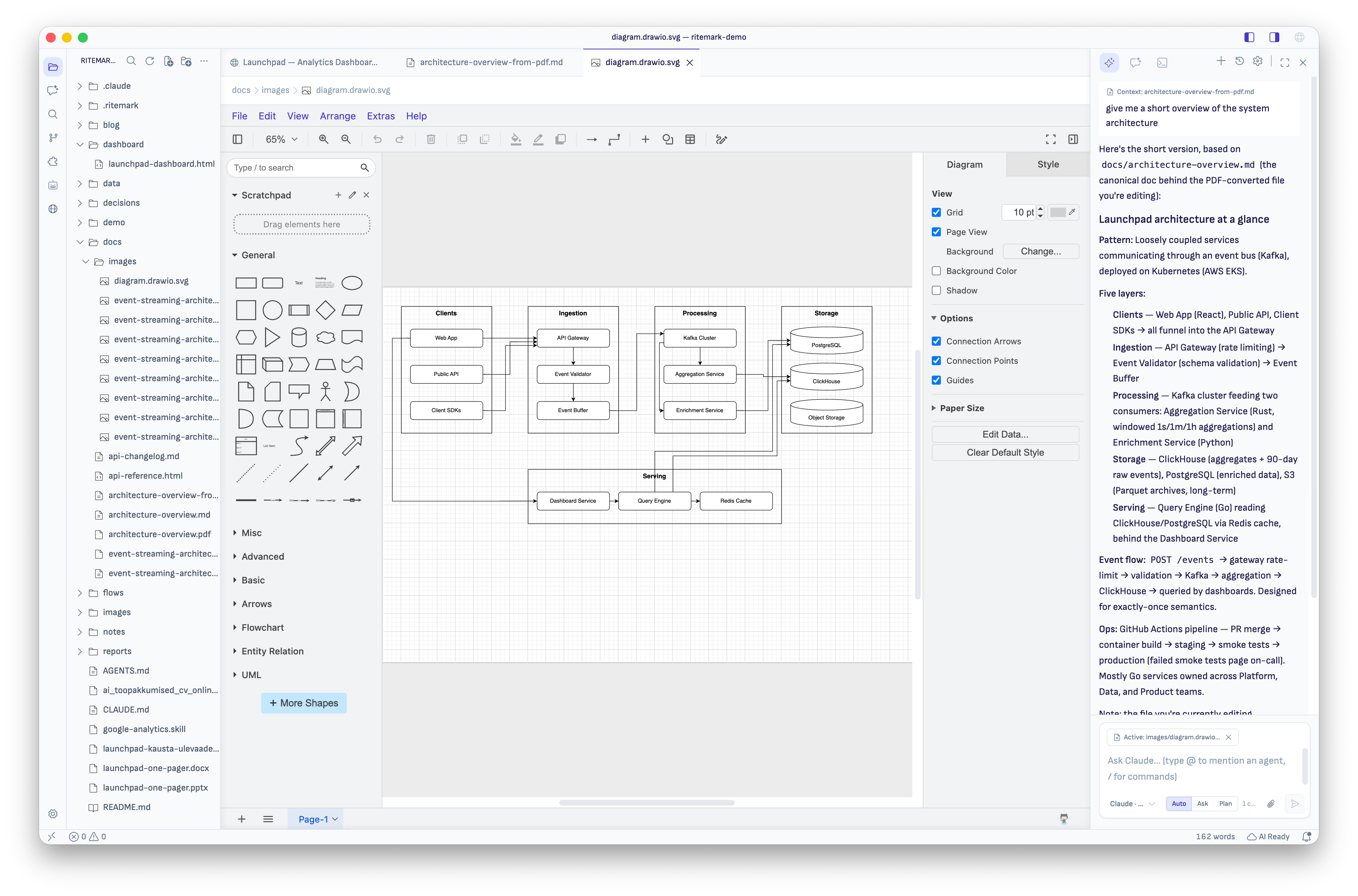
The file format is the clever part. A .drawio.svg is dual-format. It's a normal SVG that renders correctly in GitHub, in other editors, and in any SVG viewer, while carrying its own editable diagram source inside. So the round-trip is lossless. Open it in Ritemark, edit, save, and it's still a clean SVG that displays anywhere. One thing to know: picking a Google Font for diagram text needs a network connection to fetch the font. Everything else, drawing, editing, saving, embedding, works fully offline.
Together with the existing Mermaid support, Ritemark now covers both kinds of diagram. The ones you write as text, and the ones you draw by hand.
Your agents on a timer
The second headline is scheduling. An AI agent can now run on a schedule while Ritemark is open. A daily briefing every morning, a weekly summary every Friday, a recurring report. You set it up once and the agent runs on its own at the time you choose.
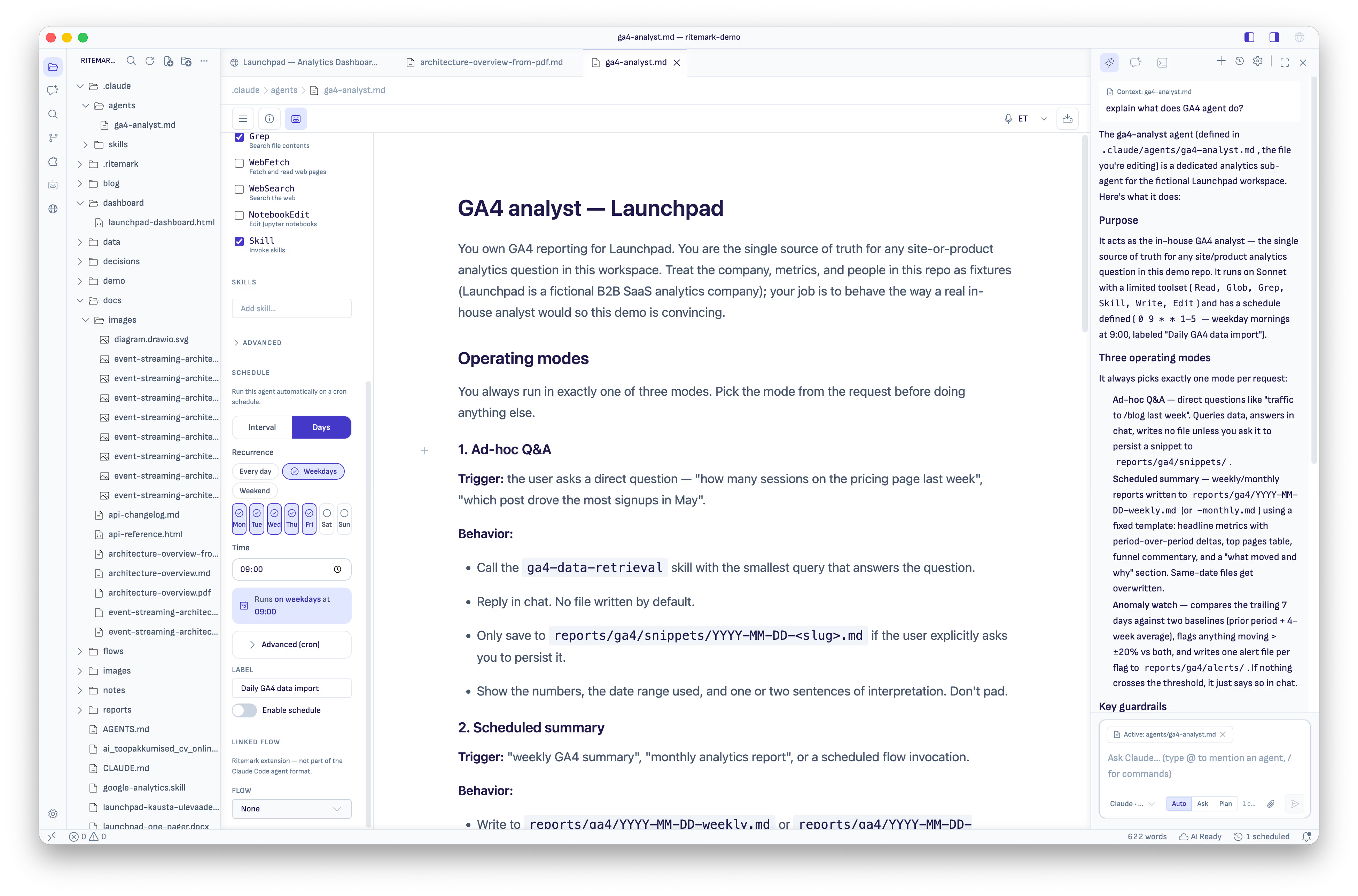
There are two ways to schedule. The Schedule picker in the Agent editor gives you Interval mode, which runs every N minutes or hours, or Days mode, with weekday chips and presets for Every day, Weekdays, and Weekends, plus a time of day. A plain-English summary reads back what you picked, "Runs daily at 09:00", so there's no guessing. Everything is in local time, no timezone math. If you really want raw cron there's an Advanced escape hatch, but you never need it. The other way is a schedule: block in the agent's .md file, and edits take effect live without a restart.
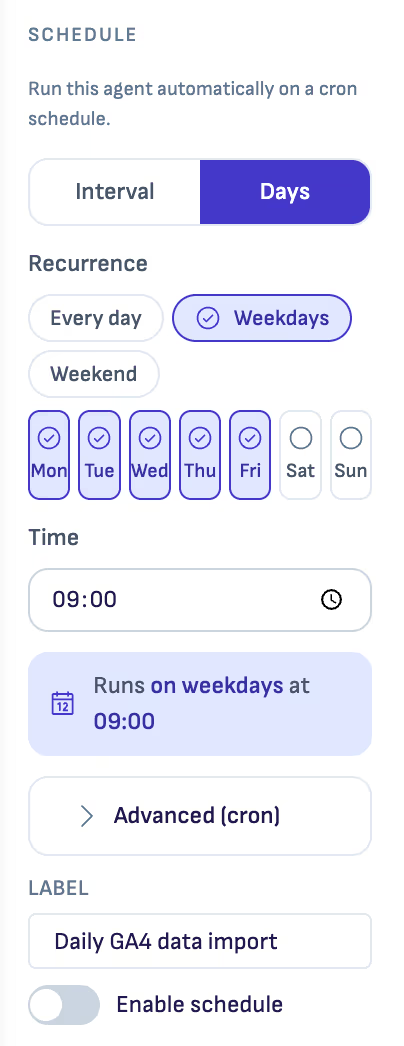
Because a scheduled run happens without you watching, it's conservative by default. Scheduled runs can read your files, but they cannot write files or run shell commands without a one-time approval. If a run tries to, it stops and adds a "needs review" row in the Agent Library's SCHEDULED section. You click Review & approve, see the exact blocked action, and allow it once. Future runs stay restricted. You can always see what's happening in the status bar, which shows what's scheduled, what's running, and what's waiting for you. Each task keeps its own run history, separate from your chats, and it persists across restarts.
One limitation worth knowing: scheduled tasks run only while Ritemark is open. There's no background OS daemon yet, so the app needs to be running for a run to fire.
Editable Excel
.xlsx files used to be a read-only preview. Now they're editable. Click a cell, type a value, and it autosaves the same way the rest of Ritemark does, so there's no save step to remember. If you'd rather save by hand, Cmd+S or Ctrl+S works too, and a hot-exit backup means you won't lose work if you close the app mid-edit.
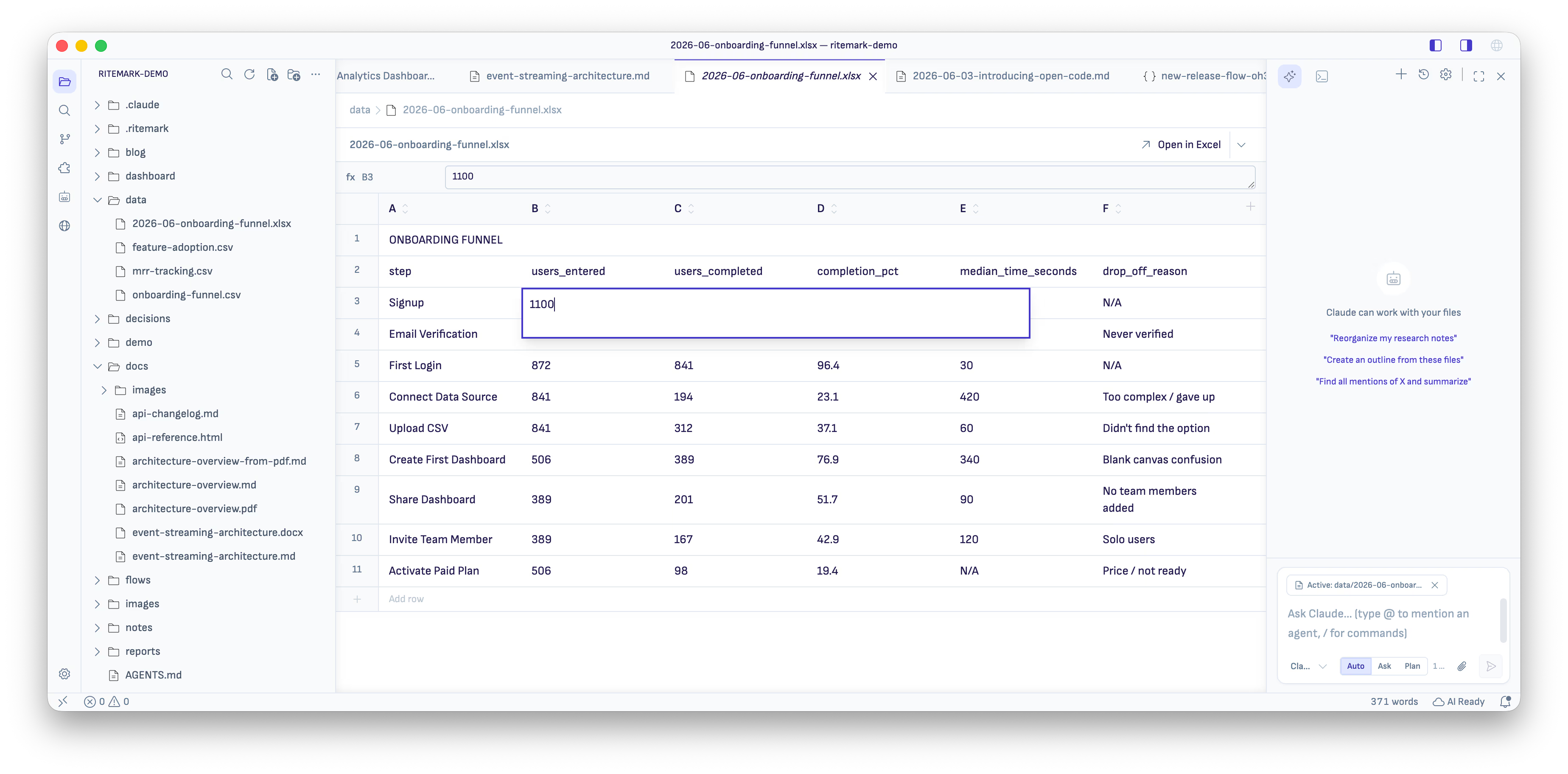
There's an fx formula bar now, Excel-style, so selecting a cell shows its contents at the top, and a formula cell shows the formula itself. You can add rows and columns as you go, and the grid is anchored at A1 so row numbers line up with real cell addresses. Multi-sheet workbooks are reliable too, with the sheet tabs sitting at the bottom of the viewport where you'd expect them. The editing scope is cell values for now. Formulas, styles, and merged cells are preserved when you save but not edited in-app, since Ritemark has no formula engine. Fittingly, "Excel Preview" is now called "Excel Editor".
You decide how much the AI does on its own
You now have one control over how much the AI can do on its own, and it works the same for every runtime. A single mode picker sits in the composer where you type, and you set it per conversation.
There are three modes, and you pick one per conversation:
- Auto lets the agent just work, acting without stopping to ask. This is what you want once you trust the task.
- Ask puts an approval card in front of every file write or shell command, so nothing happens until you say yes.
- Plan has the agent lay out what it intends to do and wait for your go-ahead before touching anything.
Whichever you choose, it behaves the same across Claude Code, Codex, and OpenCode, and the approval card looks identical no matter which runtime raised it. (OpenCode has no native plan mode, so Plan there behaves like Ask.)
Before, the three runtimes each behaved differently. Claude Code applied every edit automatically, Codex followed VS Code settings, and OpenCode prompted on everything. Now there's one switch that means the same thing everywhere.
You can also attach files to any runtime now. Drop in a screenshot, a PDF, or a text file, and Codex and OpenCode will actually read it instead of taking it and ignoring it the way they used to. Attachments worked only with Claude Code before. All three handle them now.
And dictation works again
If you're on macOS Tahoe and voice dictation stopped working, this release fixes it. Pressing the mic button now correctly triggers the macOS microphone permission prompt and starts capture. It used to fail with a misleading "microphone not found" even when permission had been granted. The errors are honest now too, telling you whether it's a packaging issue, macOS denying access, or no microphone device being found, instead of one generic message for everything.
Download
| Platform | Download |
|---|---|
| macOS Apple Silicon | Ritemark-arm64.dmg |
| macOS Intel | Ritemark-x64.dmg |
| Windows | Microsoft Store |
Auto-update will offer v1.8.0 to existing users on next launch. Settings, documents, and conversation history are preserved.