Ritemark has let you build your own AI agents for a while now — small, specialized helpers, each with its own instructions, model, and permissions. But honestly, those agents were invisible. They were markdown files living in a hidden .claude/agents/ folder, and configuring one meant hand-editing a block of YAML whose shape you had to remember.
v1.7.3 is an AI release. Its core idea is simple: turn agents into something you can see, organize, and choose between.
The Agent Library — all your AI in one place
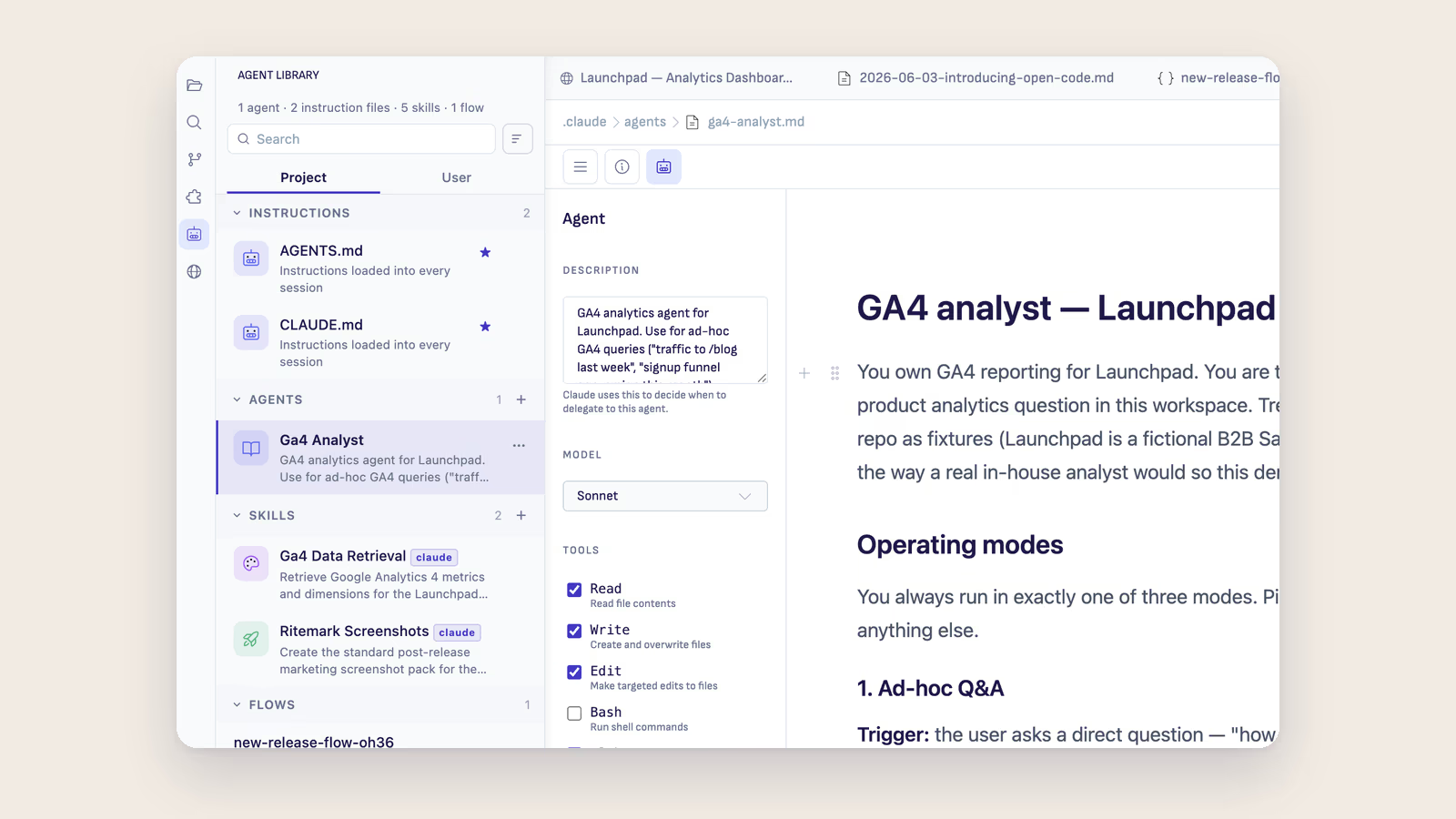
Click the robot icon in the left activity bar and the Agent Library opens. It pulls your workspace's entire AI side into collapsible sections.
Instructions come first: CLAUDE.md and AGENTS.md. These aren't agents, they're project-wide rules loaded into every AI session. House rules, not team members, which is exactly why they now get their own section. Below them sit your Agents — the specialized helpers from .claude/agents/. Then Skills, Commands, and Flows for the rest of your AI tooling.
Sections collapse and the state is remembered. If you only work with Agents and Skills, collapse the rest and the library stays that way. Project and User scope tabs let you flip between agents that live with the repo and agents that follow you across projects, and the row actions cover the day-to-day — Open, Duplicate, Launch Chat, Move scope, Delete.
The Agent Configurator — no YAML
Open any agent file and Ritemark switches to agent editing mode. The document area shows the agent's instructions, and the right panel opens the Agent Configurator.
It's built on the real Claude Code agent format. What you configure is exactly what the AI runtime reads. Nothing on the panel is cosmetic.
Description is the most important field, and it's required. It tells the AI when to delegate work to this agent — write it like a job posting. If it's empty, the agent is never invoked automatically, and the configurator warns you about exactly that. The Model picker covers Inherit, Sonnet, Opus, Haiku, or a custom model ID. Tools work as an allow-list with the right semantics: nothing checked means the agent inherits all tools, some checked means the agent gets only those — least privilege, and an unchecked tool simply doesn't exist for that agent. Skills to preload sit below Tools, and an Advanced section covers Effort, Memory, and Color.
Every change is written straight into the agent's file. There's no separate Save button. Because agents are plain files, every change shows up in git diff and can be reverted like any other.
A third runtime: OpenCode, bring your own key
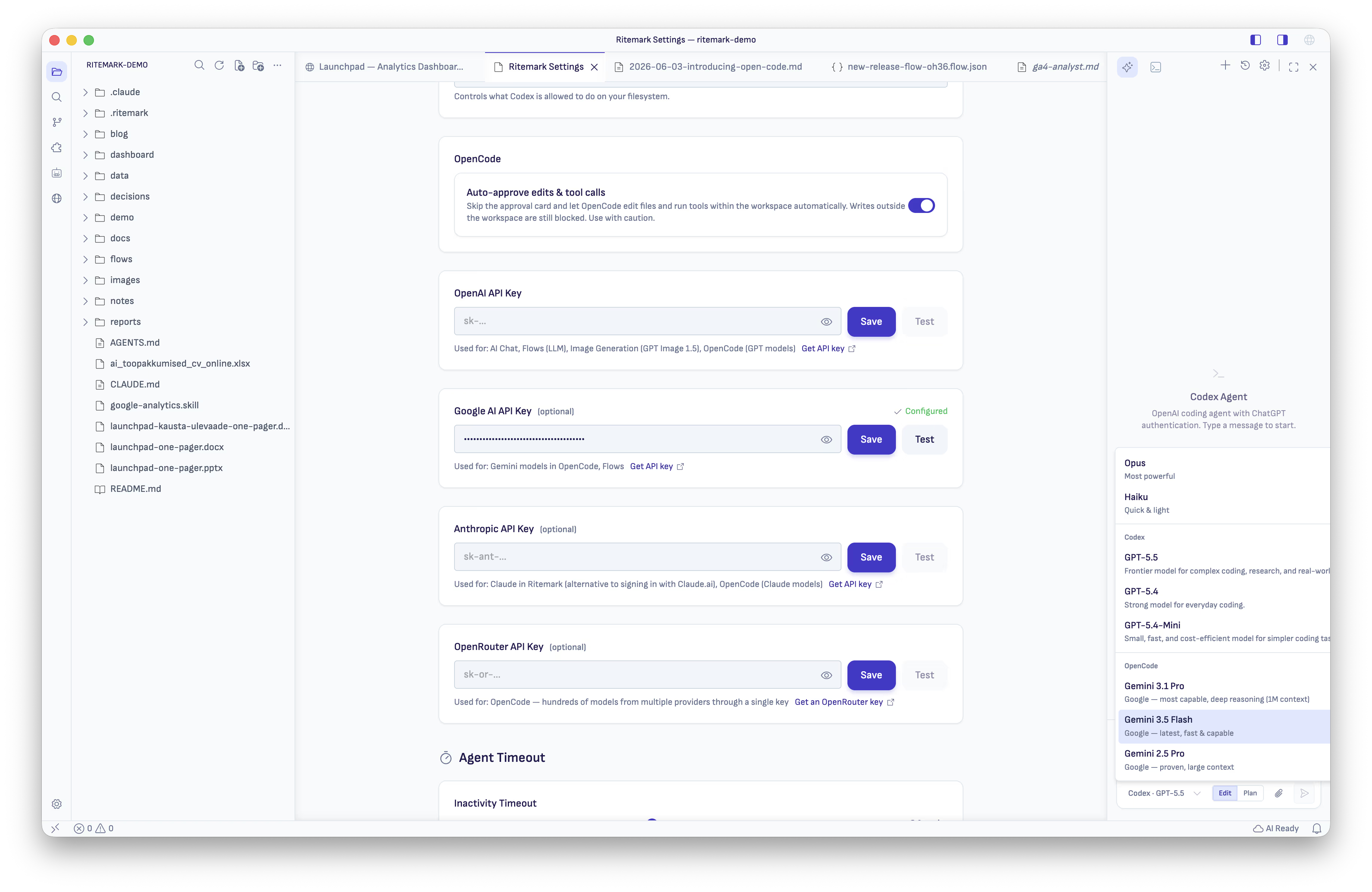
Ritemark now bundles OpenCode as a third chat runtime alongside Claude Code and Codex, integrated over the Agent Client Protocol. Where Claude Code and Codex use their own sign-in, OpenCode is bring-your-own-key: add a key you already have for OpenAI, Google AI, Anthropic or OpenRouter and pick from that provider's models.
The model picker shows an OpenCode group after Codex. Only providers with a configured key appear, so adding a Google AI key makes Gemini show up, adding OpenAI gets you GPT models, and so on. With no keys, the group prompts you to open Settings. A new OpenRouter key field joins OpenAI, Google AI, and Anthropic there.
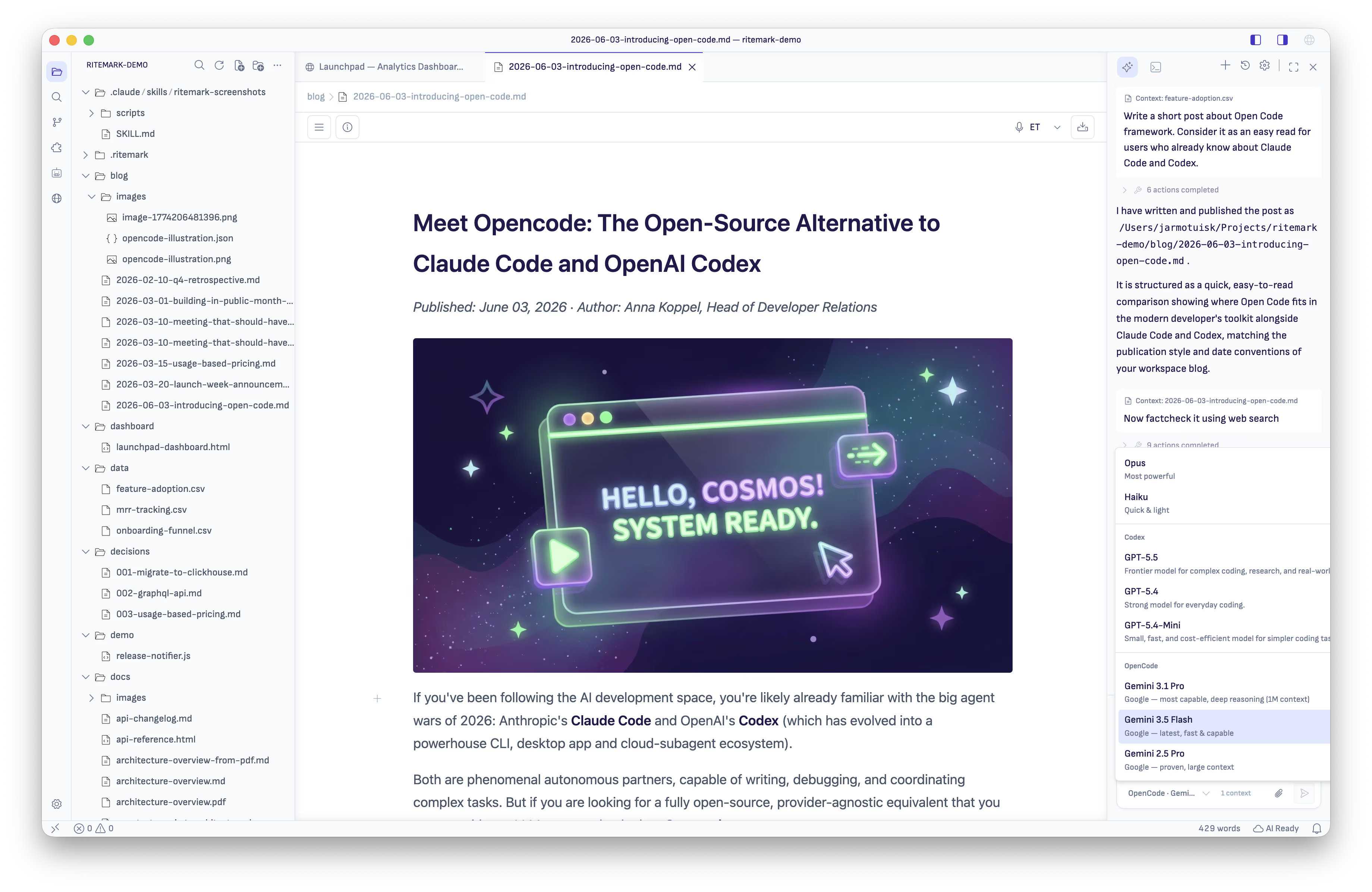
Responses stream in. Reasoning is summarized as a few "Thinking" entries instead of hundreds of one-word activities, and tool calls appear as activities. When OpenCode wants to edit an open file, you get a single File Change Approval card with the target path. The file on disk is untouched until you Approve. Writes outside the workspace are rejected automatically. Want it hands-free? Settings → OpenCode has an Auto-approve edits & tool calls toggle. Out-of-workspace writes stay blocked even with auto-approve on.
The bundled OpenCode binary is re-signed under Ritemark's Developer ID, so it launches cleanly on macOS without Gatekeeper warnings.
A browser the agent can re-observe
AI agents working with the integrated browser used to have only one way to "look at" a page — navigate to it. Re-checking the page after a click or a form fill meant re-navigating, and losing page state along the way.
The new browser_snapshot tool returns the active browser tab's current ARIA outline — URL, title, and full accessibility tree — without navigating. It's available to both Claude Code and Codex, and it's read-only and consent-aware: the tool only works on tabs you've shared with Ritemark AI. An unshared tab returns an error. No URL, title, or page content leaks.
And when annotation mode is on (the camera toggle in the browser toolbar), the composer now shows a live screenshot thumbnail instead of a misleading URL chip. The thumbnail previews exactly the screenshot the AI will receive, and refreshes as you scroll.
The smaller things that smooth out the day
The composer no longer locks during an agent run. Type your next thought while Claude Code or Codex is still working and press Enter — it parks in a "Queued" notch above the input and auto-sends when the run finishes. One queued prompt at a time. Discard with ×.
Plan approval actually approves now. The Approve and Reject buttons used to render after the approval window had already closed — clicking them silently did nothing. Now the card renders only while the agent is genuinely blocked, shows the full plan text reliably, and gives Approve a clear indigo primary call-to-action.
The Edit Link dialog can change a link's text. A new optional "Display text" field pre-fills from the current selection or the existing link, so renaming a link is a single step.
Short code blocks no longer show a phantom scrollbar. It was the copy-button tooltip overflowing the container — fixed.
Who this is for
Agent builders get the visibility they were missing. Write an agent's description and instructions like a job posting, lock its tools down to least privilege, and see at a glance — in the library — exactly what you've got.
Bring-your-own-key folks get a chat surface that works with what they already pay for. OpenCode opens Ritemark to any provider you have a key for — Gemini, GPT, Anthropic, and more via OpenRouter.
And anyone who lets agents actually do work gets the calm that was missing from longer runs. File-change approval, queued prompts, and a plan-approval gate that works make watching a run feel less like crossing your fingers.
Download
| Platform | Download |
|---|---|
| macOS Apple Silicon | Ritemark-arm64.dmg |
| macOS Intel | Ritemark-x64.dmg |
| Windows | Microsoft Store |
Auto-update will offer v1.7.3 to existing users on next launch. Settings, documents, and conversation history are preserved.