Markdown Editors with Built-in Terminal
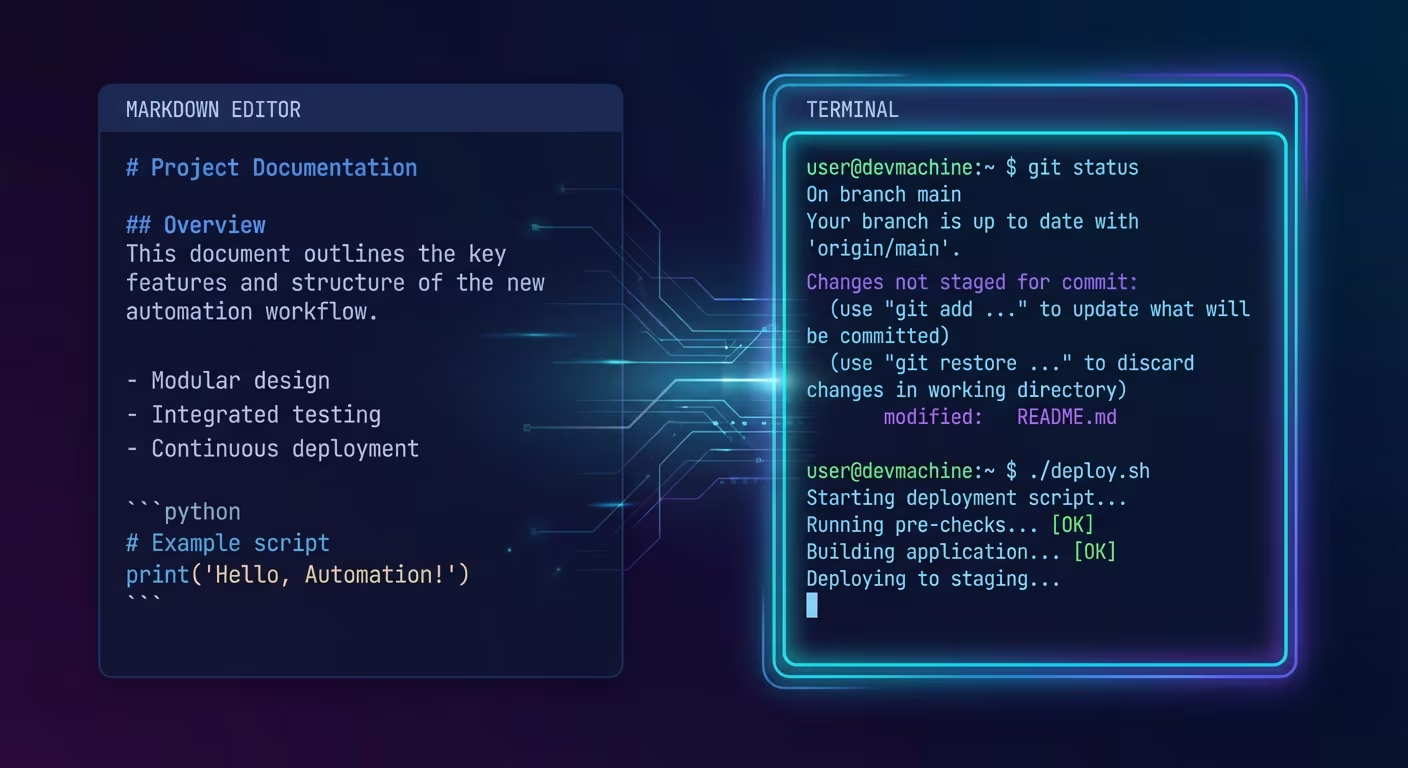
A markdown editor with a built-in terminal lets you run command-line tools directly inside your writing app. This means AI agents like Claude Code can read your documents, make edits, and save changes without you ever leaving the editor or copy-pasting text between windows.
Ritemark is currently the only dedicated markdown editor that offers a full built-in terminal. VS Code has a terminal but is designed for coding, not writing. No other writing-focused markdown editor, including Obsidian, Typora, iA Writer, or Bear, includes terminal access.
Why Does a Terminal in a Writing App Matter?
A built-in terminal cuts out the copy-paste workflow that slows down AI-assisted writing. Instead of switching between your editor and a browser-based AI, you run an agent directly where you write.
The traditional workflow involves opening your document in one app, copying text, pasting it into ChatGPT or Claude in a browser, reading the AI's response, copying the edited text back, and pasting it into your document. For a single edit, this takes about 2 minutes. For an article that needs translation, restructuring, and proofreading, you might repeat this cycle a dozen times.
A built-in terminal eliminates every copy-paste step. You run claude to start an interactive session, tell it "translate this file to Estonian", and it reads your document, proposes changes, and writes the result after you approve. Your editor shows the updated content right away. No tab switching, no clipboard gymnastics.
This is not a small convenience improvement. It is a fundamental change in how writing and AI interact. Instead of AI being a separate tool you consult, it becomes an integrated part of your writing environment with direct access to your files.
What Can You Run in a Markdown Editor Terminal?
With a real terminal inside your editor, you gain access to every command-line tool available on your system. AI agents, version control, build tools, and custom scripts all run in the same place where you write.
AI Writing Agents like Claude Code, Gemini CLI, and Codex CLI can read, edit, and create markdown files. They handle tasks from grammar checking to full document translation.
Version Control with git lets you track changes, create branches for different drafts, and roll back AI edits that did not work out. Running git diff shows exactly what the AI changed.
Static Site Generators like Hugo, Jekyll, or Next.js can be previewed directly. Write a blog post and preview it on your local development server without switching windows.
Text Processing Tools like pandoc convert your markdown to PDF, DOCX, HTML, or any other format. Run pandoc article.md -o article.pdf and your document is exported.
Custom Scripts in Python, Node.js, or bash can automate repetitive tasks. A script that adds frontmatter to all markdown files in a folder, or one that checks for broken links, runs right where you write.
How Does a Terminal Compare to AI Plugins?
A built-in terminal gives AI agents full file system access, while editor plugins operate in a sandbox with limited capabilities. This matters because real writing tasks often involve reading one file, editing another, and creating new ones.
Some editors, particularly Obsidian, offer AI integration through plugins. While plugins provide a polished interface, they cannot match what a terminal-based AI agent can do:
| Capability | Terminal (Ritemark) | Plugin (Obsidian) |
|---|---|---|
| AI model choice | Any CLI tool (unlimited) | Plugin developer's choice |
| File system access | Full (read, write, create, delete) | Limited to vault |
| Multi-file operations | Yes (batch processing) | Usually single-note |
| Shell commands | All system commands available | Not available |
| Version control | Native git integration | Via separate plugin |
| Custom automation | Any script or tool | Limited to plugin API |
| Updates | Independent of editor | Depends on plugin maintainer |
| Offline AI tools | Yes (local models via ollama) | Rarely supported |
The terminal approach is more powerful but requires comfort with command-line tools. The plugin approach is more user-friendly but limits what AI can do.
How Does Ritemark's Terminal Work?
Ritemark's terminal is a real macOS terminal, not a restricted command palette. It runs your default shell (bash, zsh, or fish) with full access to your system's PATH, environment variables, and installed tools.
The terminal opens in a panel at the bottom of the editor window. Your working directory is automatically set to the folder you opened in Ritemark, so AI tools can immediately find and work with your files.
You can resize the terminal panel, and it persists while you switch between documents. Running a long operation like a full-site translation keeps working while you edit other files.
To get started with AI agents in the terminal, see the AI agent setup guide or the Claude Code setup guide.
Frequently Asked Questions
Which markdown editors have a built-in terminal?
Ritemark is the only writing-focused markdown editor with a full built-in terminal. VS Code has a terminal but is designed for code editing, not writing. Obsidian, Typora, iA Writer, and Bear do not include terminal access.
Does Obsidian have a built-in terminal?
No. Obsidian does not include a terminal. There are community plugins that add limited terminal functionality, but they run within Obsidian's sandbox and cannot provide the same level of system access as a native terminal.
Can I use Claude Code in a markdown editor?
Yes. Ritemark's built-in terminal lets you run Claude Code directly alongside your documents. Claude Code reads your markdown files, proposes edits, and saves changes after you approve. See the Claude Code setup guide.
Can I use the terminal for non-AI tasks?
Yes. The terminal is a full shell. Use it for git commands, file management, running build tools, SSH connections, or anything else you would do in Terminal.app.
Is the terminal sandboxed or restricted?
No. Ritemark's terminal runs your actual macOS shell. It has the same permissions as Terminal.app or iTerm. This means full power but also full responsibility — it can do anything your user account can do.
What shell does Ritemark's terminal use?
Ritemark uses your system's default shell. If you use zsh (the macOS default), the terminal runs zsh. If you have configured bash or fish, it uses that instead.
Can AI tools in the terminal break my files?
AI tools can modify files, so there is always some risk. Best practice: use git to commit your work before running AI edits. This way, you can review changes with git diff and revert with git checkout if needed. Claude Code also asks for approval before writing changes.
How do I open the terminal in Ritemark?
Open the terminal with View -> Terminal or the keyboard shortcut Ctrl+`. The terminal panel appears at the bottom of the editor window and can be resized.
Does Typora have a built-in terminal?
No. Typora is a minimal markdown editor focused on distraction-free writing. It does not include a terminal or any way to run command-line tools.