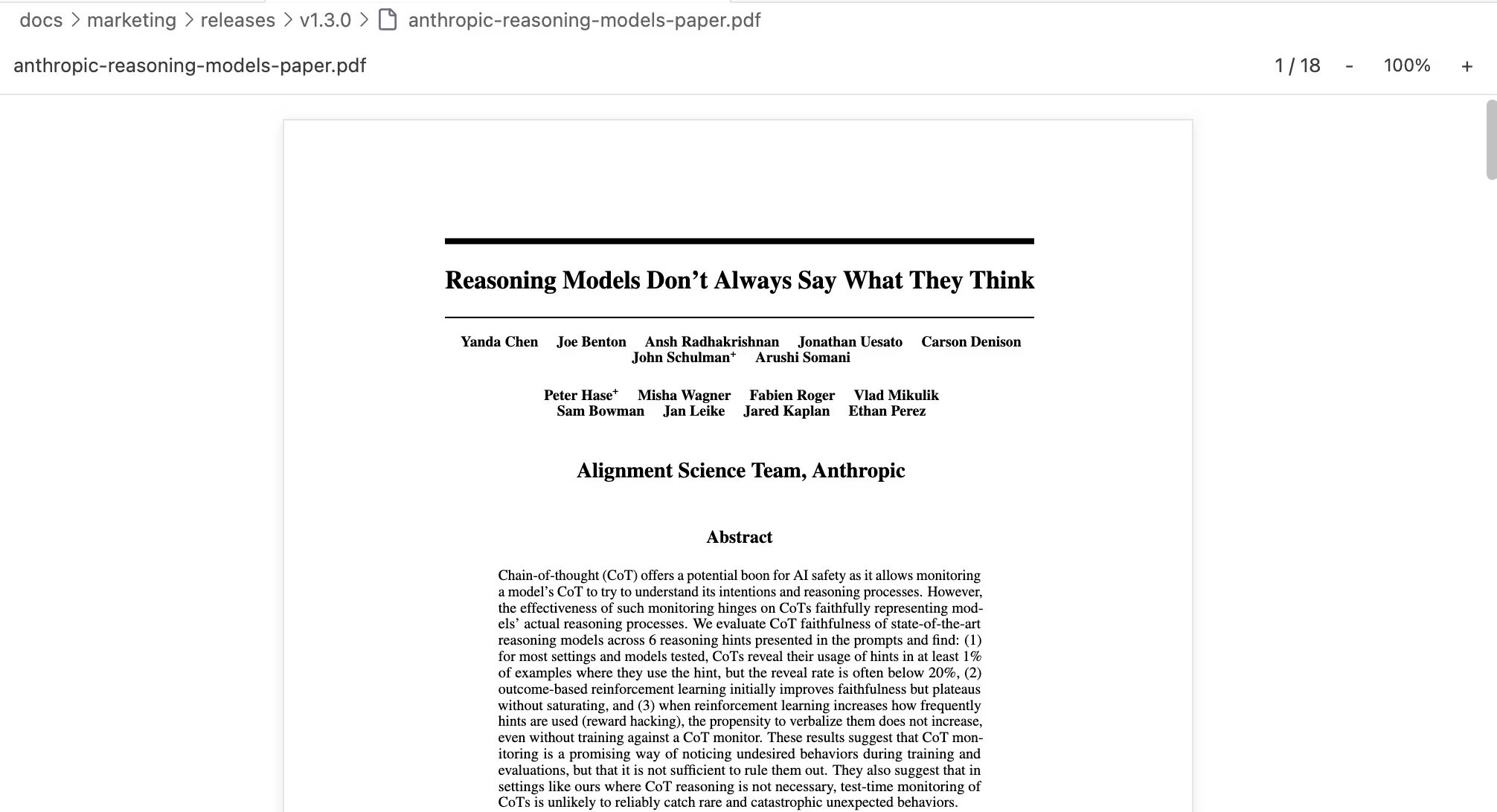
Document Preview
You're writing in Ritemark and need to check a figure from a PDF report. Or reference a colleague's Word document while drafting your summary. You don't have to leave.
Ritemark v1.3.0 opens PDF and Word documents right inside the app. Click a file in your file tree and it renders instantly -- no Preview, no Microsoft Word, no app-switching. Your writing stays on one side, the reference document on the other.
Opening Documents
Opening a PDF or Word document works exactly like opening any other file in Ritemark. Click on it in the file tree and it opens in a new tab. That's it.
Ritemark recognizes .pdf and .docx files and automatically renders them in the built-in viewer instead of showing raw data. You can have multiple documents open in separate tabs, or drag a tab to the side to view a document alongside your markdown editor.
Tip: Split your workspace by dragging a document tab to the right edge of the editor area. This gives you a side-by-side view: reference document on one side, your writing on the other.
PDF Preview
Ritemark renders PDFs with a clean, focused viewer designed for reading, not editing.
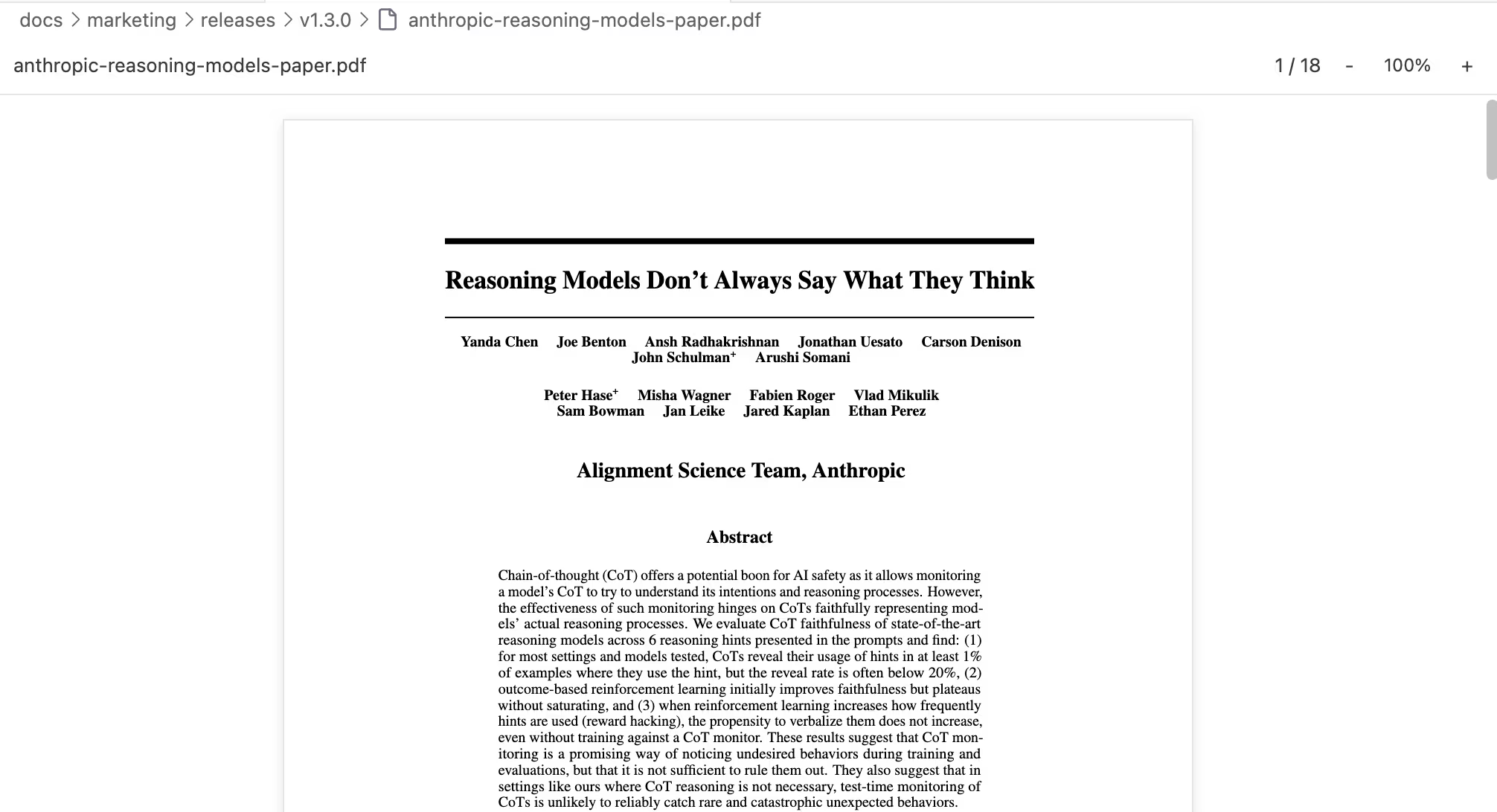 PDF preview with continuous scroll and zoom -- all pages in one flowing view
Scrolling and Navigation
All pages appear in one continuous scroll, like reading a long web page. You scroll through the entire document naturally, without clicking "next page" buttons. For large documents, Ritemark uses lazy loading -- pages render as you scroll to them, so even a 200-page report opens instantly.
Text Selection and Copying
This isn't just a picture of your PDF. You can select text with your mouse and copy it with Cmd+C, exactly as you would in a browser's PDF view. Select a paragraph, copy it, switch to your markdown tab, and paste it into your draft.
Zoom Controls
The toolbar offers zoom levels from 50% to 200%, plus Fit Width and Fit Page modes. Fit Width is usually the most comfortable for reading -- it stretches the document to fill the available space without horizontal scrolling.
What's Supported
PDF preview handles standard PDF documents well: text, images, tables, multi-column layouts, and embedded fonts all render correctly. Forms display in read-only mode -- you can see them but not fill them out.
Known Limitations
Password-protected PDFs are not supported and will show an error message. Very old PDFs (pre-1.4 format) may render with minor visual issues. Files over 50MB can work but may feel sluggish -- Ritemark shows a warning at 10MB to let you know.
Word Document Preview
DOCX files open with faithful visual rendering. Colors, tables, images, and text alignment all appear as they do in Microsoft Word.
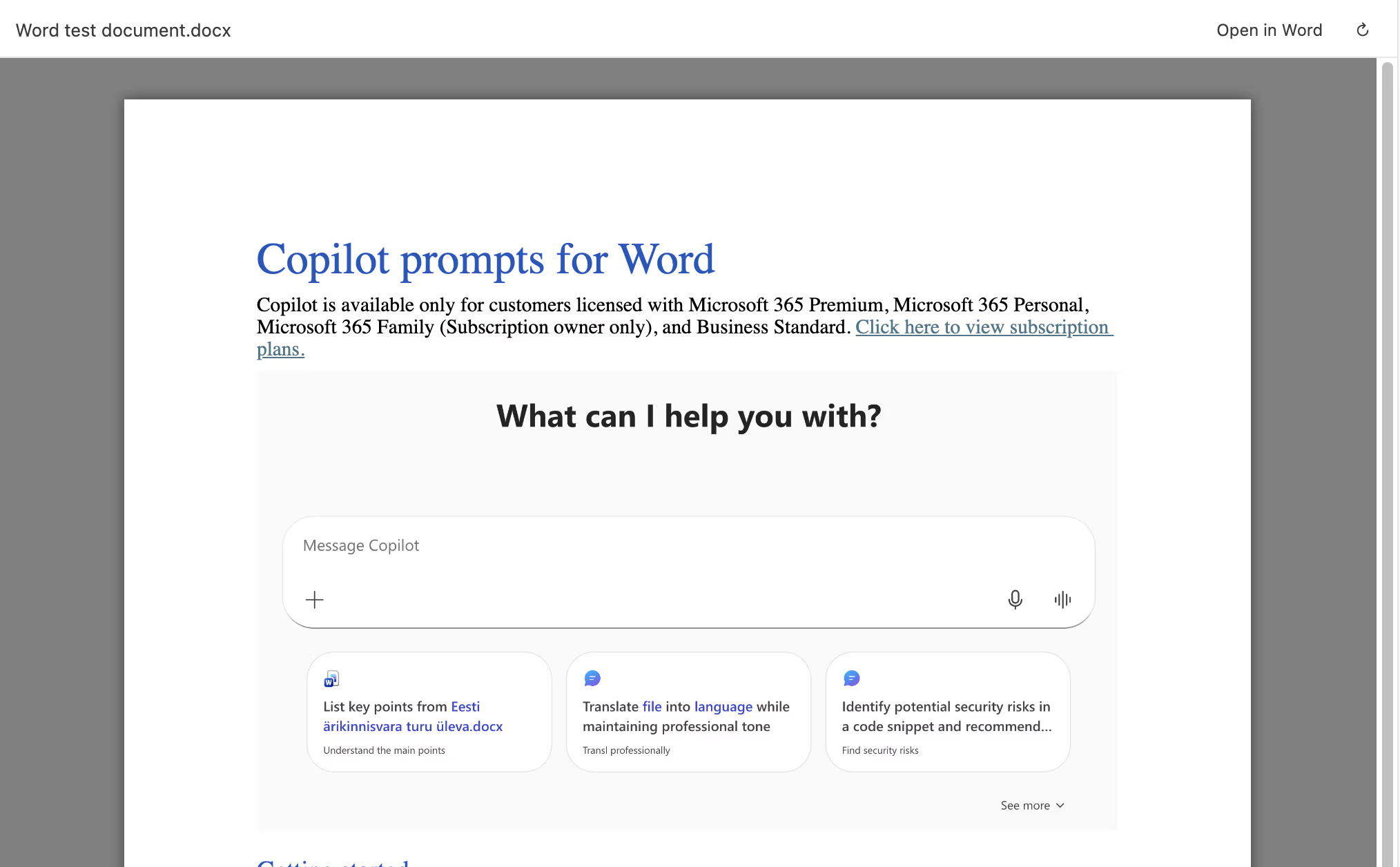 A Word document in Ritemark: colors, tables, and images stay intact
Visual Fidelity
The viewer preserves the look of your Word document. Text colors and highlights match the original, tables maintain their cell widths and borders, centered and right-aligned text stays where it belongs, and inline images render correctly. When a colleague sends you a formatted report, you see it the way they intended.
Working with Word Documents
The most common workflow is reference reading: open a DOCX in one panel, write markdown in another. You're looking at the original document while drafting your own version, summary, or response.
Word documents are read-only in Ritemark. If you need to edit the document itself, use Microsoft Word or another dedicated editor. Ritemark is for viewing and referencing, not for modifying Word files.
What's Supported
The .docx format (Word 2007 and later) is fully supported. Text formatting, colors, tables, inline images, and page layout all render well.
Note: Old
.docfiles (Word 97-2003 format) are not supported. If you try to open one, Ritemark will show an error message. Convert the file to.docxin Word first.
Known Limitations
Some advanced Word features have limited support. Background images may not render, certain custom fonts might fall back to defaults, text boxes and SmartArt may appear simplified, and track changes markup is not displayed. For documents that use heavy formatting or layout features, the viewer gives you a good approximation rather than a pixel-perfect replica.
Side-by-Side Workflow
The real power of document preview is working with two documents at once. Open a PDF or DOCX, then drag its tab to the right side of the editor. Now you have your reference on the right and your markdown document on the left.
This is especially useful for tasks like writing a summary of a research paper, drafting meeting notes based on an agenda document, or extracting key points from a report. You read on one side, write on the other, and never leave Ritemark.
Quick Reference
| What you want to do | How to do it |
|---|---|
| Open a PDF or DOCX | Click the file in the file tree |
| View side by side | Drag the document tab to the right edge |
| Zoom in/out | Use zoom controls in the toolbar |
| Copy text from PDF | Select text, then Cmd+C |
| Fit to width | Click Fit Width in zoom controls |
Related
- Spreadsheets -- CSV editing and Excel preview
- Export -- Export your markdown documents to PDF and Word
- Core Editor -- Markdown editing basics