
Spreadsheets
View and edit CSV files. Preview Excel spreadsheets without leaving RiteMark.
RiteMark handles spreadsheet files directly - edit CSV files inline or preview Excel files with multi-sheet support.
What You Can Do
CSV Files
- View as spreadsheet - See data in rows and columns
- Edit cells inline - Click to edit, changes save automatically
- Sort columns - Click any header to sort ascending, descending, or original order
- Add rows - Append new rows with the toolbar button
- Handle large files - Virtual scrolling for up to 10,000 rows
- Refresh from disk - Reload file after external edits
Excel Files
- Preview spreadsheets - View .xlsx and .xls files
- Switch sheets - Tab-based sheet navigation
- Open in external app - One-click open in Excel or Numbers
- Refresh from disk - See changes made in Excel instantly
CSV Editing
Opening a CSV
Double-click any .csv file in the explorer. It opens in spreadsheet view instead of raw text.
The Interface
| Part | Description |
|---|---|
| Header row | Column names (first row) |
| Row numbers | Excel-style numbers on the left |
| Cells | Data cells you can edit |
| Toolbar | File name, sort indicators, and add-row button |
Editing Cells
- Click any cell
- Type your new value
- Press Enter to confirm (or Escape to cancel)
- Changes save automatically
Navigation
| Key | Action |
|---|---|
| Tab | Move to next cell |
| Enter | Confirm and move down |
| Escape | Cancel editing |
| Arrow keys | Move between cells |
Column Sorting
Click any column header to sort your data. The first click sorts ascending (A-Z or smallest to largest), the second click sorts descending, and the third click restores the original order. Small arrow indicators in the header show you which direction the sort is active.
Sorting is purely visual -- it changes what you see on screen but does not modify the underlying CSV file. Your data stays in its original order on disk. This means you can freely sort to explore patterns without worrying about accidentally reorganizing your source data.
You can edit cells while the table is sorted. RiteMark keeps track of the original row indices, so your changes are saved to the correct row in the file even when the display order is different.
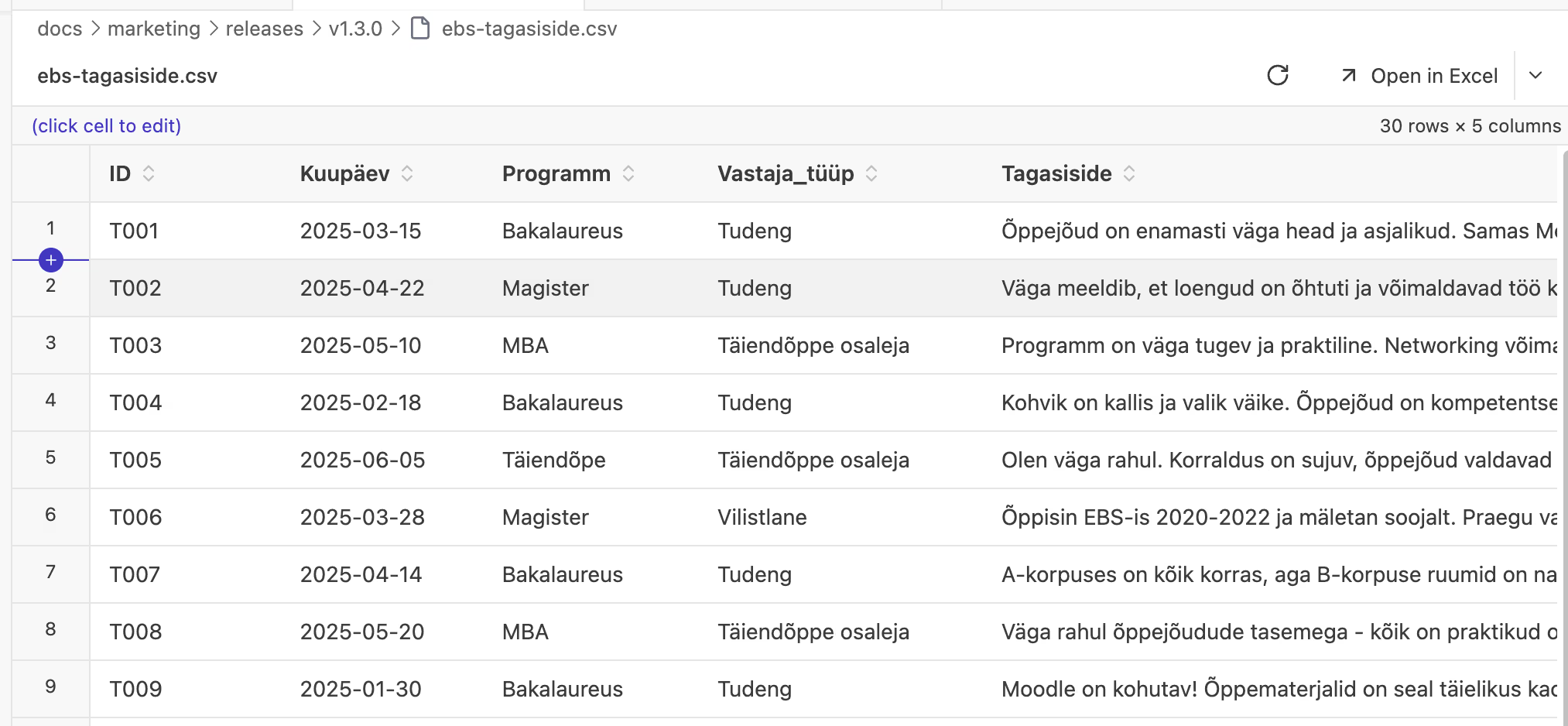 Click any column header to sort -- a third click restores the original order
Adding Rows
The toolbar includes a [+ Row] button that appends a new empty row to the bottom of your table. Unlike sorting, adding a row does modify the file -- the new row is saved to the CSV automatically.
New rows appear at the bottom of the table regardless of the current sort order. Each new row contains empty cells for every column, ready for you to fill in.
Tip: CSV is a great format for data that AI agents like Claude Code need to access. Unlike Excel files, which require parsing libraries, CSV can be read and modified directly. If you keep project data in spreadsheets, consider using CSV -- it's a bridge between your data and AI tools.
Large Files
RiteMark handles large CSV files efficiently:
- Virtual scrolling - Only visible rows are rendered
- Row limit - Up to 10,000 rows displayed
- Size warning - Files over 5MB show a warning before loading
If your file exceeds limits:
- Consider splitting into smaller files
- Use a dedicated spreadsheet app for very large data
Excel Preview
Opening Excel Files
Double-click any .xlsx or .xls file. It opens in read-only preview mode.
Multi-Sheet Support
Excel workbooks with multiple sheets show tabs at the top:
- Click a tab to switch sheets
- Current sheet is highlighted
- Sheet data loads instantly (cached locally)
Limitations
Excel files are read-only in RiteMark:
- You can view but not edit
- Use the toolbar to open in Excel or Numbers for editing
Spreadsheet Toolbar
When viewing CSV or Excel files, a toolbar appears at the top:
| Element | Description |
|---|---|
| Filename | Shows the current file name |
| + Row | Append a new empty row (CSV only) |
| Refresh | Reload file from disk |
| Open in... | Button to open in external app |
Refresh Button
Click the refresh button to reload the file from disk. This is useful when you've edited the file in another app (like Excel) and want to see the latest changes.
Blue badge indicator: When RiteMark detects the file has changed externally, a small blue dot appears on the refresh button. This tells you the file is out of sync with what's on disk.
Open in Excel/Numbers
The toolbar includes a split button:
- Primary click - Opens in Excel (if installed) or Numbers
- Dropdown - Choose between Excel and Numbers
This opens the actual file in the external app, not a copy.
Refresh & External Edits
RiteMark watches your spreadsheet files for external changes.
Typical Workflow
- Open a CSV or Excel file in RiteMark
- Click "Open in Excel" to edit in Excel
- Make your changes in Excel and save
- Blue badge appears on RiteMark's refresh button
- Click refresh to see the updated data
Conflict Detection
If you have unsaved changes in RiteMark AND the file changed externally, RiteMark shows a conflict dialog:
- Discard local changes - Load the version from disk
- Cancel - Keep your local changes
This prevents accidental data loss when both you and an external app have made changes.
Supported Formats
| Extension | Mode | Features |
|---|---|---|
.csv |
Edit | Full editing, sorting, add rows, auto-save |
.xlsx |
Preview | Read-only, multi-sheet |
.xls |
Preview | Read-only, multi-sheet |
CSV Format Notes
- Encoding: UTF-8
- Delimiter: Comma (standard CSV)
- Headers: First row treated as column headers
Excel Format Notes
- Formulas: Not evaluated (shows stored values)
- Formatting: Not preserved (data only)
- Charts: Not displayed
Tips
- Quick edits - For simple CSV changes, edit directly in RiteMark
- Sort to explore - Use column sorting to find patterns without modifying the file
- Complex work - For formulas or formatting, open in Excel
- Large datasets - If you hit the 10K row limit, use a dedicated tool
- Data integrity - CSV saves exactly what you see (no hidden formatting)
- External edits - Watch for the blue badge on refresh when editing in Excel
Use Cases
| Task | Recommended |
|---|---|
| Quick CSV data entry | RiteMark |
| Sorting and exploring CSV data | RiteMark |
| Viewing Excel reports | RiteMark |
| Complex spreadsheet work | Excel/Numbers via toolbar |
| Large data analysis | Dedicated spreadsheet app |
Related
- Core Editor - Markdown editing
- Document Preview - Open PDFs and Word documents in RiteMark
- Export - Export markdown documents