
Document Search
Ask questions about your own documents and get answers grounded in your writing.
Ever written something important but can't remember which file it's in? Document Search lets you ask questions in natural language and get answers drawn from your actual documents — complete with citations showing exactly where the information came from.
How It Works
Document Search indexes your markdown files and creates a local searchable database. When you ask a question, it finds relevant passages from your documents and uses AI to craft a response based on what you've written.
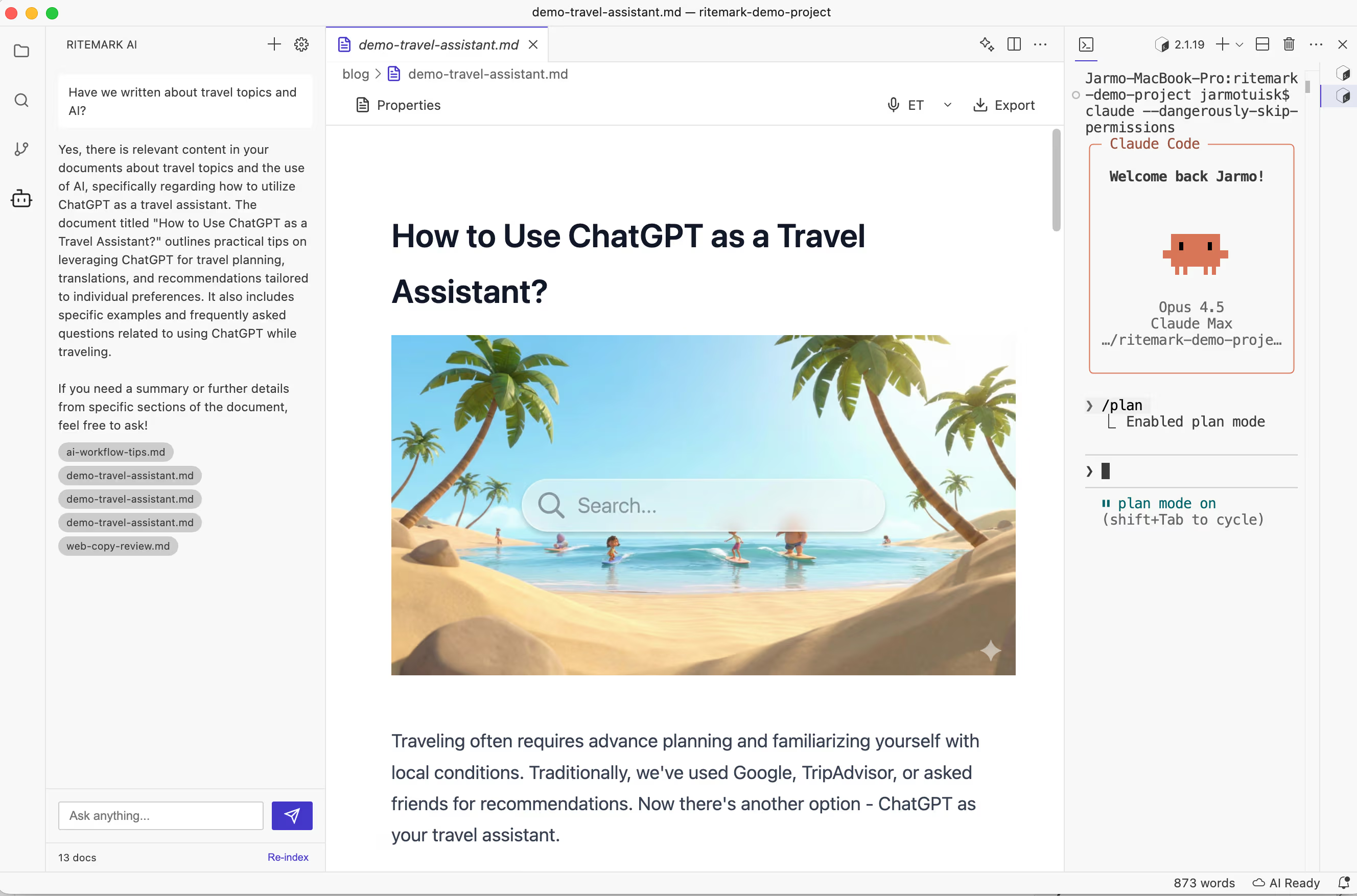 Ask questions in natural language, get answers from your own documents.
The key difference from regular AI chat: responses are grounded in your content, not generic AI knowledge.
Getting Started
Step 1: Open Your Workspace
Open any folder containing markdown files. Document Search works with .md and .markdown files.
Step 2: Open the AI Sidebar
Click the RiteMark AI icon in the left sidebar.
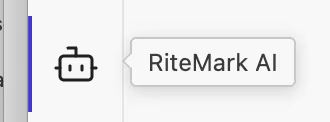 The AI assistant lives in the left sidebar.
Step 3: Index Your Documents
Click Re-index in the sidebar footer.
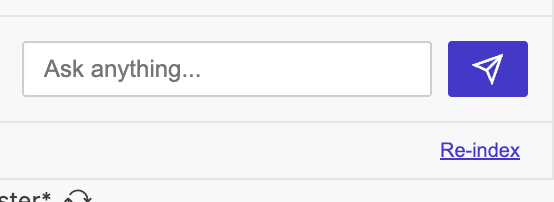 Click Re-index to build your search database.
Wait for indexing to complete. You'll see "X docs" in the footer when ready.
💡 Tip: Indexing happens once and persists between sessions. Only re-index when you add new files or make significant changes.
Step 4: Ask Away
Type questions in natural language:
- "What did I write about project X?"
- "Summarize my notes on the product launch"
- "Find all mentions of budget discussions"
🎉 Success! You've just unlocked your personal knowledge base.
Understanding the Index
Where It's Stored
Your index lives at {workspace}/.ritemark/rag-index.json. It's a local file that never leaves your computer.
When to Re-index
Re-index when you:
- Add new markdown files
- Delete or rename files
- Make significant content changes
You don't need to re-index for small edits — the semantic search is smart enough to find relevant content even with minor differences.
Supported File Types
| Type | Status |
|---|---|
.md (Markdown) |
✅ Supported |
.markdown |
✅ Supported |
| 🔜 Coming in Phase 2 | |
| Word (.docx) | 🔜 Coming in Phase 2 |
| PowerPoint (.pptx) | 🔜 Coming in Phase 2 |
Requirements
Document Search requires an OpenAI API key for two things:
- Indexing — Generating embeddings from your documents
- Chat — Crafting responses based on found content
If you haven't set up your API key yet, see Set Up AI.
Privacy & Security
What Stays on Your Machine
- All your document content
- The search index
- Search queries and results
What Uses the API
- During indexing: Text chunks are sent to OpenAI for embedding generation
- During chat: Relevant passages are sent as context for AI responses
Your documents are never stored on external servers. The embeddings are mathematical representations, not readable text.
⚠️ Note: Review OpenAI's data policies if you're working with highly sensitive content.
Troubleshooting
Re-index Button Does Nothing
- Make sure you have markdown files in your workspace
- Check that your OpenAI API key is configured
- Look for error messages in the notification area
AI Doesn't Reference My Documents
- Verify the workspace is indexed (footer shows "X docs")
- Try more specific questions that match your document content
- Re-index if you've added new files recently
Indexing Is Slow
- First-time indexing processes all files
- Large workspaces take longer
- Each chunk requires an API call for embeddings
💡 Tip: Start with a smaller folder to test, then index your full workspace.
What's Next
Document Search is Phase 1 of a larger vision:
| Phase | Feature | Status |
|---|---|---|
| 1 | Markdown files | This release |
| 2 | PDF, Word, PowerPoint | Coming soon |
| 3 | Claude Code integration (MCP) | Planned |
Phase 3 will let external AI tools like Claude Code search your indexed documents — your documentation, accessible to your AI coding assistant.
Related
- AI Assistant — AI writing tools
- Set Up AI — Configure your API key
- Getting Started — First steps with RiteMark
Happy searching! 🔍