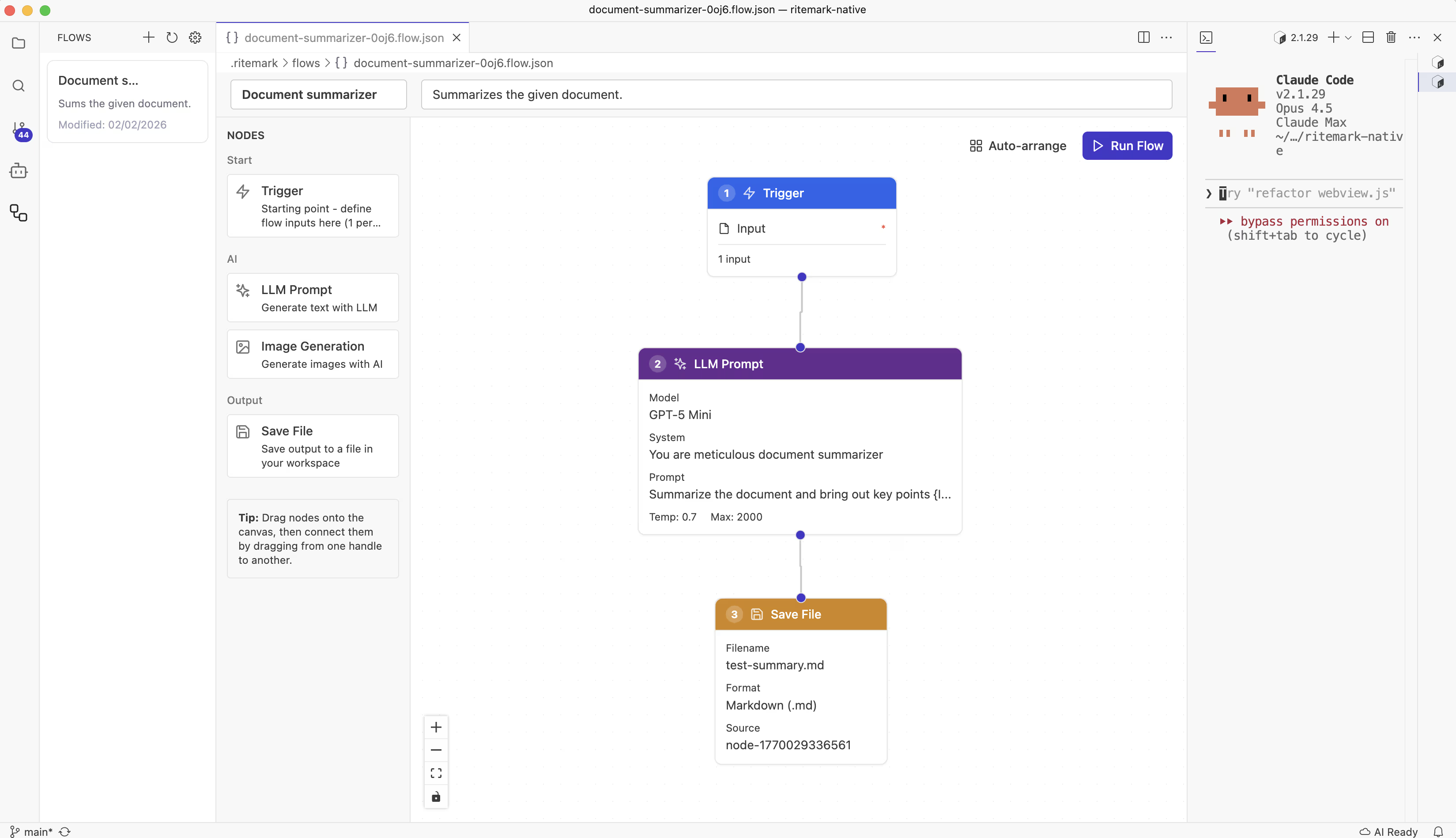
Ritemark Flows: Visual AI Workflows Have Arrived
Have you ever caught yourself thinking "I need to write a blog post on this topic, generate a cover image, and save them as files together"?
Then you find yourself doing the same thing over and over. Open a chat. Write a prompt. Copy the response. Open another chat. Write the next prompt. Copy-paste, copy-paste, copy-paste.
Ritemark v1.2.0 changes that. Flows lets you build visual workflows that run multiple AI tasks in sequence. Build once, run as often as you need.
Three Editors in One App
With Flows, Ritemark reaches its vision as a three-in-one application.
| Mode | What It Does |
|---|---|
| Text | WYSIWYG markdown for writing |
| Data | Spreadsheets and CSV for data |
| Flow | Visual AI workflows for automation |
Each mode handles a different kind of work, but they live together in one app. Write a blog post in Text mode. Manage your content calendar in Data mode. Generate new posts automatically in Flow mode.
Three editors. One app. Text, Data, Flow.
Why Workflows?
According to Zapier's 2025 State of Business Automation report, employees spend an average of 4.5 hours per week on repetitive tasks. In the AI era, ironically, this is often AI itself - writing the same prompts, processing the same outputs.
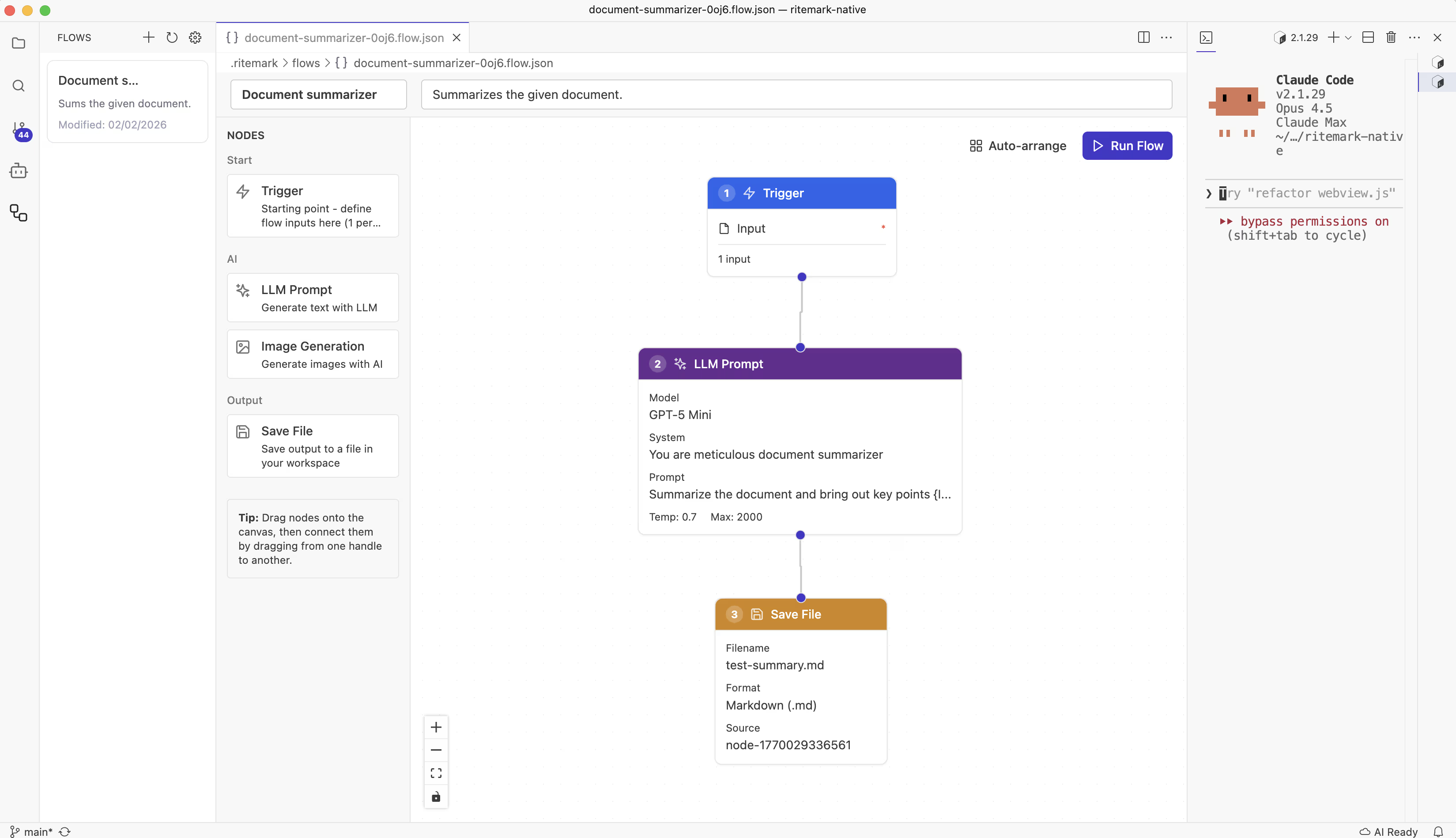
Ritemark Flows lets you build visual workflows with drag and drop
Flows changes this paradigm. Instead of writing prompts one at a time, you build a workflow once and run it repeatedly. Each run generates fresh content based on your parameters.
How It Works
1. Open Flows
Click the new Flows icon in the Activity Bar (left sidebar). This opens the Flows panel where you can create, manage, and run workflows.
2. Add Nodes
Drag nodes from the palette onto the canvas.
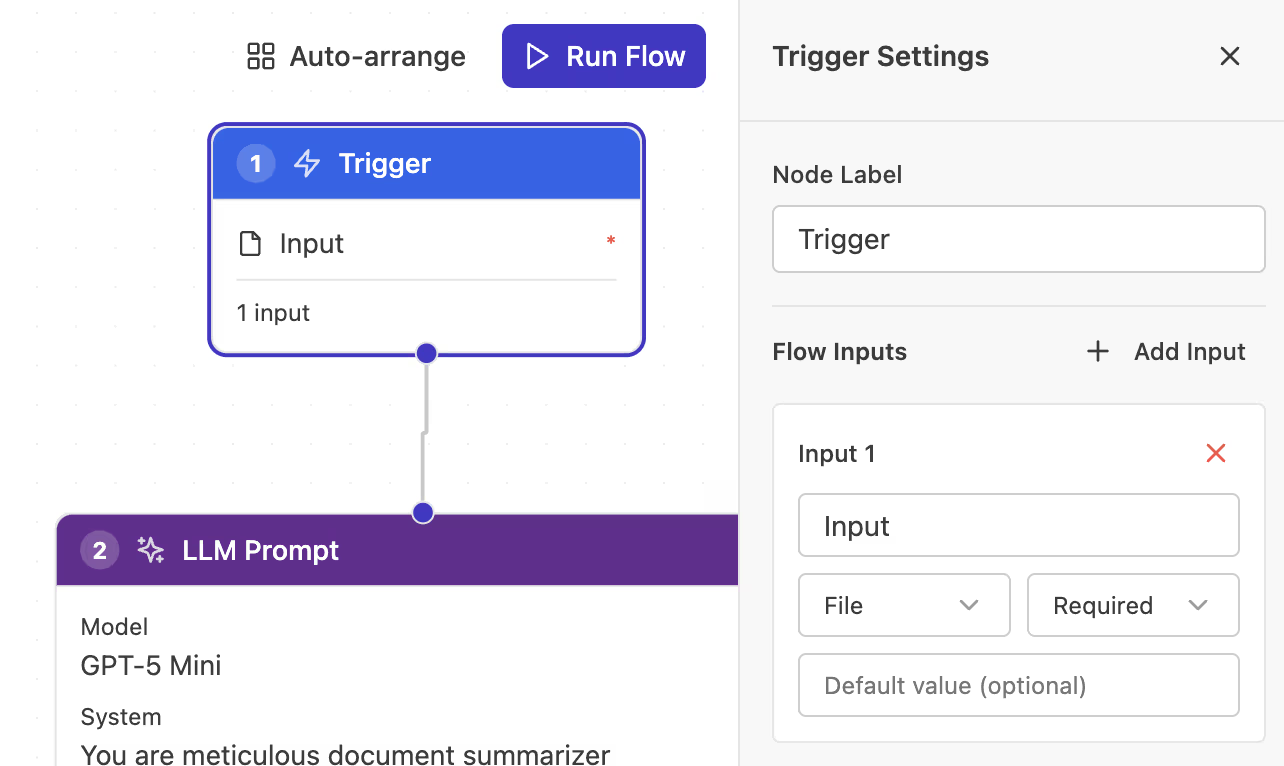
The Trigger node defines your workflow's inputs
Each node has a purpose:
| Node | What It Does |
|---|---|
| Trigger | Starting point. Define input variables here. |
| LLM Prompt | Send a prompt to GPT, output generated text. |
| Image Generation | Create images with GPT Image 1.5. |
| Save File | Write content to a file in your workspace. |
3. Connect Nodes
Drag from output handles (right side) to input handles (left side). Data flows along these connections.
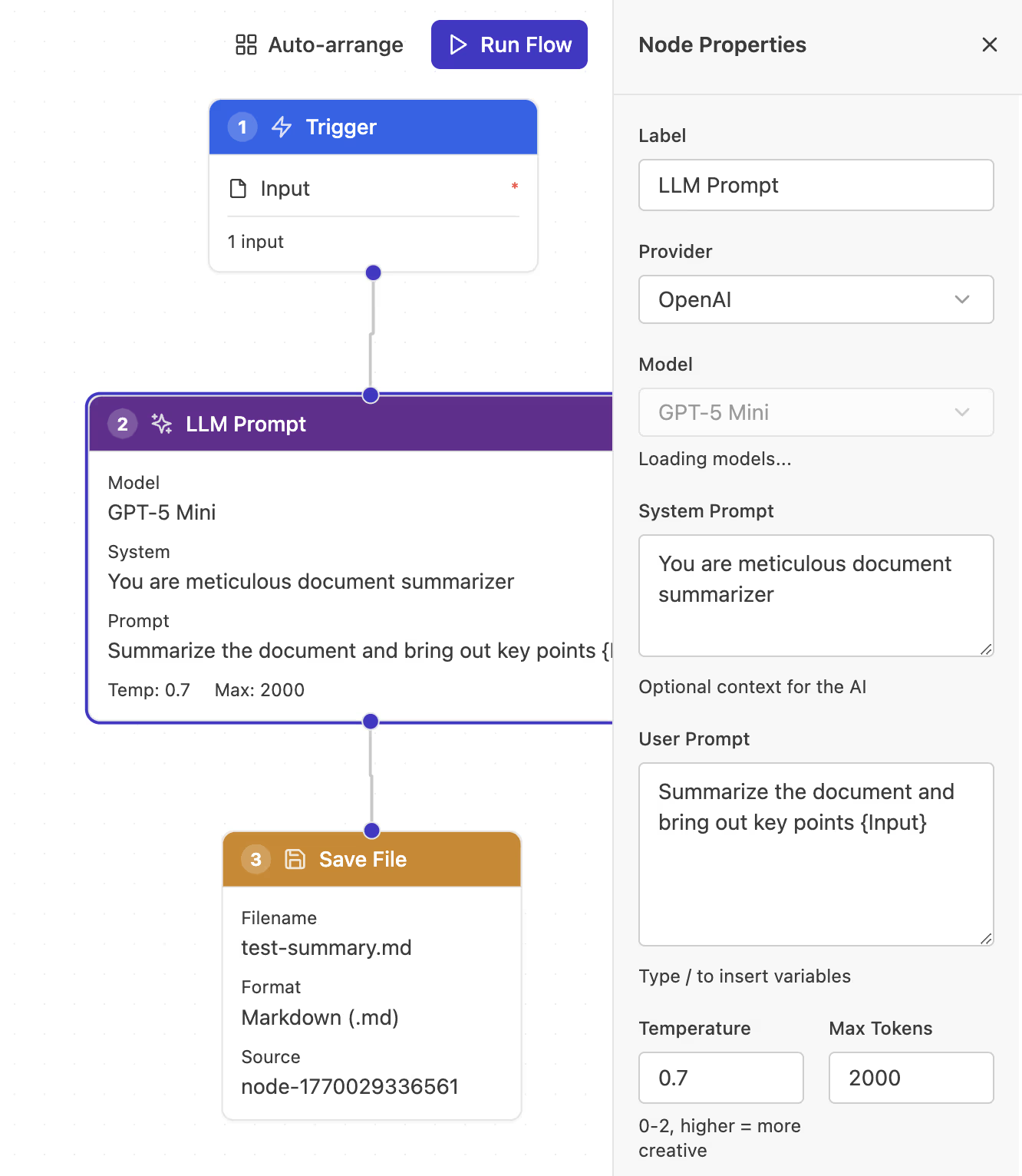
The LLM node sends prompts to OpenAI and outputs generated text
4. Configure and Run
Click a node to open its settings in the right panel. Write prompts, select models, define output files.
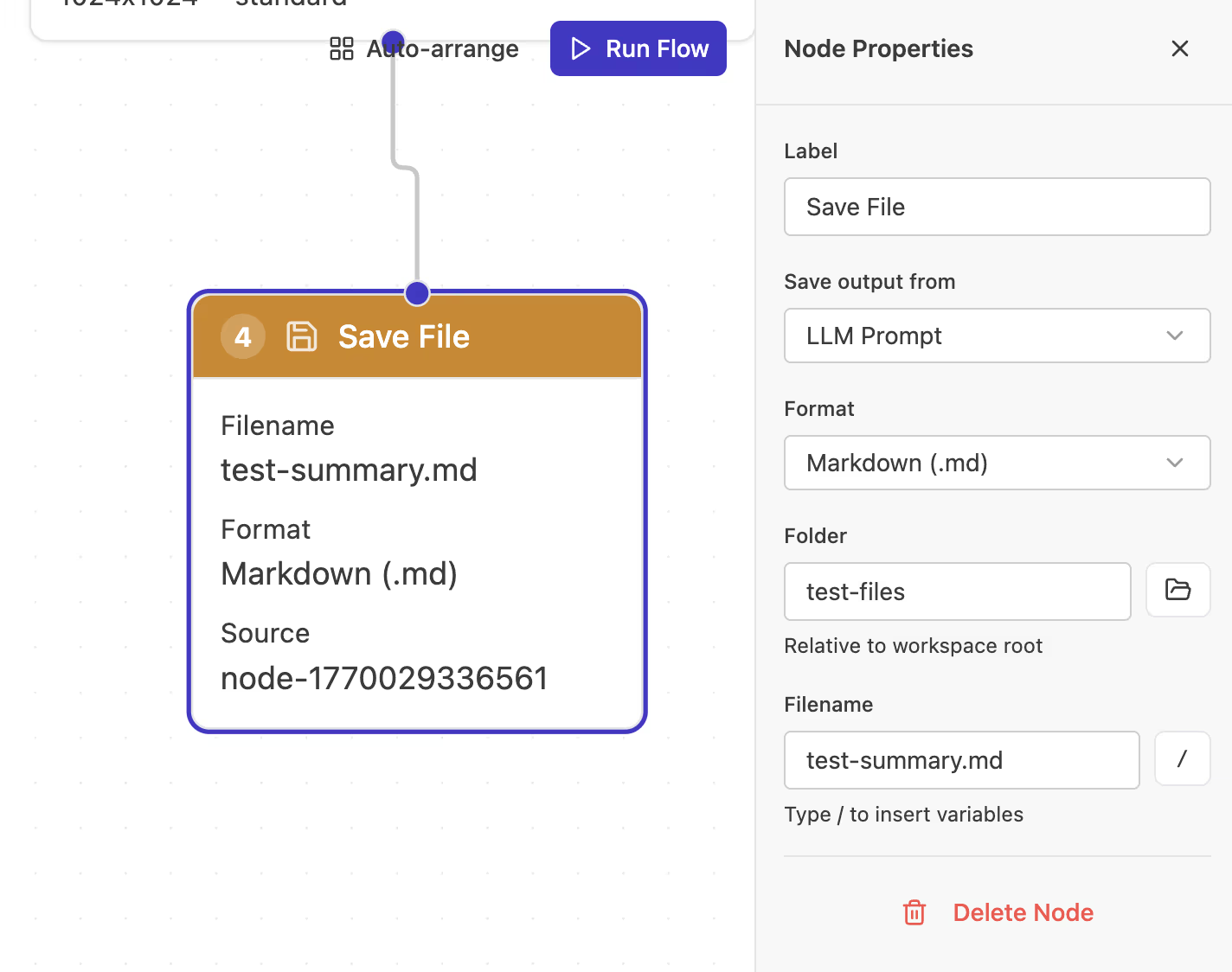
The Save File node writes content to markdown, CSV, or image files
When ready, click Run Flow and watch each step execute in sequence.
Example Workflow
Here's a practical example: a blog post generator.
Trigger (topic variable)
    |
    v
LLM Prompt (write blog post)
    |
    +---> Save File (output.md)
    |
    v
LLM Prompt (write image prompt)
    |
    v
Image Generation (create cover image)
    |
    v
Save File (cover.png)
Run this workflow with a topic like "Remote Work Best Practices" and Ritemark will:
-
Generate a complete blog post
-
Create a cover image prompt based on it
-
Generate the actual image
-
Save both as files in your workspace
All from a single "Run Flow" click.
For Windows Users
v1.2.0 also brings important fixes for Windows users.
The Dictate button is now hidden since voice dictation uses macOS-specific APIs. PDF export images now embed correctly. Unicode checkboxes render properly. Word export line endings are more compatible with Microsoft Word.
Tip: Download Windows version directly from here.
Getting Started
If you're already using Ritemark, it will update automatically. If you're new, now is the perfect time to start.
Download for macOS | Download for Windows - free, forever.
Flows requires an OpenAI API key for LLM and Image nodes. Configure it from the Ritemark Settings page via the Flows sidebar.
FAQ
What do I need to use Flows?
Ritemark v1.2.0 and an OpenAI API key. The API key is used for LLM and Image nodes.
Can I use other AI providers?
Currently OpenAI only. Future versions may add additional providers.
Where are my workflows saved?
In the .ritemark/flows/ folder in your workspace. These are regular JSON files you can share.
Can I share workflows with others?
Yes. Copy the .flow.json file from .ritemark/flows/ and share it. Others can place it in their workspace's flows folder.
How much did the size increase?
About 2.3MB for the React Flow and ELKjs libraries.
Can I disable Flows?
Yes. The feature is controlled by the ritemark-flows flag. Contact support for instructions.
Why did the Dictate button disappear on Windows?
Voice dictation uses macOS-specific APIs. The button is now hidden on Windows to avoid confusion.
Do workflows support conditionals?
Not yet. Currently Flows supports linear sequences. Conditional branching is on the roadmap.