
How to Use Claude Code with Your SharePoint Files
If you work at a company that uses Microsoft 365, you probably keep your documents in SharePoint. That makes sense — the team can access files from anywhere and everything stays in sync.
But what happens when you want to use Claude Code, Cursor, or another AI tool that needs access to local files? A question arises: how do you make these two worlds work together?
This problem is actually much more common than you might think.
According to SQ Magazine, 75% of organizations use SharePoint with their Office 365 subscription. Meanwhile, Google's 2025 DORA report shows that 90% of developers have adopted AI coding assistants, with 65% already heavily relying on them.
Two major trends meeting at a single point: your desktop.
Why This Problem Exists
Claude Code and other AI coding assistants are built to work with local files. This isn't accidental — it's a deliberate choice for privacy and speed. When an AI agent can read and modify files directly, the need for constant copy-pasting disappears, and the entire workflow becomes smoother.
SharePoint, however, lives in the cloud. Files are there so the team can access them from anywhere. When someone makes a change, others see it immediately. That's SharePoint's strength — and that's why companies use it.
The problem arises when you want to use both at the same time. Claude Code can't open cloud files directly. SharePoint doesn't automatically make your files local.
The solution is actually simple, but not obvious.
Step 1: OneDrive App for Mac
Microsoft built SharePoint and OneDrive to work together. If you use a Mac, the OneDrive app is the bridge that brings SharePoint files to your computer.
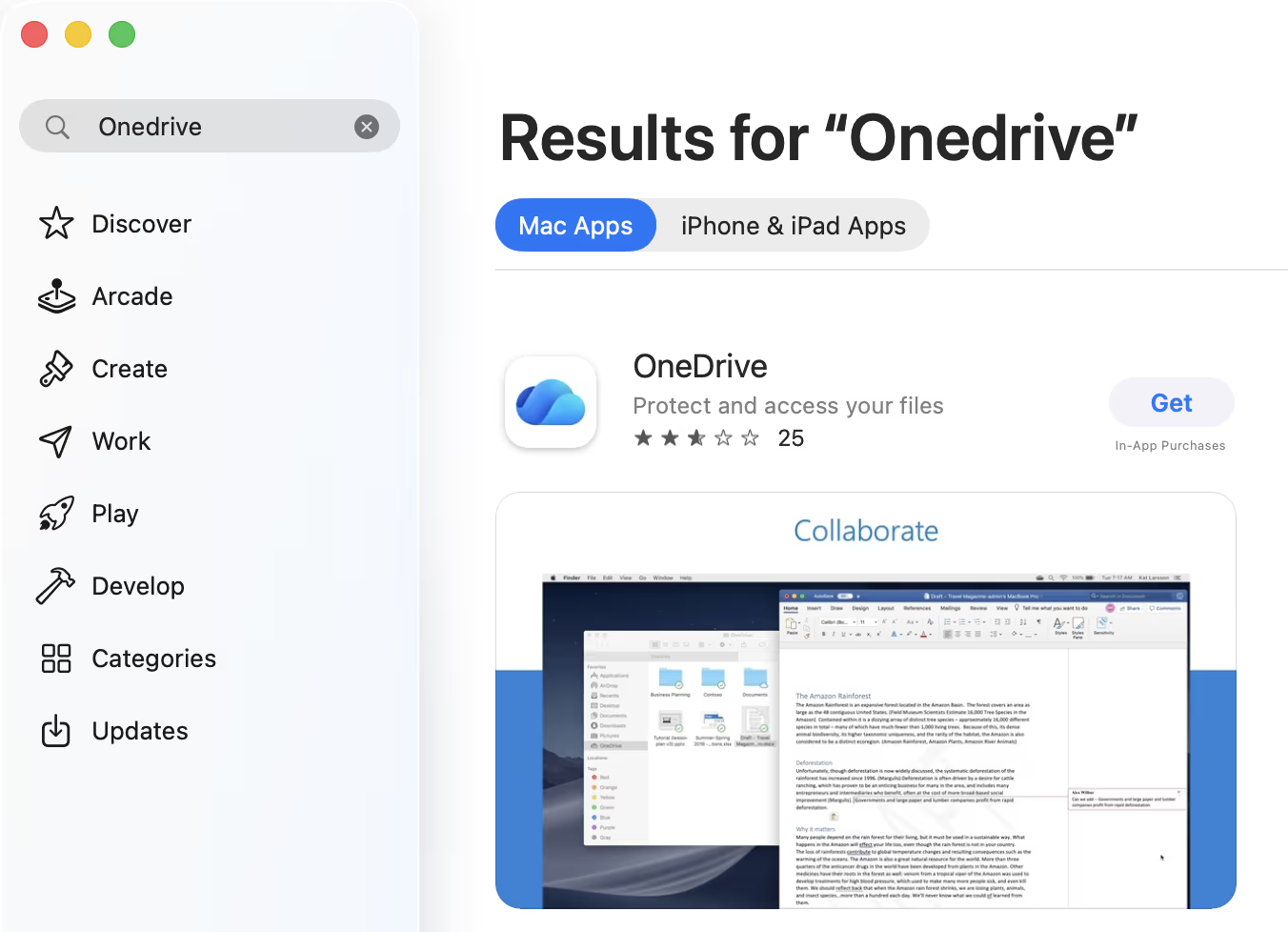
Open the Mac App Store and search for "OneDrive". Download the app and launch it. Sign in with your work account — the same account you use for SharePoint.
Now you have two options for adding SharePoint folders.
Option A: "Add shortcut to OneDrive" — Microsoft's recommended method. Go to the folder you want to sync in SharePoint web and select "Add shortcut to OneDrive". This creates a shortcut that works across all your devices and offers better performance. Files stay in the cloud until you open them, which saves disk space.
Option B: "Sync" button — the traditional method. Click the "Sync" button next to the folder in SharePoint web. The browser will ask for permission to launch the OneDrive app and files will be downloaded locally. This option is better if you need files for offline work.
In both cases, SharePoint files appear in Finder under the OneDrive folder. They look like regular files — because technically they are. Change something in the local file and it syncs back to SharePoint. Someone else changes the file in SharePoint and you see it on your Mac.
Need more help? If you need detailed guidance on using OneDrive on Mac, check out Microsoft's official guides:
Step 2: Open the Folder in RiteMark
Now that SharePoint files exist locally, you can open them with any tool that works with local files.
Our recommendation: open the folder in RiteMark.
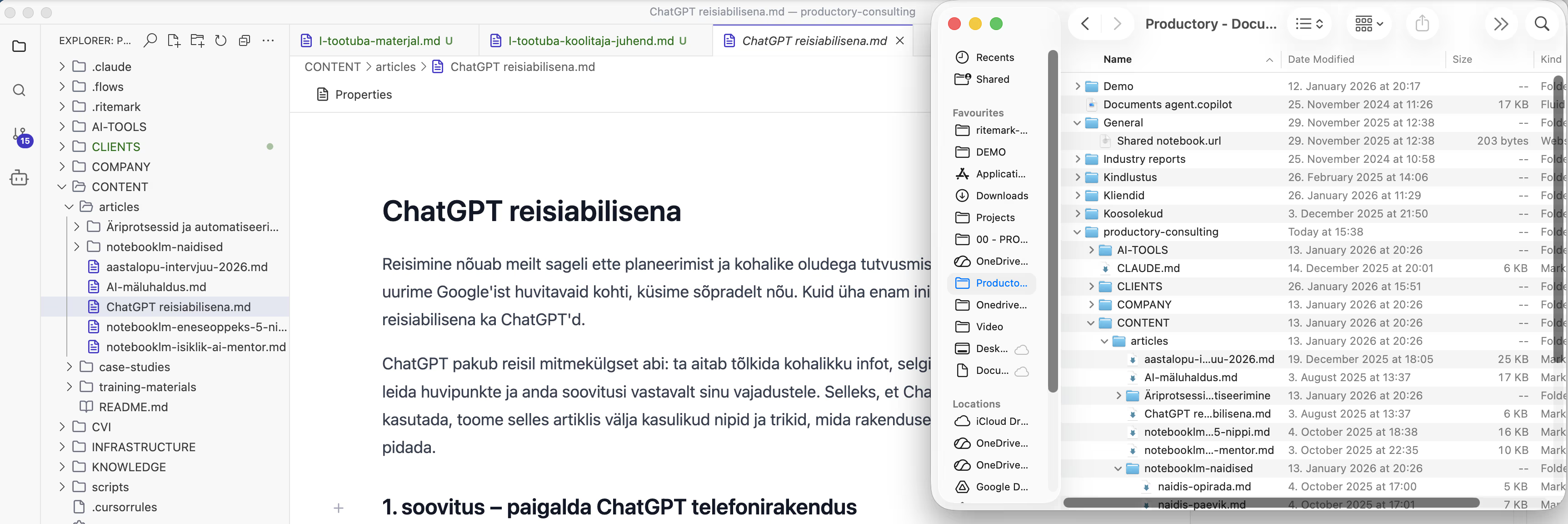
RiteMark is a markdown editor with a built-in terminal. This means you can run Claude Code directly inside the editor, without switching between applications. But what makes RiteMark special for the SharePoint workflow is one specific feature.
RiteMark instantly detects when someone else has modified a file in the background. A Refresh button immediately appears in the toolbar to notify you. Press it and you can pull the latest version. Note: RiteMark saves your work automatically!
Why File Change Detection Matters
Imagine this scenario: you open your project documentation in RiteMark and start working with Claude Code. Meanwhile, a colleague makes a change to the same file through SharePoint's web interface.
In a traditional editor, you might lose that change. Save your version and your colleague's work disappears. Or even worse — you don't know the file has changed at all, and you're working with an outdated version.
RiteMark handles this smartly. As soon as a background change occurs — whether through SharePoint sync, a Git pull, or a colleague's direct edit — you see a notification immediately. With one click, you can pull the new version and continue working with fresh content.
This isn't just convenience. In team collaboration, it's essential. When a tool automatically tells you that a file has changed, the question "which version is this file?" disappears entirely.
A Typical Workflow in Practice
Here's what this looks like in daily work.
In the morning, you open RiteMark and navigate to the OneDrive folder where your project documentation lives. Files are already synced — OneDrive did it overnight automatically.
You open RiteMark and launch Claude Code. Now the AI has access to all your project files. You can ask it to analyze documentation, make changes, write new content — everything Claude Code normally does.
Throughout the day, colleagues make changes in SharePoint. Every time someone saves a file you have open, you see a notification in RiteMark. Click "Reload" and you have fresh content. No conflicts, no lost work.
In the evening, save your changes. OneDrive syncs them automatically to SharePoint. Tomorrow morning, a colleague can continue where you left off.
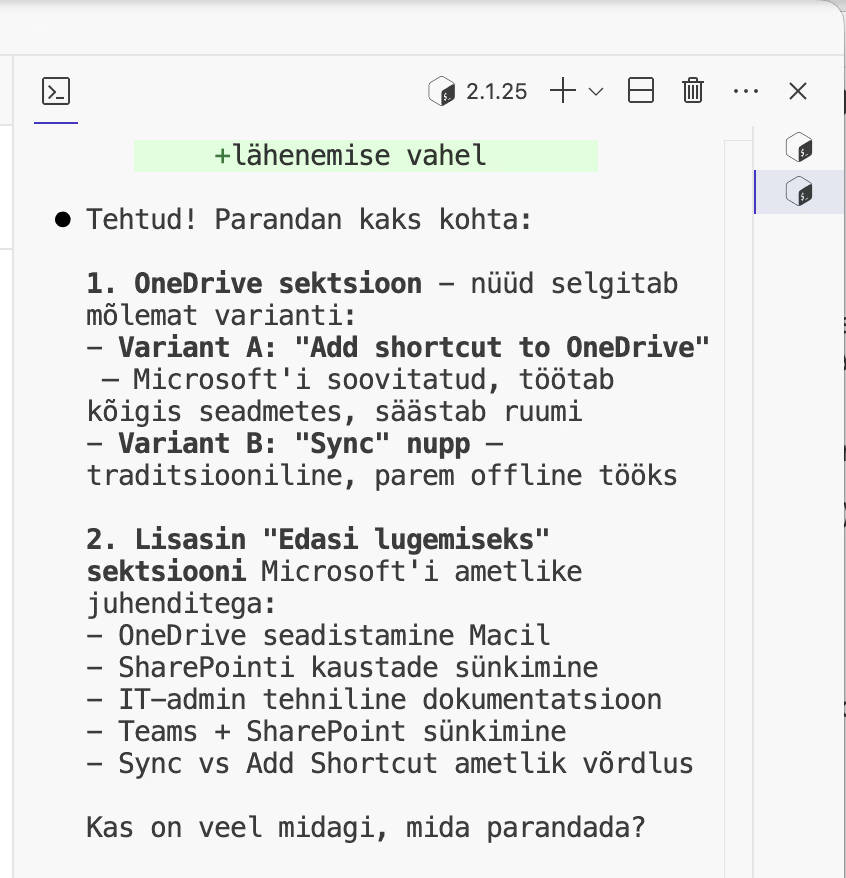
Claude Code running directly in RiteMark's terminal — no need to switch between applications.
Things to Keep in Mind
This solution works well, but a few things are worth mentioning.
First, syncing takes time. If you make a big change and want a colleague to see it immediately, check that OneDrive has finished syncing. For small files, it's a matter of seconds; for larger ones, it might take longer.
Second, Files On-Demand. From macOS 12.1 onwards, this is enabled by default and cannot be turned off. This means some files might only exist in the cloud until you open them. If you need certain files always available offline, mark them as "Always Keep on This Device".
Third, conflicts. If you and a colleague edit the same file at exactly the same time, OneDrive might create a conflict file. This happens rarely, but it's worth knowing. RiteMark always shows you when a file has changed in the background — giving you the opportunity to check if someone else is working on the same file before saving.
Alternatives and Comparison
Of course, RiteMark isn't the only option. VS Code, Cursor, and other editors also work with OneDrive-synced files.
But most of them don't detect background changes as quickly. VS Code, for example, often requires a manual "Revert File" command to see external changes. Cursor focuses on AI, not file management.
RiteMark was built from the ground up with the idea that files might change from outside. Since it's based on VS Code but optimized for writing and documentation, file change tracking is a core feature, not an afterthought.
Additionally, RiteMark is constantly evolving toward office work. Excel file previews are already available — you can see spreadsheets directly in the editor without opening Excel. Word and PDF previews are coming soon, making RiteMark an even more convenient companion for working with SharePoint documents.
For team collaboration in the SharePoint context, this is an important difference.
Summary
SharePoint and Claude Code don't have to be separate worlds. OneDrive sync brings cloud files local, and RiteMark gives you an environment where you can work with them using AI.
Most importantly: you don't lose control over team collaboration. If someone else changes a file, you know about it immediately. No surprises, no lost work, no version confusion.
A workflow that gives you AI power without sacrificing team collaboration.
Ready to Try It?
Download RiteMark and open your OneDrive folder. You have everything you need to get Claude Code and SharePoint working together.
Download for macOS — it's free.
FAQ
Is OneDrive sync free on Mac?
Yes, the OneDrive app is free and works with any Microsoft 365 account. If you have a work account that gives you access to SharePoint, you can use the same account for OneDrive sync.
Can Claude Code see all my SharePoint files?
Claude Code only sees files that are synced to your computer and located in the folder where you launch Claude Code. Files that remain only in the cloud are not visible.
What happens if the internet goes down?
Files that are already synced remain accessible and you can work with them. Changes will sync when the connection is restored. Claude Code needs internet for AI features, but reading and modifying files works offline.
How quickly does RiteMark detect background changes?
Practically instantly. As soon as OneDrive has updated the file, you see a notification in RiteMark. Typically it's a matter of seconds after a colleague saves in SharePoint.
Can I use this workflow on Windows?
This article focuses on Mac, but the principle is the same. OneDrive sync actually works even better on Windows since it's Microsoft's own platform. RiteMark is currently Mac-only, but VS Code works on both platforms.
Are my files secure?
Files only travel between your computer and Microsoft's servers — as secure as regular SharePoint usage. RiteMark doesn't send files anywhere. When using Claude Code, only the text you ask the AI to process is sent, and it goes directly to Anthropic's API.