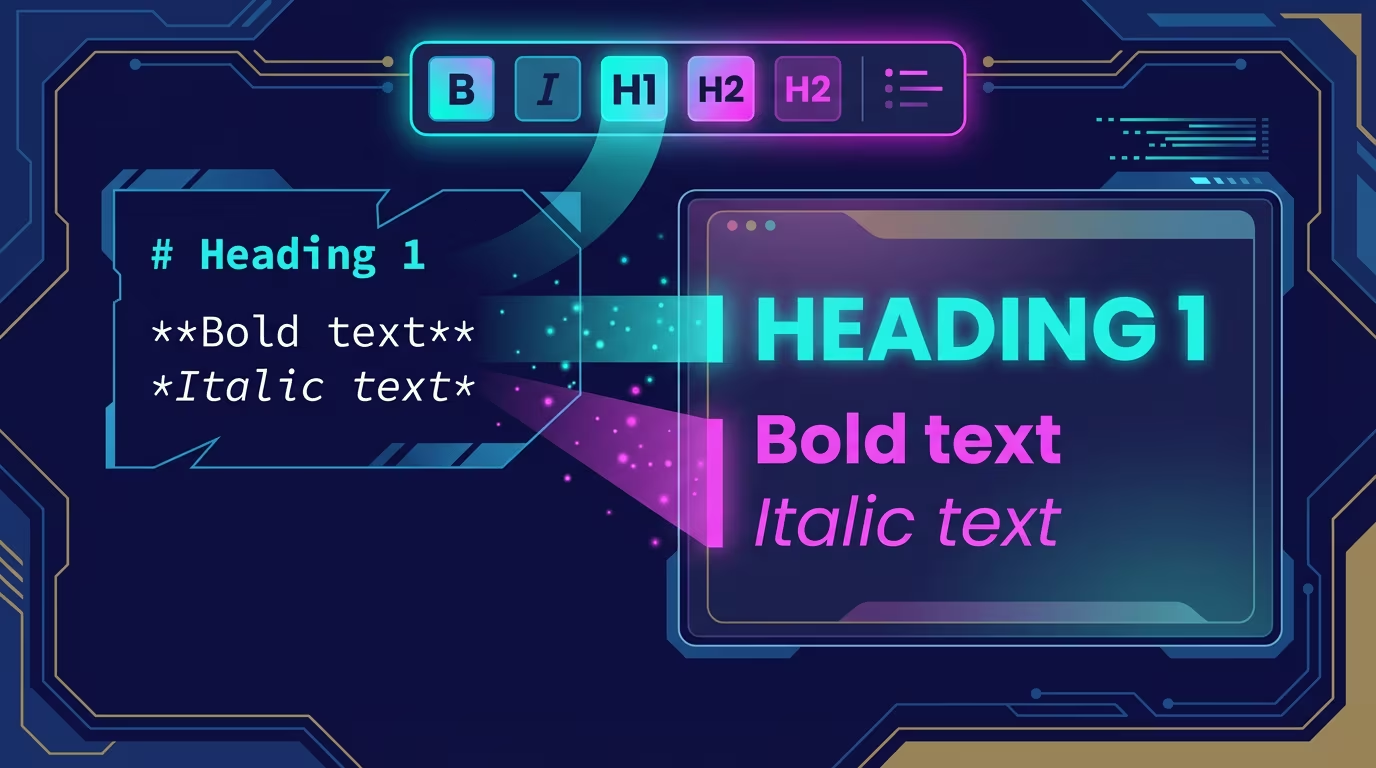
Text Formatting
Make your text bold, italic, linked, or code-styled.
Format text inline without leaving the keyboard. Select text to see formatting options, or use keyboard shortcuts.
What You Can Do
- Bold - Strong emphasis
- Italic - Light emphasis
- Inline code - Monospace for code snippets
- Strikethrough - Cross out text
- Links - Clickable URLs with custom text
Keyboard Shortcuts
| Format | Shortcut | Markdown |
|---|---|---|
| Bold | Cmd+B | **text** |
| Italic | Cmd+I | *text* |
| Link | Cmd+K | [text](../url) |
How It Works
Bold and Italic
- Select text
- Press Cmd+B (bold) or Cmd+I (italic)
- Text formats immediately
Or use the bubble menu that appears when you select text.
Inline Code
For code within a sentence (like variable or function()):
- Type backticks around the text:
`code` - Or select text and click the code button in the bubble menu
Strikethrough
To strike through text:
- Type
~~text~~in markdown - Or use the formatting menu
Links
Create a link:
- Select the text you want to link
- Press Cmd+K
- Enter the URL
- Press Enter
Link validation:
- URLs must start with
http://orhttps:// - If you forget, RiteMark adds
https://automatically
Open a link:
- Cmd+Click on any link to open it in your browser
Edit a link:
- Click on the linked text
- Press Cmd+K
- Edit or remove the URL
Bubble Menu
When you select text, a floating toolbar appears with:
| Button | Action |
|---|---|
| B | Bold |
| I | Italic |
| H1 | Heading 1 |
| H2 | Heading 2 |
| H3 | Heading 3 |
| Quote | Blockquote |
| Link | Add/edit link |
| Table | Insert table |
The menu follows your selection. Click outside or press Escape to close it.
Tips
- Toggle formatting - Press the same shortcut again to remove formatting
- Multiple formats - Text can be both bold AND italic
- Links in lists - Links work inside list items and tables too
- Copy formatted - Copy-paste preserves formatting within RiteMark
Related
- Core Editor - Basic editing
- Block Types - Headings, lists, code blocks
- Keyboard Shortcuts - All shortcuts